-

-
Products
-
COM Components
- Suite ExSuite is a complete developer solution offering a suite of UI components including combo, list, tree, grid, Gantt, gauge, and chart controls for advanced data visualization and application development.
- Agent ExDialog is a UI control that enables adding interactive dialog elements and images to applications or websites, enhancing user experience with customizable visual personalities.
- Button ExButton is an advanced Windows button control offering customizable skins, HTML captions, transparent graphics, a WYSIWYG skin builder, and complete visual control.
- CalcEdit ExCalcEdit is a calculator edit control for real-time arithmetic expression evaluation, instant calculation results, and enhanced data entry within software applications.
- Calculator ExCalc is a calculator component that provides arithmetic operations, customizable layouts, user-defined functions, and flat or drop-down calculator controls for seamless application integration.
- Calendar ExCalendar is a customizable calendar and date picker component featuring intuitive date selection, visual customization, tooltips, image support, and flexible date range handling.
- CascadeTree ExCascadeTree is a Miller Columns tree view component for visualizing hierarchical data, offering cascading lists, multi-column navigation, and efficient data exploration.
- ComboBox ExComboBox is an advanced combo box component combining a drop-down list and a single-line text box, allowing users to type a value or select from existing options.
- ContextMenu ExContextMenu is a GUI context menu component providing popup, shortcut, and right-click menus for fast access to context-specific commands and improved application usability.
- DataView ExRecord is a container control that displays a set of editors either manually defined or bound to database tables, enabling structured data entry and management.
- Edit ExEdit is an easy-to-use edit control with built-in HTML-like formatting and syntax highlighting, supporting custom tags for keywords and expressions for flexible text editing in applications.
- ExplorerBar ExplorerBar is a navigation component that reproduces the Windows XP Explorer Bar, designed for presenting large amounts of information with an intuitive interface and rich object model.
- ExplorerTree ExplorerTree is a navigation tree component that adds structured information browsing and easy navigation capabilities to applications for improved user interface organization.
- Expression Expression is a syntax editor component for defining, viewing, editing, and evaluating expressions within applications, enabling flexible expression handling and processing.
- FileView ExFileView is a file and folder view component that provides Windows Explorer-style functionality for displaying rich directory information and simulating a FolderView control within applications.
- FolderView ExFolderView is a folder tree-list view component that replicates the Windows Explorer left pane, providing hierarchical folder navigation and directory browsing within applications.
- Gantt ExGantt is a Gantt chart component for creating timeline and project scheduling visualizations, displaying activity durations as horizontal bars alongside tabular task information with customizable skins.
- Gauge ExGauge is a graphical component library for visually displaying and editing values such as levels or quantities using multi-layer views with interactive images and HTML captions.
- Graph ExGraph is a data visualization component supporting multiple chart types including line and radar charts, with printing and print preview capabilities and customizable skins for enhanced visual presentation.
- Grid ExGrid is a tree-grid component that combines grid, tree, and list views with data-bound or unbound support, offering flexible data visualization and advanced formatting features for modern application interfaces.
- Grid-Gantt ExG2antt is an editable tree-grid component with integrated Gantt chart functionality, combining grid and Gantt features in a single control with customizable skins for enhanced visualization and user experience.
- Grid-Gantt (Host) ExG2Host is a Grid-Gantt extension component with full database support (ADO, DAO, XML), enabling automatic loading and saving of hierarchical data and layout persistence for seamless data binding and synchronization.
- HTML ExHTML is a built-in HTML display and editing engine that enables rendering and editing of HTML-like content without relying on Internet Explorer, providing flexible UI layout management for text, controls, and graphics.
- ICalendar ExICalendar is a component library implementing the iCalendar data format (RFC 5545), enabling exchange of calendaring and scheduling information such as events, tasks, and free/busy data between applications.
- Label ExLabel is an HTML label component for forms and dialogs, enabling rich text display within application user interfaces.
- List ExList is an advanced list control for displaying and editing tabular data, offering customizable skins for enhanced visual appearance and flexible UI presentation.
- ListBar ExListBar is a navigation bar component modeled after Microsoft Outlook Bar, designed for displaying large amounts of information with horizontal or vertical orientation and an intuitive object model.
- MaskEdit ExMaskEdit is a masked edit control that enforces structured data entry in input fields, helping ensure consistent formatting for values such as phone numbers, dates, and other structured data.
- Menu ExMenu is a versatile menu component that simulates menu bars, popup menus, toolbars, option buttons, and pick lists, providing flexible UI navigation and interaction for applications.
- Miller ExMiller is a file and folder view component that uses Miller Columns visualization to display system directories and files in a cascading list structure for efficient navigation.
- NETHost ExNETHost is a component that enables embedding .NET Windows Forms user controls into COM-based applications, forms, and dialogs for seamless UI integration.
- OrgChart ExOrgChart is an organizational chart component for automatic generation of hierarchy diagrams, displaying nodes with HTML captions, icons, and images for clear visualization of structures and relationships.
- Pivot ExPivot is a pivot table tool for data summarization, enabling automatic sorting, counting, totaling, and averaging of tabular data with drag-and-drop field configuration.
- PopupMenu ExPopupMenu is a popup and menu bar component that enables shortcut menus, window menus, and menu buttons with a WYSIWYG editor for intuitive menu creation.
- Print ExPrint is an advanced printing component that adds print and print preview capabilities to user interfaces, enabling rendering of forms, dialogs, and UI controls such as grids, trees, lists, and calendars.
- PropertiesList ExPropertiesList is a properties grid control similar to Visual Studio's property editor, designed for efficient data input and compact, intuitive user interface property management.
- RadialMenu ExRadialMenu is a radial (pie) menu component inspired by Microsoft OneNote, offering customizable appearance and functionality through a tree-structured organization of tools and tool collections.
- Ribbon ExRibbon is a ribbon-style UI component similar to Microsoft Office Fluent interface, displaying graphical controls organized into tabbed toolbars for improved application navigation and usability.
- RolList ExRolList is an innovative list control that displays items on an elliptical shape, rotating content to keep items visible without traditional scrolling for a unique user interface experience.
- Scheduler ExSchedule is a scheduling component that enables appointment management and scheduling functionality within applications, providing structured planning and calendar-based organization.
- ScrollBar ExScrollBar is a customizable scrollbar component that simulates vertical and horizontal scrollbars, sliders, tracks, volume controls, and gauge interfaces for application UI design.
- ShellView ExShellView is a file list view component that replicates the Windows Explorer right pane, providing detailed shell-based file browsing within applications.
- SkinBox ExSkinBox is a skinnable message and input box component that supports HTML-formatted content and custom images for enhanced dialog presentation.
- Slider ExSlider is a skinnable slider component for forms and dialogs, enabling customizable slider controls for selecting values within applications.
- SplitBar ExSplitBar is a splitter component that enables dynamic resizing of docked controls by dragging a split bar between panels in horizontal or vertical layouts.
- StatusBar ExStatusBar is a fully customizable status bar component featuring CRD-based layout, skinning, HTML support, tooltips, icons, owner draw, and progress bar capabilities for rich application interfaces.
- Surface ExSurface is a visual layout component for organizing objects on a surface to create organigrams, diagrams, graphs, flowcharts, and other structured visual representations.
- Swimlane ExSwimLane is a swim lane diagram component for creating process flow visualizations that define roles, responsibilities, and workflows in horizontal or vertical layouts.
- Tab ExTab is a skin-based tab control for organizing interface content using tabs, similar to notebook dividers or file cabinet labels, enabling structured navigation within applications.
- Thumbnail ExThumbnail is a thumbnail view component that displays reduced-size previews of files and images, making it easier to browse and recognize visual content in applications.
- ToolBar ExToolBar is a customizable toolbar component that organizes buttons, icons, dropdowns, and editors into rows or columns, enabling quick access to application functions with skin-based appearance customization.
- ToolTip ExToolTip is a tooltip component that provides enhanced tooltip functionality for applications, displaying contextual information when users hover over interface elements.
- Tree ExTree is an advanced tree view component supporting single and multi-column tree structures, list, and listview modes for flexible hierarchical data display in applications.
- TreeCube ExTreeCube is a visualization library that provides fisheye and cube-map representations for components such as calendars and multi-column tree views, enhancing data exploration.
- XMLGrid ExXMLGrid is an XML-style grid and tree view component that provides high-performance data visualization with advanced formatting features and customizable skins for enhanced UI appearance.
-
NET Components
- Suite ExSuite/NET is a complete developer solution offering a suite of UI components including combo, list, tree, grid, Gantt, gauge, and chart controls for advanced data visualization and application development.
- Agent ExDialog/NET is a UI control that enables adding interactive dialog elements and images to applications or websites, enhancing user experience with customizable visual personalities.
- Button ExButton/NET is an advanced Windows button control offering customizable skins, HTML captions, transparent graphics, a WYSIWYG skin builder, and complete visual control.
- CalcEdit ExCalcEdit/NET is a calculator edit control for real-time arithmetic expression evaluation, instant calculation results, and enhanced data entry within software applications.
- Calculator ExCalc/NET is a calculator component that provides arithmetic operations, customizable layouts, user-defined functions, and flat or drop-down calculator controls for seamless application integration.
- Calendar ExCalendar/NET is a customizable calendar and date picker component featuring intuitive date selection, visual customization, tooltips, image support, and flexible date range handling.
- CascadeTree ExCascadeTree/NET is a Miller Columns tree view component for visualizing hierarchical data, offering cascading lists, multi-column navigation, and efficient data exploration.
- ComboBox ExComboBox/NET is an advanced combo box component combining a drop-down list and a single-line text box, allowing users to type a value or select from existing options.
- ContextMenu ExContextMenu/NET is a GUI context menu component providing popup, shortcut, and right-click menus for fast access to context-specific commands and improved application usability.
- DataView ExRecord/NET is a container control that displays a set of editors either manually defined or bound to database tables, enabling structured data entry and management.
- Edit ExEdit/NET is an easy-to-use edit control with built-in HTML-like formatting and syntax highlighting, supporting custom tags for keywords and expressions for flexible text editing in applications.
- ExplorerBar ExplorerBar/NET is a navigation component that reproduces the Windows XP Explorer Bar, designed for presenting large amounts of information with an intuitive interface and rich object model.
- ExplorerTree ExplorerTree/NET is a navigation tree component that adds structured information browsing and easy navigation capabilities to applications for improved user interface organization.
- Expression Expression/NET is a syntax editor component for defining, viewing, editing, and evaluating expressions within applications, enabling flexible expression handling and processing.
- FileView ExFileView/NET is a file and folder view component that provides Windows Explorer-style functionality for displaying rich directory information and simulating a FolderView control within applications.
- FolderView ExFolderView/NET is a folder tree-list view component that replicates the Windows Explorer left pane, providing hierarchical folder navigation and directory browsing within applications.
- Gantt ExGantt/NET is a Gantt chart component for creating timeline and project scheduling visualizations, displaying activity durations as horizontal bars alongside tabular task information with customizable skins.
- Gauge ExGauge/NET is a graphical component library for visually displaying and editing values such as levels or quantities using multi-layer views with interactive images and HTML captions.
- Graph ExGraph/NET is a data visualization component supporting multiple chart types including line and radar charts, with printing and print preview capabilities and customizable skins for enhanced visual presentation.
- Grid ExGrid/NET is a tree-grid component that combines grid, tree, and list views with data-bound or unbound support, offering flexible data visualization and advanced formatting features for modern application interfaces.
- Grid-Gantt ExG2antt/NET is an editable tree-grid component with integrated Gantt chart functionality, combining grid and Gantt features in a single control with customizable skins for enhanced visualization and user experience.
- HTML ExHTML/NET is a built-in HTML display and editing engine that enables rendering and editing of HTML-like content without relying on Internet Explorer, providing flexible UI layout management for text, controls, and graphics.
- ICalendar ExICalendar/NET is a component library implementing the iCalendar data format (RFC 5545), enabling exchange of calendaring and scheduling information such as events, tasks, and free/busy data between applications.
- Label ExLabel/NET is an HTML label component for forms and dialogs, enabling rich text display within application user interfaces.
- List ExList/NET is an advanced list control for displaying and editing tabular data, offering customizable skins for enhanced visual appearance and flexible UI presentation.
- ListBar ExListBar/NET is a navigation bar component modeled after Microsoft Outlook Bar, designed for displaying large amounts of information with horizontal or vertical orientation and an intuitive object model.
- MaskEdit ExMaskEdit/NET is a masked edit control that enforces structured data entry in input fields, helping ensure consistent formatting for values such as phone numbers, dates, and other structured data.
- Miller ExMiller/NET is a file and folder view component that uses Miller Columns visualization to display system directories and files in a cascading list structure for efficient navigation.
- NETHost ExNETHost/NET is a component that enables embedding .NET Windows Forms user controls into COM-based applications, forms, and dialogs for seamless UI integration.
- OrgChart ExOrgChart/NET is an organizational chart component for automatic generation of hierarchy diagrams, displaying nodes with HTML captions, icons, and images for clear visualization of structures and relationships.
- Pivot ExPivot/NET is a pivot table tool for data summarization, enabling automatic sorting, counting, totaling, and averaging of tabular data with drag-and-drop field configuration.
- Print ExPrint/NET is an advanced printing component that adds print and print preview capabilities to user interfaces, enabling rendering of forms, dialogs, and UI controls such as grids, trees, lists, and calendars.
- PropertiesList ExPropertiesList/NET is a properties grid control similar to Visual Studio's property editor, designed for efficient data input and compact, intuitive user interface property management.
- RadialMenu ExRadialMenu/NET is a radial (pie) menu component inspired by Microsoft OneNote, offering customizable appearance and functionality through a tree-structured organization of tools and tool collections.
- Ribbon ExRibbon/NET is a ribbon-style UI component similar to Microsoft Office Fluent interface, displaying graphical controls organized into tabbed toolbars for improved application navigation and usability.
- Scheduler ExSchedule/NET is a scheduling component that enables appointment management and scheduling functionality within applications, providing structured planning and calendar-based organization.
- ScrollBar ExScrollBar/NET is a customizable scrollbar component that simulates vertical and horizontal scrollbars, sliders, tracks, volume controls, and gauge interfaces for application UI design.
- ShellView ExShellView/NET is a file list view component that replicates the Windows Explorer right pane, providing detailed shell-based file browsing within applications.
- SkinBox ExSkinBox/NET is a skinnable message and input box component that supports HTML-formatted content and custom images for enhanced dialog presentation.
- Slider ExSlider/NET is a skinnable slider component for forms and dialogs, enabling customizable slider controls for selecting values within applications.
- SplitBar ExSplitBar/NET is a splitter component that enables dynamic resizing of docked controls by dragging a split bar between panels in horizontal or vertical layouts.
- StatusBar ExStatusBar/NET is a fully customizable status bar component featuring CRD-based layout, skinning, HTML support, tooltips, icons, owner draw, and progress bar capabilities for rich application interfaces.
- Surface ExSurface/NET is a visual layout component for organizing objects on a surface to create organigrams, diagrams, graphs, flowcharts, and other structured visual representations.
- Swimlane ExSwimlane/NET is a swim lane diagram component for creating process flow visualizations that define roles, responsibilities, and workflows in horizontal or vertical layouts.
- Tab ExTab/NET is a skin-based tab control for organizing interface content using tabs, similar to notebook dividers or file cabinet labels, enabling structured navigation within applications.
- Thumbnail ExThumbnail/NET is a thumbnail view component that displays reduced-size previews of files and images, making it easier to browse and recognize visual content in applications.
- ToolBar ExToolBar/NET is a customizable toolbar component that organizes buttons, icons, dropdowns, and editors into rows or columns, enabling quick access to application functions with skin-based appearance customization.
- ToolTip ExToolTip/NET is a tooltip component that provides enhanced tooltip functionality for applications, displaying contextual information when users hover over interface elements.
- Tree ExTree/NET is an advanced tree view component supporting single and multi-column tree structures, list, and listview modes for flexible hierarchical data display in applications.
- TreeCube ExTreeCube/NET is a visualization library that provides fisheye and cube-map representations for components such as calendars and multi-column tree views, enhancing data exploration.
- XMLGrid ExXMLGrid is an XML-style grid and tree view component that provides high-performance data visualization with advanced formatting features and customizable skins for enhanced UI appearance.
-
WPF Components
- Suite ExSuite/WPF is a complete developer solution offering a suite of UI components including combo, list, tree, grid, Gantt, gauge, and chart controls for advanced data visualization and application development.
- CalcEdit ExCalcEdit/WPF is a calculator edit control for real-time arithmetic expression evaluation, instant calculation results, and enhanced data entry within software applications.
- Calendar ExCalendar/WPF is a customizable calendar and date picker component featuring intuitive date selection, visual customization, tooltips, image support, and flexible date range handling.
- CascadeTree ExCascadeTree/WPF is a Miller Columns tree view component for visualizing hierarchical data, offering cascading lists, multi-column navigation, and efficient data exploration.
- ComboBox ExComboBox/WPF is an advanced combo box component combining a drop-down list and a single-line text box, allowing users to type a value or select from existing options.
- ContextMenu ExContextMenu/WPF is a GUI context menu component providing popup, shortcut, and right-click menus for fast access to context-specific commands and improved application usability.
- Edit ExEdit/WPF is an easy-to-use edit control with built-in HTML-like formatting and syntax highlighting, supporting custom tags for keywords and expressions for flexible text editing in applications.
- ExplorerBar ExplorerBar/WPF is a navigation component that reproduces the Windows XP Explorer Bar, designed for presenting large amounts of information with an intuitive interface and rich object model.
- ExplorerTree ExplorerTree/WPF is a navigation tree component that adds structured information browsing and easy navigation capabilities to applications for improved user interface organization.
- Expression Expression/WPF is a syntax editor component for defining, viewing, editing, and evaluating expressions within applications, enabling flexible expression handling and processing.
- FileView ExFileView/WPF is a file and folder view component that provides Windows Explorer-style functionality for displaying rich directory information and simulating a FolderView control within applications.
- Gantt ExGantt/WPF is a Gantt chart component for creating timeline and project scheduling visualizations, displaying activity durations as horizontal bars alongside tabular task information with customizable skins.
- Gauge ExGauge/WPF is a graphical component library for visually displaying and editing values such as levels or quantities using multi-layer views with interactive images and HTML captions.
- Graph ExGraph/WPF is a data visualization component supporting multiple chart types including line and radar charts, with printing and print preview capabilities and customizable skins for enhanced visual presentation.
- Grid ExGrid/WPF is a tree-grid component that combines grid, tree, and list views with data-bound or unbound support, offering flexible data visualization and advanced formatting features for modern application interfaces.
- Grid-Gantt ExG2antt/WPF is an editable tree-grid component with integrated Gantt chart functionality, combining grid and Gantt features in a single control with customizable skins for enhanced visualization and user experience.
- HTML ExHTML/WPF is a built-in HTML display and editing engine that enables rendering and editing of HTML-like content without relying on Internet Explorer, providing flexible UI layout management for text, controls, and graphics.
- List ExList/WPF is an advanced list control for displaying and editing tabular data, offering customizable skins for enhanced visual appearance and flexible UI presentation.
- ListBar ExListBar/WPF is a navigation bar component modeled after Microsoft Outlook Bar, designed for displaying large amounts of information with horizontal or vertical orientation and an intuitive object model.
- Miller ExMiller/WPF is a file and folder view component that uses Miller Columns visualization to display system directories and files in a cascading list structure for efficient navigation.
- OrgChart ExOrgChart/WPF is an organizational chart component for automatic generation of hierarchy diagrams, displaying nodes with HTML captions, icons, and images for clear visualization of structures and relationships.
- Pivot ExPivot/WPF is a pivot table tool for data summarization, enabling automatic sorting, counting, totaling, and averaging of tabular data with drag-and-drop field configuration.
- PropertiesList ExPropertiesList/WPF is a properties grid control similar to Visual Studio's property editor, designed for efficient data input and compact, intuitive user interface property management.
- RadialMenu ExRadialMenu/WPF is a radial (pie) menu component inspired by Microsoft OneNote, offering customizable appearance and functionality through a tree-structured organization of tools and tool collections.
- Ribbon ExRibbon/WPF is a ribbon-style UI component similar to Microsoft Office Fluent interface, displaying graphical controls organized into tabbed toolbars for improved application navigation and usability.
- Scheduler ExSchedule/WPF is a scheduling component that enables appointment management and scheduling functionality within applications, providing structured planning and calendar-based organization.
- Surface ExSurface/WPF is a visual layout component for organizing objects on a surface to create organigrams, diagrams, graphs, flowcharts, and other structured visual representations.
- Swimlane ExSwimlane/WPF is a swim lane diagram component for creating process flow visualizations that define roles, responsibilities, and workflows in horizontal or vertical layouts.
- Thumbnail ExThumbnail/WPF is a thumbnail view component that displays reduced-size previews of files and images, making it easier to browse and recognize visual content in applications.
- ToolBar ExToolBar/WPF is a customizable toolbar component that organizes buttons, icons, dropdowns, and editors into rows or columns, enabling quick access to application functions with skin-based appearance customization.
- Tree ExTree/WPF is an advanced tree view component supporting single and multi-column tree structures, list, and listview modes for flexible hierarchical data display in applications.
- TreeCube ExTreeCube/WPF is a visualization library that provides fisheye and cube-map representations for components such as calendars and multi-column tree views, enhancing data exploration.
- XMLGrid ExXMLGrid is an XML-style grid and tree view component that provides high-performance data visualization with advanced formatting features and customizable skins for enhanced UI appearance.
-
JS Components
- Calendar ExCalendar/JS is a customizable calendar and date picker component featuring intuitive date selection, visual customization, tooltips, image support, and flexible date range handling.
- ComboBox ExComboBox/JS is an advanced combo box component combining a drop-down list and a single-line text box, allowing users to type a value or select from existing options.
- Gantt ExGantt/JS is a Gantt chart component for creating timeline and project scheduling visualizations, displaying activity durations as horizontal bars alongside tabular task information with customizable skins.
- Gauge ExGauge/JS is a graphical component library for visually displaying and editing values such as levels or quantities using multi-layer views with interactive images and HTML captions.
- Graph ExGraph/JS is a data visualization component supporting multiple chart types including line and radar charts, with printing and print preview capabilities and customizable skins for enhanced visual presentation.
- ICalendar ExICalendar/JS is a component library implementing the iCalendar data format (RFC 5545), enabling exchange of calendaring and scheduling information such as events, tasks, and free/busy data between applications.
- Menu ExMenu/JS is a versatile menu component that simulates menu bars, popup menus, toolbars, option buttons, and pick lists, providing flexible UI navigation and interaction for applications.
- OrgChart ExOrgChart/JS is an organizational chart component for automatic generation of hierarchy diagrams, displaying nodes with HTML captions, icons, and images for clear visualization of structures and relationships.
- Pivot ExPivot/JS is a pivot table tool for data summarization, enabling automatic sorting, counting, totaling, and averaging of tabular data with drag-and-drop field configuration.
- RadialMenu ExRadialMenu/JS is a radial (pie) menu component inspired by Microsoft OneNote, offering customizable appearance and functionality through a tree-structured organization of tools and tool collections.
- Rollist ExRollist/JS is an innovative list control that displays items on an elliptical shape, rotating content to keep items visible without traditional scrolling for a unique user interface experience.
- Scheduler ExSchedule/JS is a scheduling component that enables appointment management and scheduling functionality within applications, providing structured planning and calendar-based organization.
- ScrollBar ExScrollBar/JS is a customizable scrollbar component that simulates vertical and horizontal scrollbars, sliders, tracks, volume controls, and gauge interfaces for application UI design.
- Surface ExSurface/JS is a visual layout component for organizing objects on a surface to create organigrams, diagrams, graphs, flowcharts, and other structured visual representations.
- Swimlane ExSwimlane/JS is a swim lane diagram component for creating process flow visualizations that define roles, responsibilities, and workflows in horizontal or vertical layouts.
- Tree ExTree/JS is an advanced tree view component supporting single and multi-column tree structures, list, and listview modes for flexible hierarchical data display in applications.
-
Tools
- ExHelper (how to tool) ExHelper is a developer tool that helps quickly find answers and source code examples for UI component usage, while allowing real-time code editing and instant result preview.
- ExInstaller (installer/uninstaller tool) ExInstaller is a software installation component and API used for installing, maintaining, and removing software products through packaged installation files.
- ExImages (BASE64 tool) ExImages is a Base64 encoder and decoder tool for converting images, icons, and picture files into Base64 strings for use in visual appearance and HTML image methods.
- ExEBN (skinning tool) ExEBN is a tool for viewing, creating, and editing EBN files, enabling management of UI element structures organized as hierarchical trees of parent and child elements.
- ExETB (skinning tool for eXTab) ExETB is a tool for viewing, creating, and editing ETB files used for defining skins for the ExTab component, where UI elements are structured in a hierarchical tree of parent and child relationships.
- ExCRD (layout tool) ExCRD (Exontrol Custom Row Designer) is a WYSIWYG layout design tool for creating custom cell, row, node, and column structures, generating CRD strings for flexible and readable UI layout definitions.
-
COM Components
- Download↓
-
FAQ
- General
- ABL - OpenEdge
- AutoIt - AutoItScript
- ASP.NET
- C++
- C++ Builder
- CICODE (Citect SCADA)
- Clarion
- DBASE Plus
- Delphi
- JavaScript (JS)
- JScript (/COM IE)
- LABView - National Instruments
- Microsoft Dynamics 365
- Microsoft Dynamics Ax - Axapta (X++)
- Microsoft Dynamics NAV (C/AL)
- Microsoft Office - Access/Excel/Word
- NET Framework (C#, VB/NET)
- PowerBuilder
- VB (VB6, VBA)
- VBScript
- VFP
- Visual DataFlex (Data Access)
- WPF
- Xbase++
- Get Started
- Testimonials
- Gallery
- General
- Contact
 The EBN file provides skin capabilities for almost all of our UI components.
The Exontrol's eXButton/COM installs a WYSWYG Builder
( Builder.exe ) that helps
creating and editing EBN files. The skin
method, in it's simplest form, uses a single graphic file assigned
to the client area of the painting object. By using a collection of
objects laid over the graphic, it is possible to define which
sections of the graphic will be used as borders, corners and other
possible elements, fixing them to their proper position regardless
of the size of the painting object. The skin file ( EBN ) is
organized as a hierarchical list of objects. Each object can display
a portion of picture with attributes like tile, stretch or
transparent or a background color. The position for each child
object is relative to its parent, and can be aligned to any side of
the parent's client area.
The EBN file provides skin capabilities for almost all of our UI components.
The Exontrol's eXButton/COM installs a WYSWYG Builder
( Builder.exe ) that helps
creating and editing EBN files. The skin
method, in it's simplest form, uses a single graphic file assigned
to the client area of the painting object. By using a collection of
objects laid over the graphic, it is possible to define which
sections of the graphic will be used as borders, corners and other
possible elements, fixing them to their proper position regardless
of the size of the painting object. The skin file ( EBN ) is
organized as a hierarchical list of objects. Each object can display
a portion of picture with attributes like tile, stretch or
transparent or a background color. The position for each child
object is relative to its parent, and can be aligned to any side of
the parent's client area.
- Introduction ( Stretching vs EBN )
- Installing the EBN - WYSWYG -builder
- General view of the EBN builder
- Step-by-step guide to create simple EBN files
- Step-by-step guide to create complex EBN files
- Creating an EBN file from a picture ( transparent regions )
- EBN String Format, BackgroundExt / BackgroundExtValue
- Encoding EBN files
- Skinning a component, or changing its visual appearance
- Recommendations
- EBN Versions
- Samples
- Gallery
Also, you can view the following items:
-
 Create the EBN file from a screen shot.
 -
Create
a complex EBN file within a minute.
-
Rendering the EBN objects in the component.
-
Using the
Exontrol's ExPropertiesList to browse EBN objects.
What's the difference between stretching a picture and EBN technology?
The main difference is that they doesn't look the same when the
picture or the EBN is stretching or applied to the same object. Also, simple
stretching a picture won't hide transparent points or create not
rectangular regions. Here's illustrated the difference between stretching a picture and
using the EBN file with the same bitmap as  .
.
If we stretch the picture we get  and we get
  if the EBN file is applied to the same object.
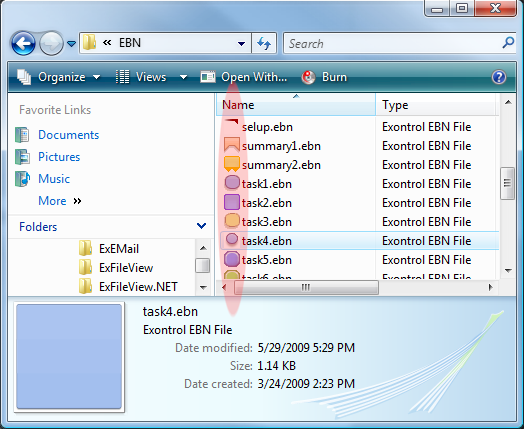
The eXButton/COM installs the WYSWYG Builder to create, view or edit EBN files. The eXButton/NET configuration does not install the EBN's builder. Please go to eXButton's download page here, and download and install the COM/ActiveX version or you can download it directly here. Once you install the eXButton/COM setup, it provides the EBN's builder, as well as a Windows Shell Extension that allows viewing the EBN files in your Windows Explorer as you would see the BMP or picture files in the thumbnail view. Also, you can view the EBN content by dragging the file from your Windows Explorer on the Exontrol's eXImages tool that can be found here.
The following screen shot shows the Windows Explorer before installing the eXButton/COM:
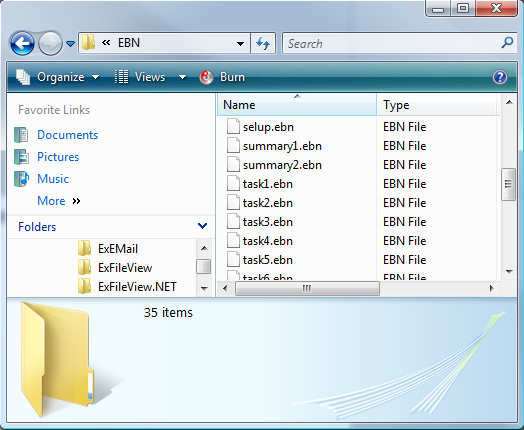
while the next screen shot shows the Windows Explorer after installing the eXButton/COM ( you can see the visual appearance for each EBN file ).
General view of the EBN builder:
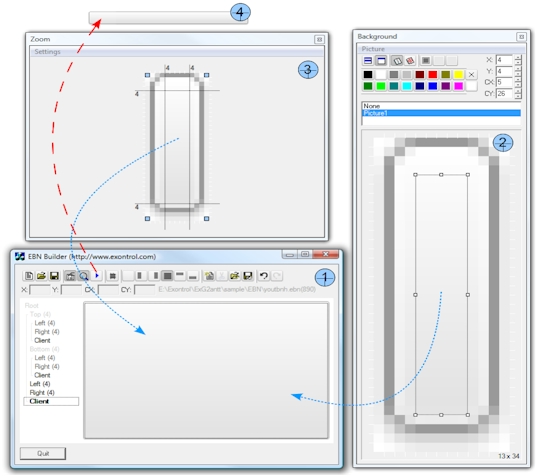
Currently, the EBN builder may show one or more panels, such as Designer, Background, Zoom and Test.
- The Designer is the main panel of the tool that displays elements that composes the EBN file/object. In the designer, you can add/remove/update any element in the EBN composition.
- The Background panel displays the list of pictures / solid colors that may be applied to any element in the EBN composition.
- The Zoom panel can be used to collect and fill the EBN elements from a screen shot, or zooming/shrinking a portion of your screen.
- The Test windows displays the current EBN to a separate window, and it is visible only if the Test button is clicked.
The following picture shows the panels with blue numbers, from 1 to 4:
Here's the step-by-step guide to follow in order to create a simple EBN file:
For instance, let's say that we need to provide support for changing the column's header in the exgrid when the cursor hovers it as in the following screen shot ( column F )
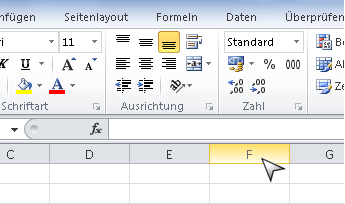
1. First step is to get the essential picture from the main picture in order to create a minimal BMP we can use as a base for creating our EBN. You can use the MS Paint for instance, just select the the column F and copy to another MS Paint so we have the following part:

Next, you can cut unnecessary parts, and finally we get the essential part as it follows:

2. The second step is running the exbutton's builder (usually it goes to "C:\Program Files\Exontrol\ExButton\Builder.exe" ) so we can take the essential picture and use in creating our new EBN.
-
In MS Paint selects the essential (or part of the) picture and press the CTRL + C so you put it in the clipboard.
-
Run Builder.exe, and "Select Copy Picture From Clipboard" from the Zoom panel so the Zoom panel shows as:
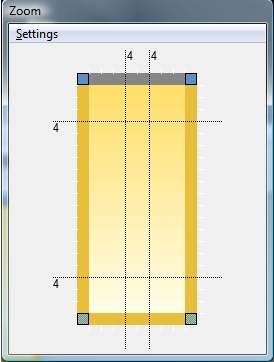
-
As you can see there are four dotted lines that helps you to adjust the corners and the edges of the EBN object. Simple hovers the cursor over each line and adjusts the lines until you get the following:
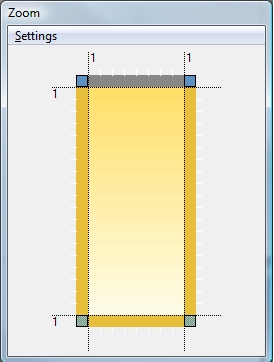
-
Now, since this screen shot contains no transparent colors, click each of 4 corners ( blue ), and drag outside, so the EBN will have no transparent colors and we get this:
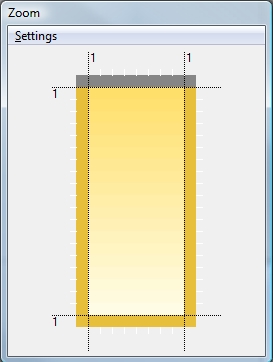
-
After all these, the first your EBN is being created and the builder should look as follows:
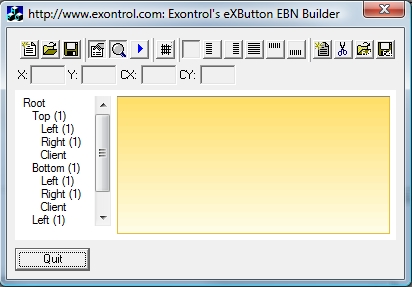
-
All you need to do now is to press the Save or Save64 ( Generates the Base64 string ) to save or create the BASE64 code to be used in the following code. Here's the result saved as excel.ebn.
Finally let's prepare the code to be used for eXGrid so the column's header is changed when cursor hovers the header as follows:
With Grid1
	.VisualAppearance.Add 1,"C:\Temp\excel.ebn"
	.Background(exCursorHoverColumn) = &H1000000
	.DrawGridLines = exAllLines
	With .Columns
		.Add "A"
		.Add "B"
		.Add "C"
	End With
End With
If we run the sample we get the following screen shot when cursor hovers the columns:
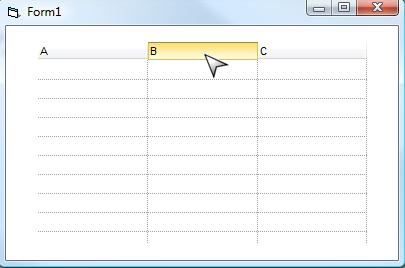
Here's the step-by-step guide to follow in order to create a complex EBN file.
For instance, let's say that we need change the visual appearance for the thumb of the control's vertical bar, as in the following screen shot

If we follow the steps for creating a simple EBN file, the image inside the thumb gets stretched and does not look nice when the vertical scroll bars is resized.
So, by following the simple tutorial we get this  ,
instead we want this:
,
instead we want this: 
In order to prevent this, we need to change the EBN file by inserting a new object that will display the fixed part only, and being in the center all the time. So, here's the steps. The first 2 are the same as you would create a simple EBN.
1. First step is to get the essential picture from the main picture in order to create a minimal BMP we can use as a base for creating our EBN. After cutting the unnecessary part of the picture we get this:

2. The second step is running the exbutton's builder (usually it goes to "C:\Program Files\Exontrol\ExButton\Builder.exe" ) so we can take the essential picture and use in creating our new EBN.
-
In MS Paint selects the essential (or part of the) picture and press the CTRL + C so you put it in the clipboard.
-
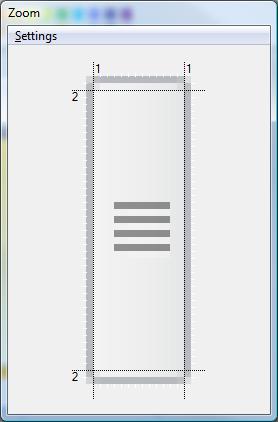
Run Builder.exe, and "Select Copy Picture From Clipboard" from the Zoom panel so the Zoom panel shows as:
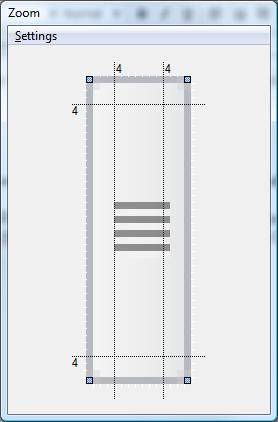
-
As you can see there are four dotted lines that helps you to adjust the corners and the edges of the EBN object. Simple hovers the cursor over each line and adjusts the lines until you get the following:
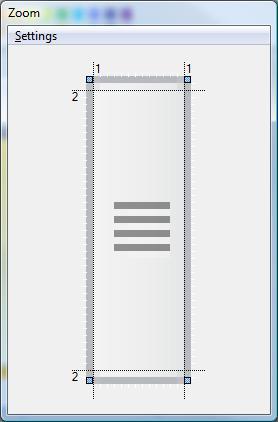
-
Now, since this screen shot contains no transparent colors, click each of 4 corners ( blue ), and drag outside, so the EBN will have no transparent colors and we get this:
-
After all these, the first your EBN is being created and the builder should look as follows:
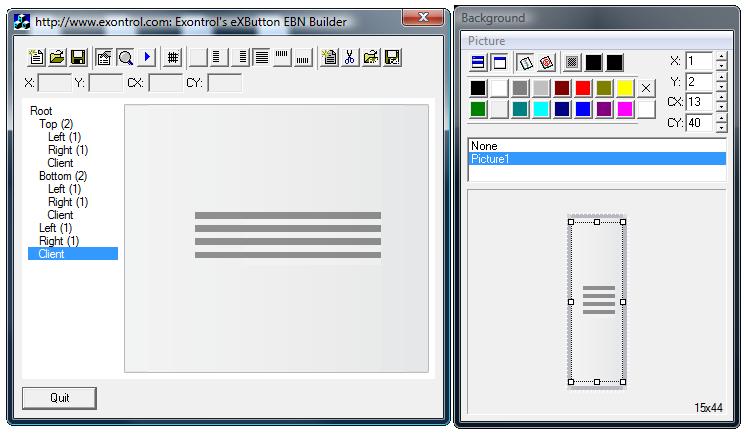
As you can see in the EBN builder, the middle part of the thumb is stretched and we do not want to look like this. So, now we need to replace that part following the steps:
3. Redefining the client area, so it shows no picture inside. Click the Client in the EBN window, then resizes the picture in the Background panel until you get the following result:
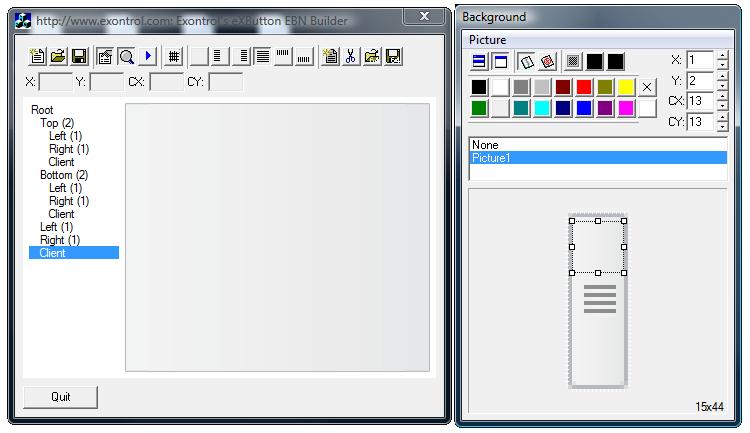
4. Adds a new object in the Client area that will show the picture on the thumb.
4-A) Adds a
new object: Click the Client in the EBN window, then Click the
Insert button ( )
to insert a new object inside. A new None (25%...) node is being added as a
child of the Client node as you can see in the following picture:
)
to insert a new object inside. A new None (25%...) node is being added as a
child of the Client node as you can see in the following picture:
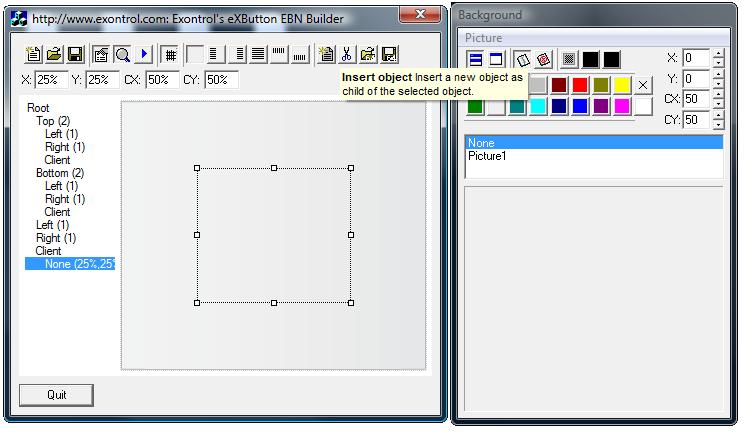
4-B) Defines the picture on the newly node: Click the newly node on the EBN window, Click the Picture1 on the Background window, and then resize the picture until you get the desired result:
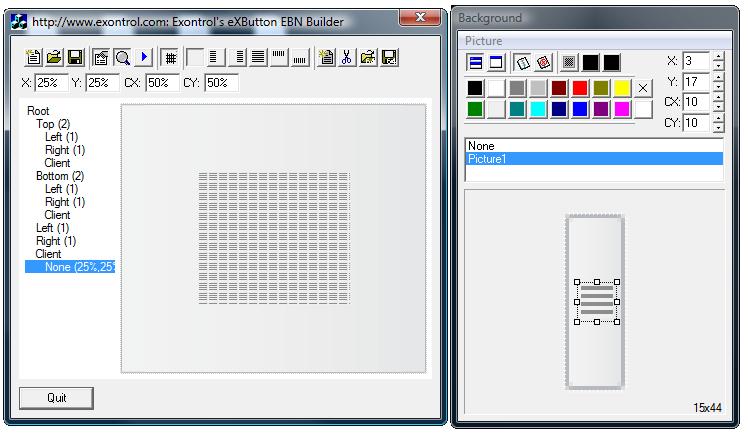
4-C) Resizes newly node so it display only the portion we need: Click the newly node on the EBN window, then go to X, Y, CX and CY fields and type 50%-5, 50%-5, 10 and 10, and finally press ENTER, as in the following screen shot:
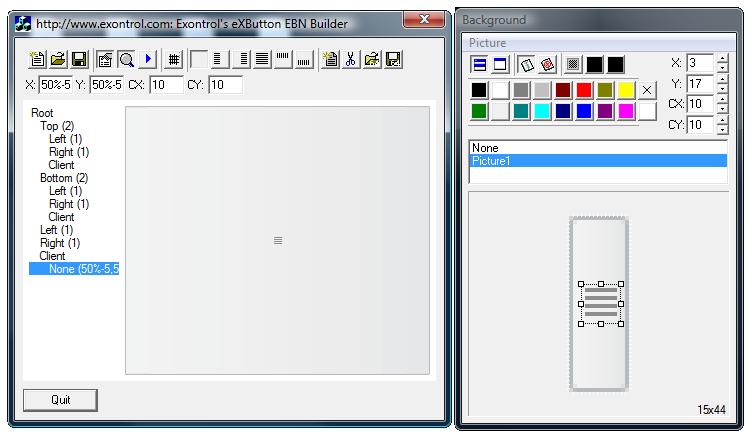
Finally, the image from the center of the thumb is not stretched when the entire EBN is resized as in the following screen shot:

Here's the steps you need to create an EBN file from a picture file (bmp, gif or jpg ):
- Locate and Run the Builder.exe ( designer ) tool in the ExButton's installation folder. ( Usually it is located C:\Program Files\Exontrol\ExButton\Sample\VC\Builder\Builder.exe ).
- Insert your picture using the Zoom\Settings\Load Picture open dialog, or drag the picture file from your Windows Explorer to the Builder tool.
- If necessary, change the size for the margins in the Zoom window.
- If necessary, change the points to specify the transparent colors, in the Zoom window
- Save the EBN file
Here's the steps you need to create an EBN file from a screenshot ( For instance, take your full screenshot by pressing the PRINT SCREEN key, or take your open window screenshot ( currently selected window ), by pressing the ALT + PRINT SCREEN key ) :
- Locate and Run the Builder.exe ( designer ) tool in the ExButton's installation folder. ( Usually it is located C:\Program Files\Exontrol\ExButton\Sample\VC\Builder\Builder.exe ).
- Insert your screen shot using the Zoom\Settings\Load Picture From Clipboard. If there is not screenshot in your clipboard, a warning message is shown.
- If your clipboard contains a screenshot, the Builder tool displays a window called Select Picture, that helps you to select the entire picture or a portion of it. Use the mouse and arrow keys to adjust the portion of the picture you need to insert to your skin file.
- If necessary, change the size for the margins in the Zoom window.
- If necessary, change the points to specify the transparent colors, in the Zoom window.
- Save the EBN file
By default, the Zoom\Settings\Load Picture or Zoom\Settings\Load Picture From Clipboard inserts a picture, assigns borders of 4 pixels wide to the skin, and the corner pixels as being transparent color for corners.
Let's say that we want to create an EBN file that looks like this: ,
so we need to start from a BMP picture that shows like this:
,
so we need to start from a BMP picture that shows like this:  ,
as you can see the corners are red.
,
as you can see the corners are red.
- Load the picture file using the
Zoom\Settings\Load Picture, and so the builder applies
the picture to the skin. The first screen shot shows the Zoom
window after loading the picture file. The second screen shot
shows the designer of the Builder tool.
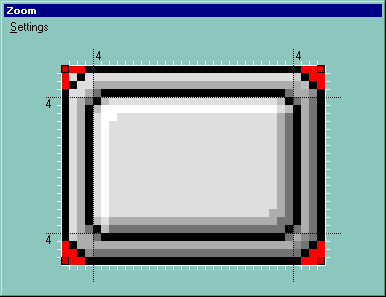 ,
,
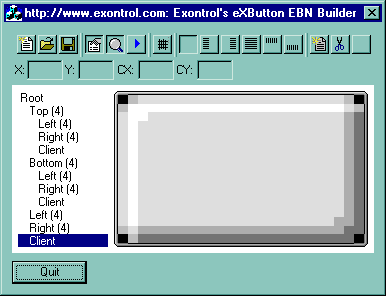
- From the Designer we can see that the client area is not
looking ok, so all we need to do is to adjust the size of the
margins. We need to drag the top margin to 7, the bottom margin
to 6, the left margin to 7, and the right margin to 7, and so
the zoom and the Designer looks like follows:
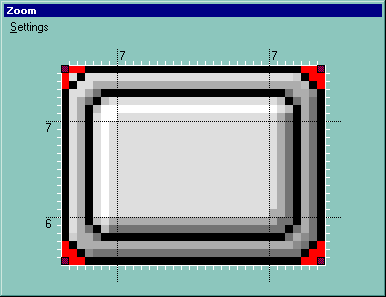 ,
,
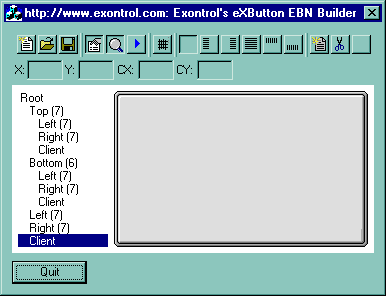
- The Zoom window shows 4 shade corners, that specify the
points that indicates the transparent colors for associated
objects. As you can see in
the designer the red color points are not show, as the each
corner has a transparent color. For instance, if in your case,
you need to get ride of the transparent color, click and drag
the shade point outside of the rectangle where it is displayed,
as we did for the top left corner, and so the Zoom and the
Designer looks like follows:
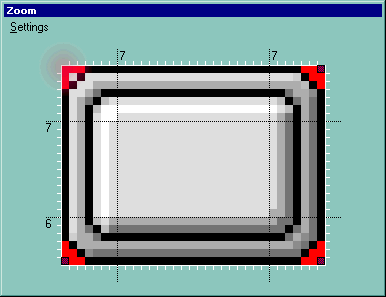 ,
,
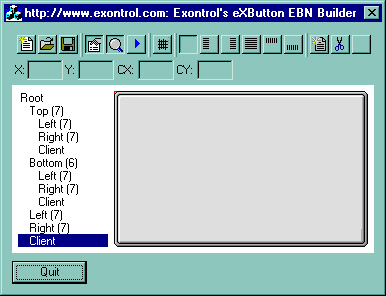
If we magnify the Designer in the top left corner, we can see the red points ( because there is no transparent color for the part, no shade point in the top left corner ):
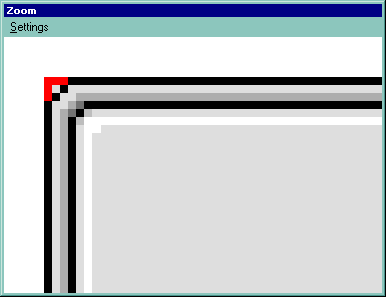
If we put back the transparent color back, ( click the left/top point in the Zoom window, in the picture area ) we get:
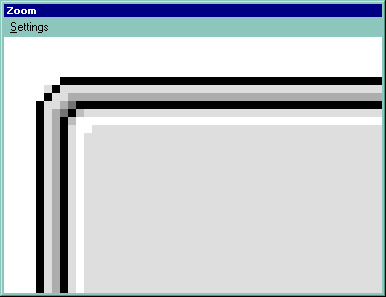
so the round corner is showing back.
The BASE64 encoded strings hold objects such as icons, images, pictures, or EBN files. In some cases, in order to avoid carrying the files with your setup you can use the BASE64 encoded strings to hard code the object. The Exontrol's eXImages tool can be used to encode files or decode BASE 64 strings.
The following screen shot shows the eXImages tool once you dragged or selecting for copy an EBN file
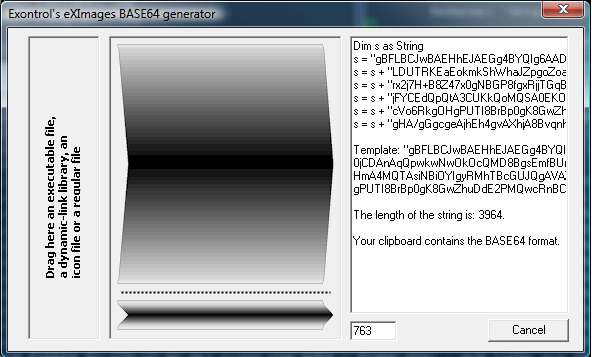
Using the eXImages tool, you can try one of the followings:
(1) · drag icon files to the left panel
(2) · drag a picture file to the middle panel
(3) · select a file using CTRL + C (Explorer)
in both cases the tool generates the BASE64 encoded strings, for your application.
~ENCODE~
(4) · select the text and press CTRL + C
(5) · select the text, copy and paste it here
in both cases the tool looks for the icons or picture being stored in the encoded string.
~DECODE~
-
Use BMP files as much as possible, because they show an accurate picture when zooming ( not compressed like GIF ot JPG ).
-
Always check the EBN file size. Use small picture files, not huge, so loading and displaying your EBN could be time consuming. By default, the EBN file is compressed, so even if you load a BMP, the EBN is compressed! Even in the case we presented we can reduce the size of the picture from
,
to  ,
and so we still keep the essential parts of the skin. In the first
case, the EBN file's size is 1,722 bytes,
where the second is 515 bytes, which
is better and they display the same skin.
,
and so we still keep the essential parts of the skin. In the first
case, the EBN file's size is 1,722 bytes,
where the second is 515 bytes, which
is better and they display the same skin. -
For parts of the skins, that just don't need to screech a picture, just assign a background color for the part if required.
-
When no needed, avoid using transparency, so it will avoid creating regions, and so EBN file could be faster.
-
You can save the EBN file as uncompressed, clicking the Save button while CTRL key is pressed.
-
Don't add multiple pictures, if you don't need them.
-
Don't add new objects that you are not planning to use them.
-
EBN 1004, adds DPI-Aware support as follows:
The "Change the size of apps on the screen" on System setting changes the apps DPI (Dots Per Inch) settings. Based on these settings, the applications that are not DPI-aware but are running on a high-DPI display setting can suffer from many visual artifacts, including incorrect scaling of UI elements, clipped text, and blurry images. The EBN 1004 introduces, the number D, which indicates the value of the number based on the current DPI. For instance, "4" indicates a 4-pixels, while "4D" indicates a 4 dots, or in pixels, is 4 * current DPI settings. So, on a DPI 100%, "4D" indicates a 4-pixels, while on a DPI 150% "4D" indicates a 6-pixels ( 4 * 150 / 100 = 6 ). Any part that EBN displays has left/top and width/height coordinates, to identify the position / size to be shown relative to its parent. In other words, "top[4,back=RGB(0,0,255)]", draws a blue line on the top side of the object's background, of 4-pixels wide, no matter of DPI scaling, while "top[4D,back=RGB(0,0,255)]", draws the line of 4-pixels wide if DPI scaling is 100%, or 6-pixels wide if DPI scaling is 150%.
-
EBN 1003, adds colorable region support as shown bellow:
The Colorable Region defines a portion of the EBN object where the EBN color is applied. The Colorable Region is defined by all points of the EBN object that are between Start and End color. Any object in the EBN, can be colorable or not-colorable, which means that the EBN color is applied or not to this region part when the color is applied to the entire EBN object. For instance, at runtime the identifier 0x1FF0000 applies blue color to all colorable parts that compose the EBN object, excluding the not-colorable objects. In other words, if your EBN shows borders, margins, shadows, ... you can specify them to keep their color when a solid color is applied to the entire EBN object.
The following table shows the same EBN object using or not using Colorable Regions:
colorable-region EBN (1003) all-colorable EBN (previous) 0x1000000 (default) 

0x10000FF (red) 

0x100FF00 (green) 

0x1FF0000 (blue) 

0x100FFFF (yellow) 

The new Colorable Region Start and the Colorable Region End buttons, of the EBN Builder are marked with red in the Background\Picture as shown bellow:
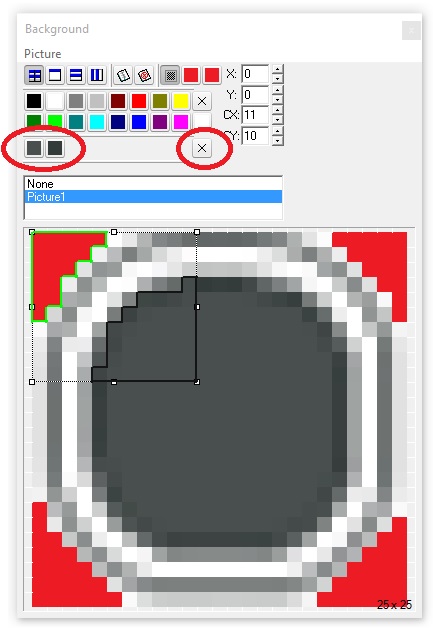
-
EBN 1002, adds horizontal or vertical stretching and not-colorable support as shown bellow:
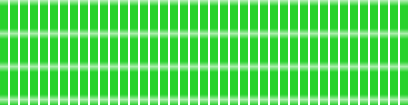
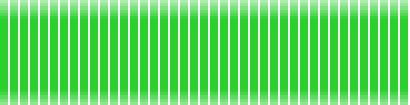
1. Horizontal/Vertical stretching, stretches horizontally/vertically the picture on the object's background, and tiles vertically/horizontally the rest. Currently, the EBN 1002 supports tile, stretch, horizontal stretch and vertical stretch.
Having the source picture like
, here's the type of stretching you can have, on the object's background:
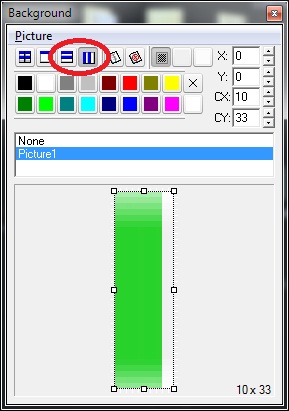
tile stretch horizontal stretch vertical stretch The new Background\Picture\Horizontal Stretch and the Background\Picture\Vertical Stretch buttons, of the EBN Builder are marked with red in the Background panel as shown bellow:
2. Colorable, Not-Colorable support, Any object in the EBN, can be colorable or not-colorable, which means that the EBN color is applied or not to this part when the color is applied to the entire EBN object. For instance, at runtime the identifier 0x1FF0000 applies blue color to all parts that compose the EBN object, excluding the not-colorable objects. In other words, if your EBN shows borders, margins, shadows, ... you can specify them to keep their color when a solid color is applied to the entire EBN object.
The following table shows EBN object with not-colorable parts ( borders and shadow ), and EBN object with all-colorable parts with different colors applied.
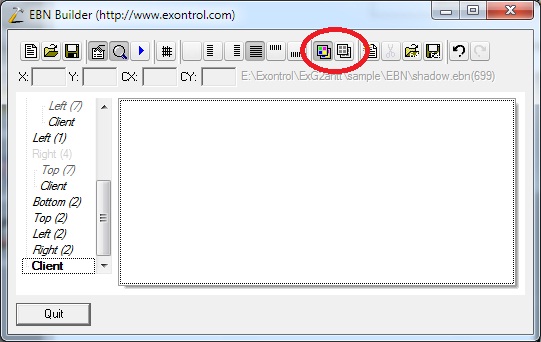
not-colorable EBN (1002) all-colorable EBN (1001) 0x1000000 (default) 0x10000FF (red) 0x100FF00 (green) 0x1FF0000 (blue) 0x100FFFF (yellow) The new Colorable and the Not-Colorable buttons, of the EBN Builder are marked with red in the main panel as shown bellow:











-
EBN 1001, initial release
Click any of the following screen shot/picture, and copy/save the TXT file associated. The TXT file is a template (x-script) file that can be applied to any of our UI components.
Here's what you can do with the TXT file being shown:
- Open the Exontrol's eXHelper tool for the component, and paste the TXT content in the middle panel. Press the CTRL+S to see the result. Right-Click the middle panel, and select the "Convert To ..." item to get the x-script template saved to your programming language such as VB/NET, C#, Delphi and so on.
- Click the control in design mode, locate the Properties item, locate the Template page, and paste the TXT content in the right panel.
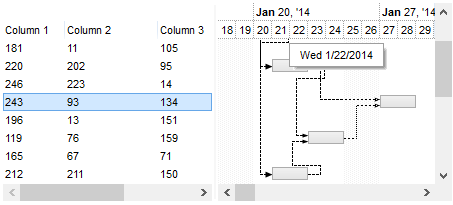
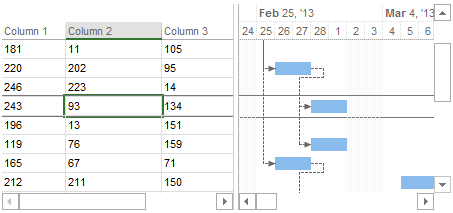
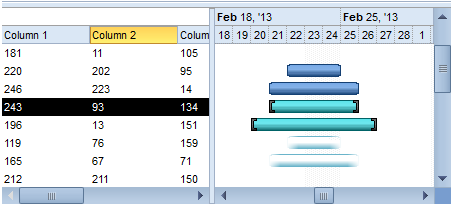
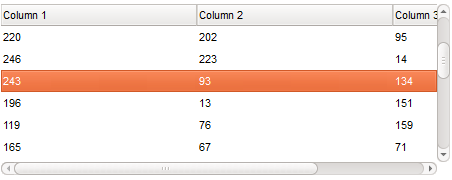
Each line in VisualAppearance context indicates an EBN file compressed and saved as BASE64 encoded strings. Most UI parts of our UI components can show any EBN content, so you can combine in any way the following templates.
|
Windows 8 Size: 16,792 bytes |
|
MS Project Light Size: 15,857 bytes |
|
MS Project Size: 32,498 bytes |
|
Ubuntu Size: 20,462 bytes |
|
ATX Size: 56,435 bytes |
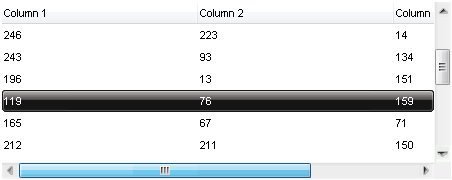
Vista Size: 37,918 bytes |
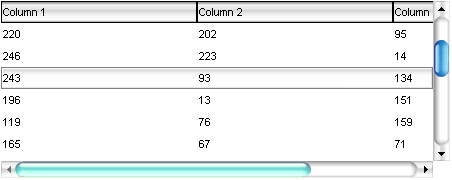
Sofa Size: 30,047 bytes |
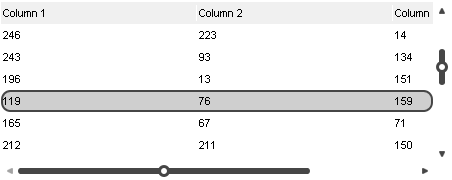
Oxid Size: 11,258 bytes |
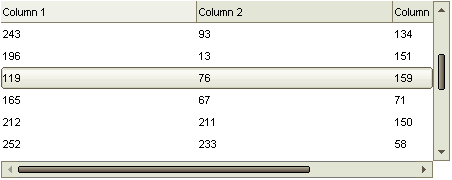
Idea Size: 15,915 bytes |
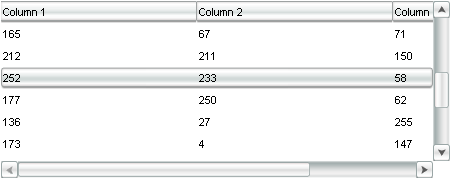 She Size: 27,478 bytes |
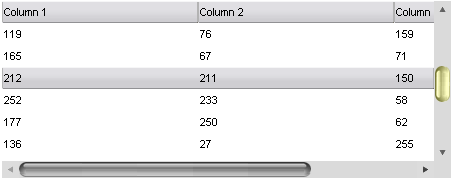
Confort Size: 15,778 bytes |
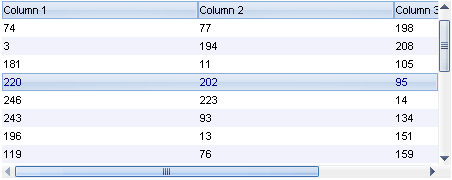
VBlue Size: 46,223 bytes |
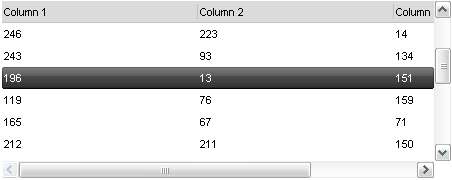 XPZune Size: 32,052 bytes |
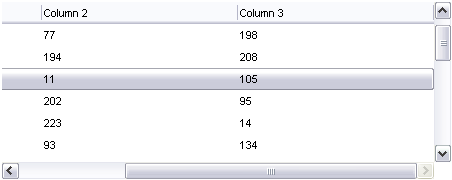
XPSilver Size: 37,959 bytes |
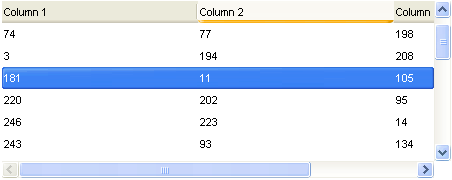
XPBlue Size: 47,031 bytes |
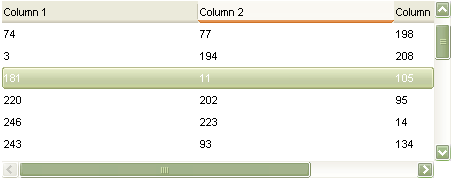
XPGreen Size: 41,935 bytes |