-

-
Products
-
COM Components
- Suite ExSuite is a complete developer solution offering a suite of UI components including combo, list, tree, grid, Gantt, gauge, and chart controls for advanced data visualization and application development.
- Agent ExDialog is a UI control that enables adding interactive dialog elements and images to applications or websites, enhancing user experience with customizable visual personalities.
- Button ExButton is an advanced Windows button control offering customizable skins, HTML captions, transparent graphics, a WYSIWYG skin builder, and complete visual control.
- CalcEdit ExCalcEdit is a calculator edit control for real-time arithmetic expression evaluation, instant calculation results, and enhanced data entry within software applications.
- Calculator ExCalc is a calculator component that provides arithmetic operations, customizable layouts, user-defined functions, and flat or drop-down calculator controls for seamless application integration.
- Calendar ExCalendar is a customizable calendar and date picker component featuring intuitive date selection, visual customization, tooltips, image support, and flexible date range handling.
- CascadeTree ExCascadeTree is a Miller Columns tree view component for visualizing hierarchical data, offering cascading lists, multi-column navigation, and efficient data exploration.
- ComboBox ExComboBox is an advanced combo box component combining a drop-down list and a single-line text box, allowing users to type a value or select from existing options.
- ContextMenu ExContextMenu is a GUI context menu component providing popup, shortcut, and right-click menus for fast access to context-specific commands and improved application usability.
- DataView ExRecord is a container control that displays a set of editors either manually defined or bound to database tables, enabling structured data entry and management.
- Edit ExEdit is an easy-to-use edit control with built-in HTML-like formatting and syntax highlighting, supporting custom tags for keywords and expressions for flexible text editing in applications.
- ExplorerBar ExplorerBar is a navigation component that reproduces the Windows XP Explorer Bar, designed for presenting large amounts of information with an intuitive interface and rich object model.
- ExplorerTree ExplorerTree is a navigation tree component that adds structured information browsing and easy navigation capabilities to applications for improved user interface organization.
- Expression Expression is a syntax editor component for defining, viewing, editing, and evaluating expressions within applications, enabling flexible expression handling and processing.
- FileView ExFileView is a file and folder view component that provides Windows Explorer-style functionality for displaying rich directory information and simulating a FolderView control within applications.
- FolderView ExFolderView is a folder tree-list view component that replicates the Windows Explorer left pane, providing hierarchical folder navigation and directory browsing within applications.
- Gantt ExGantt is a Gantt chart component for creating timeline and project scheduling visualizations, displaying activity durations as horizontal bars alongside tabular task information with customizable skins.
- Gauge ExGauge is a graphical component library for visually displaying and editing values such as levels or quantities using multi-layer views with interactive images and HTML captions.
- Graph ExGraph is a data visualization component supporting multiple chart types including line and radar charts, with printing and print preview capabilities and customizable skins for enhanced visual presentation.
- Grid ExGrid is a tree-grid component that combines grid, tree, and list views with data-bound or unbound support, offering flexible data visualization and advanced formatting features for modern application interfaces.
- Grid-Gantt ExG2antt is an editable tree-grid component with integrated Gantt chart functionality, combining grid and Gantt features in a single control with customizable skins for enhanced visualization and user experience.
- Grid-Gantt (Host) ExG2Host is a Grid-Gantt extension component with full database support (ADO, DAO, XML), enabling automatic loading and saving of hierarchical data and layout persistence for seamless data binding and synchronization.
- HTML ExHTML is a built-in HTML display and editing engine that enables rendering and editing of HTML-like content without relying on Internet Explorer, providing flexible UI layout management for text, controls, and graphics.
- ICalendar ExICalendar is a component library implementing the iCalendar data format (RFC 5545), enabling exchange of calendaring and scheduling information such as events, tasks, and free/busy data between applications.
- Label ExLabel is an HTML label component for forms and dialogs, enabling rich text display within application user interfaces.
- List ExList is an advanced list control for displaying and editing tabular data, offering customizable skins for enhanced visual appearance and flexible UI presentation.
- ListBar ExListBar is a navigation bar component modeled after Microsoft Outlook Bar, designed for displaying large amounts of information with horizontal or vertical orientation and an intuitive object model.
- MaskEdit ExMaskEdit is a masked edit control that enforces structured data entry in input fields, helping ensure consistent formatting for values such as phone numbers, dates, and other structured data.
- Menu ExMenu is a versatile menu component that simulates menu bars, popup menus, toolbars, option buttons, and pick lists, providing flexible UI navigation and interaction for applications.
- Miller ExMiller is a file and folder view component that uses Miller Columns visualization to display system directories and files in a cascading list structure for efficient navigation.
- NETHost ExNETHost is a component that enables embedding .NET Windows Forms user controls into COM-based applications, forms, and dialogs for seamless UI integration.
- OrgChart ExOrgChart is an organizational chart component for automatic generation of hierarchy diagrams, displaying nodes with HTML captions, icons, and images for clear visualization of structures and relationships.
- Pivot ExPivot is a pivot table tool for data summarization, enabling automatic sorting, counting, totaling, and averaging of tabular data with drag-and-drop field configuration.
- PopupMenu ExPopupMenu is a popup and menu bar component that enables shortcut menus, window menus, and menu buttons with a WYSIWYG editor for intuitive menu creation.
- Print ExPrint is an advanced printing component that adds print and print preview capabilities to user interfaces, enabling rendering of forms, dialogs, and UI controls such as grids, trees, lists, and calendars.
- PropertiesList ExPropertiesList is a properties grid control similar to Visual Studio's property editor, designed for efficient data input and compact, intuitive user interface property management.
- RadialMenu ExRadialMenu is a radial (pie) menu component inspired by Microsoft OneNote, offering customizable appearance and functionality through a tree-structured organization of tools and tool collections.
- Ribbon ExRibbon is a ribbon-style UI component similar to Microsoft Office Fluent interface, displaying graphical controls organized into tabbed toolbars for improved application navigation and usability.
- RolList ExRolList is an innovative list control that displays items on an elliptical shape, rotating content to keep items visible without traditional scrolling for a unique user interface experience.
- Scheduler ExSchedule is a scheduling component that enables appointment management and scheduling functionality within applications, providing structured planning and calendar-based organization.
- ScrollBar ExScrollBar is a customizable scrollbar component that simulates vertical and horizontal scrollbars, sliders, tracks, volume controls, and gauge interfaces for application UI design.
- ShellView ExShellView is a file list view component that replicates the Windows Explorer right pane, providing detailed shell-based file browsing within applications.
- SkinBox ExSkinBox is a skinnable message and input box component that supports HTML-formatted content and custom images for enhanced dialog presentation.
- Slider ExSlider is a skinnable slider component for forms and dialogs, enabling customizable slider controls for selecting values within applications.
- SplitBar ExSplitBar is a splitter component that enables dynamic resizing of docked controls by dragging a split bar between panels in horizontal or vertical layouts.
- StatusBar ExStatusBar is a fully customizable status bar component featuring CRD-based layout, skinning, HTML support, tooltips, icons, owner draw, and progress bar capabilities for rich application interfaces.
- Surface ExSurface is a visual layout component for organizing objects on a surface to create organigrams, diagrams, graphs, flowcharts, and other structured visual representations.
- Swimlane ExSwimLane is a swim lane diagram component for creating process flow visualizations that define roles, responsibilities, and workflows in horizontal or vertical layouts.
- Tab ExTab is a skin-based tab control for organizing interface content using tabs, similar to notebook dividers or file cabinet labels, enabling structured navigation within applications.
- Thumbnail ExThumbnail is a thumbnail view component that displays reduced-size previews of files and images, making it easier to browse and recognize visual content in applications.
- ToolBar ExToolBar is a customizable toolbar component that organizes buttons, icons, dropdowns, and editors into rows or columns, enabling quick access to application functions with skin-based appearance customization.
- ToolTip ExToolTip is a tooltip component that provides enhanced tooltip functionality for applications, displaying contextual information when users hover over interface elements.
- Tree ExTree is an advanced tree view component supporting single and multi-column tree structures, list, and listview modes for flexible hierarchical data display in applications.
- TreeCube ExTreeCube is a visualization library that provides fisheye and cube-map representations for components such as calendars and multi-column tree views, enhancing data exploration.
- XMLGrid ExXMLGrid is an XML-style grid and tree view component that provides high-performance data visualization with advanced formatting features and customizable skins for enhanced UI appearance.
-
NET Components
- Suite ExSuite/NET is a complete developer solution offering a suite of UI components including combo, list, tree, grid, Gantt, gauge, and chart controls for advanced data visualization and application development.
- Agent ExDialog/NET is a UI control that enables adding interactive dialog elements and images to applications or websites, enhancing user experience with customizable visual personalities.
- Button ExButton/NET is an advanced Windows button control offering customizable skins, HTML captions, transparent graphics, a WYSIWYG skin builder, and complete visual control.
- CalcEdit ExCalcEdit/NET is a calculator edit control for real-time arithmetic expression evaluation, instant calculation results, and enhanced data entry within software applications.
- Calculator ExCalc/NET is a calculator component that provides arithmetic operations, customizable layouts, user-defined functions, and flat or drop-down calculator controls for seamless application integration.
- Calendar ExCalendar/NET is a customizable calendar and date picker component featuring intuitive date selection, visual customization, tooltips, image support, and flexible date range handling.
- CascadeTree ExCascadeTree/NET is a Miller Columns tree view component for visualizing hierarchical data, offering cascading lists, multi-column navigation, and efficient data exploration.
- ComboBox ExComboBox/NET is an advanced combo box component combining a drop-down list and a single-line text box, allowing users to type a value or select from existing options.
- ContextMenu ExContextMenu/NET is a GUI context menu component providing popup, shortcut, and right-click menus for fast access to context-specific commands and improved application usability.
- DataView ExRecord/NET is a container control that displays a set of editors either manually defined or bound to database tables, enabling structured data entry and management.
- Edit ExEdit/NET is an easy-to-use edit control with built-in HTML-like formatting and syntax highlighting, supporting custom tags for keywords and expressions for flexible text editing in applications.
- ExplorerBar ExplorerBar/NET is a navigation component that reproduces the Windows XP Explorer Bar, designed for presenting large amounts of information with an intuitive interface and rich object model.
- ExplorerTree ExplorerTree/NET is a navigation tree component that adds structured information browsing and easy navigation capabilities to applications for improved user interface organization.
- Expression Expression/NET is a syntax editor component for defining, viewing, editing, and evaluating expressions within applications, enabling flexible expression handling and processing.
- FileView ExFileView/NET is a file and folder view component that provides Windows Explorer-style functionality for displaying rich directory information and simulating a FolderView control within applications.
- FolderView ExFolderView/NET is a folder tree-list view component that replicates the Windows Explorer left pane, providing hierarchical folder navigation and directory browsing within applications.
- Gantt ExGantt/NET is a Gantt chart component for creating timeline and project scheduling visualizations, displaying activity durations as horizontal bars alongside tabular task information with customizable skins.
- Gauge ExGauge/NET is a graphical component library for visually displaying and editing values such as levels or quantities using multi-layer views with interactive images and HTML captions.
- Graph ExGraph/NET is a data visualization component supporting multiple chart types including line and radar charts, with printing and print preview capabilities and customizable skins for enhanced visual presentation.
- Grid ExGrid/NET is a tree-grid component that combines grid, tree, and list views with data-bound or unbound support, offering flexible data visualization and advanced formatting features for modern application interfaces.
- Grid-Gantt ExG2antt/NET is an editable tree-grid component with integrated Gantt chart functionality, combining grid and Gantt features in a single control with customizable skins for enhanced visualization and user experience.
- HTML ExHTML/NET is a built-in HTML display and editing engine that enables rendering and editing of HTML-like content without relying on Internet Explorer, providing flexible UI layout management for text, controls, and graphics.
- ICalendar ExICalendar/NET is a component library implementing the iCalendar data format (RFC 5545), enabling exchange of calendaring and scheduling information such as events, tasks, and free/busy data between applications.
- Label ExLabel/NET is an HTML label component for forms and dialogs, enabling rich text display within application user interfaces.
- List ExList/NET is an advanced list control for displaying and editing tabular data, offering customizable skins for enhanced visual appearance and flexible UI presentation.
- ListBar ExListBar/NET is a navigation bar component modeled after Microsoft Outlook Bar, designed for displaying large amounts of information with horizontal or vertical orientation and an intuitive object model.
- MaskEdit ExMaskEdit/NET is a masked edit control that enforces structured data entry in input fields, helping ensure consistent formatting for values such as phone numbers, dates, and other structured data.
- Miller ExMiller/NET is a file and folder view component that uses Miller Columns visualization to display system directories and files in a cascading list structure for efficient navigation.
- NETHost ExNETHost/NET is a component that enables embedding .NET Windows Forms user controls into COM-based applications, forms, and dialogs for seamless UI integration.
- OrgChart ExOrgChart/NET is an organizational chart component for automatic generation of hierarchy diagrams, displaying nodes with HTML captions, icons, and images for clear visualization of structures and relationships.
- Pivot ExPivot/NET is a pivot table tool for data summarization, enabling automatic sorting, counting, totaling, and averaging of tabular data with drag-and-drop field configuration.
- Print ExPrint/NET is an advanced printing component that adds print and print preview capabilities to user interfaces, enabling rendering of forms, dialogs, and UI controls such as grids, trees, lists, and calendars.
- PropertiesList ExPropertiesList/NET is a properties grid control similar to Visual Studio's property editor, designed for efficient data input and compact, intuitive user interface property management.
- RadialMenu ExRadialMenu/NET is a radial (pie) menu component inspired by Microsoft OneNote, offering customizable appearance and functionality through a tree-structured organization of tools and tool collections.
- Ribbon ExRibbon/NET is a ribbon-style UI component similar to Microsoft Office Fluent interface, displaying graphical controls organized into tabbed toolbars for improved application navigation and usability.
- Scheduler ExSchedule/NET is a scheduling component that enables appointment management and scheduling functionality within applications, providing structured planning and calendar-based organization.
- ScrollBar ExScrollBar/NET is a customizable scrollbar component that simulates vertical and horizontal scrollbars, sliders, tracks, volume controls, and gauge interfaces for application UI design.
- ShellView ExShellView/NET is a file list view component that replicates the Windows Explorer right pane, providing detailed shell-based file browsing within applications.
- SkinBox ExSkinBox/NET is a skinnable message and input box component that supports HTML-formatted content and custom images for enhanced dialog presentation.
- Slider ExSlider/NET is a skinnable slider component for forms and dialogs, enabling customizable slider controls for selecting values within applications.
- SplitBar ExSplitBar/NET is a splitter component that enables dynamic resizing of docked controls by dragging a split bar between panels in horizontal or vertical layouts.
- StatusBar ExStatusBar/NET is a fully customizable status bar component featuring CRD-based layout, skinning, HTML support, tooltips, icons, owner draw, and progress bar capabilities for rich application interfaces.
- Surface ExSurface/NET is a visual layout component for organizing objects on a surface to create organigrams, diagrams, graphs, flowcharts, and other structured visual representations.
- Swimlane ExSwimlane/NET is a swim lane diagram component for creating process flow visualizations that define roles, responsibilities, and workflows in horizontal or vertical layouts.
- Tab ExTab/NET is a skin-based tab control for organizing interface content using tabs, similar to notebook dividers or file cabinet labels, enabling structured navigation within applications.
- Thumbnail ExThumbnail/NET is a thumbnail view component that displays reduced-size previews of files and images, making it easier to browse and recognize visual content in applications.
- ToolBar ExToolBar/NET is a customizable toolbar component that organizes buttons, icons, dropdowns, and editors into rows or columns, enabling quick access to application functions with skin-based appearance customization.
- ToolTip ExToolTip/NET is a tooltip component that provides enhanced tooltip functionality for applications, displaying contextual information when users hover over interface elements.
- Tree ExTree/NET is an advanced tree view component supporting single and multi-column tree structures, list, and listview modes for flexible hierarchical data display in applications.
- TreeCube ExTreeCube/NET is a visualization library that provides fisheye and cube-map representations for components such as calendars and multi-column tree views, enhancing data exploration.
- XMLGrid ExXMLGrid is an XML-style grid and tree view component that provides high-performance data visualization with advanced formatting features and customizable skins for enhanced UI appearance.
-
WPF Components
- Suite ExSuite/WPF is a complete developer solution offering a suite of UI components including combo, list, tree, grid, Gantt, gauge, and chart controls for advanced data visualization and application development.
- CalcEdit ExCalcEdit/WPF is a calculator edit control for real-time arithmetic expression evaluation, instant calculation results, and enhanced data entry within software applications.
- Calendar ExCalendar/WPF is a customizable calendar and date picker component featuring intuitive date selection, visual customization, tooltips, image support, and flexible date range handling.
- CascadeTree ExCascadeTree/WPF is a Miller Columns tree view component for visualizing hierarchical data, offering cascading lists, multi-column navigation, and efficient data exploration.
- ComboBox ExComboBox/WPF is an advanced combo box component combining a drop-down list and a single-line text box, allowing users to type a value or select from existing options.
- ContextMenu ExContextMenu/WPF is a GUI context menu component providing popup, shortcut, and right-click menus for fast access to context-specific commands and improved application usability.
- Edit ExEdit/WPF is an easy-to-use edit control with built-in HTML-like formatting and syntax highlighting, supporting custom tags for keywords and expressions for flexible text editing in applications.
- ExplorerBar ExplorerBar/WPF is a navigation component that reproduces the Windows XP Explorer Bar, designed for presenting large amounts of information with an intuitive interface and rich object model.
- ExplorerTree ExplorerTree/WPF is a navigation tree component that adds structured information browsing and easy navigation capabilities to applications for improved user interface organization.
- Expression Expression/WPF is a syntax editor component for defining, viewing, editing, and evaluating expressions within applications, enabling flexible expression handling and processing.
- FileView ExFileView/WPF is a file and folder view component that provides Windows Explorer-style functionality for displaying rich directory information and simulating a FolderView control within applications.
- Gantt ExGantt/WPF is a Gantt chart component for creating timeline and project scheduling visualizations, displaying activity durations as horizontal bars alongside tabular task information with customizable skins.
- Gauge ExGauge/WPF is a graphical component library for visually displaying and editing values such as levels or quantities using multi-layer views with interactive images and HTML captions.
- Graph ExGraph/WPF is a data visualization component supporting multiple chart types including line and radar charts, with printing and print preview capabilities and customizable skins for enhanced visual presentation.
- Grid ExGrid/WPF is a tree-grid component that combines grid, tree, and list views with data-bound or unbound support, offering flexible data visualization and advanced formatting features for modern application interfaces.
- Grid-Gantt ExG2antt/WPF is an editable tree-grid component with integrated Gantt chart functionality, combining grid and Gantt features in a single control with customizable skins for enhanced visualization and user experience.
- HTML ExHTML/WPF is a built-in HTML display and editing engine that enables rendering and editing of HTML-like content without relying on Internet Explorer, providing flexible UI layout management for text, controls, and graphics.
- List ExList/WPF is an advanced list control for displaying and editing tabular data, offering customizable skins for enhanced visual appearance and flexible UI presentation.
- ListBar ExListBar/WPF is a navigation bar component modeled after Microsoft Outlook Bar, designed for displaying large amounts of information with horizontal or vertical orientation and an intuitive object model.
- Miller ExMiller/WPF is a file and folder view component that uses Miller Columns visualization to display system directories and files in a cascading list structure for efficient navigation.
- OrgChart ExOrgChart/WPF is an organizational chart component for automatic generation of hierarchy diagrams, displaying nodes with HTML captions, icons, and images for clear visualization of structures and relationships.
- Pivot ExPivot/WPF is a pivot table tool for data summarization, enabling automatic sorting, counting, totaling, and averaging of tabular data with drag-and-drop field configuration.
- PropertiesList ExPropertiesList/WPF is a properties grid control similar to Visual Studio's property editor, designed for efficient data input and compact, intuitive user interface property management.
- RadialMenu ExRadialMenu/WPF is a radial (pie) menu component inspired by Microsoft OneNote, offering customizable appearance and functionality through a tree-structured organization of tools and tool collections.
- Ribbon ExRibbon/WPF is a ribbon-style UI component similar to Microsoft Office Fluent interface, displaying graphical controls organized into tabbed toolbars for improved application navigation and usability.
- Scheduler ExSchedule/WPF is a scheduling component that enables appointment management and scheduling functionality within applications, providing structured planning and calendar-based organization.
- Surface ExSurface/WPF is a visual layout component for organizing objects on a surface to create organigrams, diagrams, graphs, flowcharts, and other structured visual representations.
- Swimlane ExSwimlane/WPF is a swim lane diagram component for creating process flow visualizations that define roles, responsibilities, and workflows in horizontal or vertical layouts.
- Thumbnail ExThumbnail/WPF is a thumbnail view component that displays reduced-size previews of files and images, making it easier to browse and recognize visual content in applications.
- ToolBar ExToolBar/WPF is a customizable toolbar component that organizes buttons, icons, dropdowns, and editors into rows or columns, enabling quick access to application functions with skin-based appearance customization.
- Tree ExTree/WPF is an advanced tree view component supporting single and multi-column tree structures, list, and listview modes for flexible hierarchical data display in applications.
- TreeCube ExTreeCube/WPF is a visualization library that provides fisheye and cube-map representations for components such as calendars and multi-column tree views, enhancing data exploration.
- XMLGrid ExXMLGrid is an XML-style grid and tree view component that provides high-performance data visualization with advanced formatting features and customizable skins for enhanced UI appearance.
-
JS Components
- Calendar ExCalendar/JS is a customizable calendar and date picker component featuring intuitive date selection, visual customization, tooltips, image support, and flexible date range handling.
- ComboBox ExComboBox/JS is an advanced combo box component combining a drop-down list and a single-line text box, allowing users to type a value or select from existing options.
- Gantt ExGantt/JS is a Gantt chart component for creating timeline and project scheduling visualizations, displaying activity durations as horizontal bars alongside tabular task information with customizable skins.
- Gauge ExGauge/JS is a graphical component library for visually displaying and editing values such as levels or quantities using multi-layer views with interactive images and HTML captions.
- Graph ExGraph/JS is a data visualization component supporting multiple chart types including line and radar charts, with printing and print preview capabilities and customizable skins for enhanced visual presentation.
- ICalendar ExICalendar/JS is a component library implementing the iCalendar data format (RFC 5545), enabling exchange of calendaring and scheduling information such as events, tasks, and free/busy data between applications.
- Menu ExMenu/JS is a versatile menu component that simulates menu bars, popup menus, toolbars, option buttons, and pick lists, providing flexible UI navigation and interaction for applications.
- OrgChart ExOrgChart/JS is an organizational chart component for automatic generation of hierarchy diagrams, displaying nodes with HTML captions, icons, and images for clear visualization of structures and relationships.
- Pivot ExPivot/JS is a pivot table tool for data summarization, enabling automatic sorting, counting, totaling, and averaging of tabular data with drag-and-drop field configuration.
- RadialMenu ExRadialMenu/JS is a radial (pie) menu component inspired by Microsoft OneNote, offering customizable appearance and functionality through a tree-structured organization of tools and tool collections.
- Rollist ExRollist/JS is an innovative list control that displays items on an elliptical shape, rotating content to keep items visible without traditional scrolling for a unique user interface experience.
- Scheduler ExSchedule/JS is a scheduling component that enables appointment management and scheduling functionality within applications, providing structured planning and calendar-based organization.
- ScrollBar ExScrollBar/JS is a customizable scrollbar component that simulates vertical and horizontal scrollbars, sliders, tracks, volume controls, and gauge interfaces for application UI design.
- Surface ExSurface/JS is a visual layout component for organizing objects on a surface to create organigrams, diagrams, graphs, flowcharts, and other structured visual representations.
- Swimlane ExSwimlane/JS is a swim lane diagram component for creating process flow visualizations that define roles, responsibilities, and workflows in horizontal or vertical layouts.
- Tree ExTree/JS is an advanced tree view component supporting single and multi-column tree structures, list, and listview modes for flexible hierarchical data display in applications.
-
Tools
- ExHelper (how to tool) ExHelper is a developer tool that helps quickly find answers and source code examples for UI component usage, while allowing real-time code editing and instant result preview.
- ExInstaller (installer/uninstaller tool) ExInstaller is a software installation component and API used for installing, maintaining, and removing software products through packaged installation files.
- ExImages (BASE64 tool) ExImages is a Base64 encoder and decoder tool for converting images, icons, and picture files into Base64 strings for use in visual appearance and HTML image methods.
- ExEBN (skinning tool) ExEBN is a tool for viewing, creating, and editing EBN files, enabling management of UI element structures organized as hierarchical trees of parent and child elements.
- ExETB (skinning tool for eXTab) ExETB is a tool for viewing, creating, and editing ETB files used for defining skins for the ExTab component, where UI elements are structured in a hierarchical tree of parent and child relationships.
- ExCRD (layout tool) ExCRD (Exontrol Custom Row Designer) is a WYSIWYG layout design tool for creating custom cell, row, node, and column structures, generating CRD strings for flexible and readable UI layout definitions.
-
COM Components
- Download↓
-
FAQ
- General
- ABL - OpenEdge
- AutoIt - AutoItScript
- ASP.NET
- C++
- C++ Builder
- CICODE (Citect SCADA)
- Clarion
- DBASE Plus
- Delphi
- JavaScript (JS)
- JScript (/COM IE)
- LABView - National Instruments
- Microsoft Dynamics 365
- Microsoft Dynamics Ax - Axapta (X++)
- Microsoft Dynamics NAV (C/AL)
- Microsoft Office - Access/Excel/Word
- NET Framework (C#, VB/NET)
- PowerBuilder
- VB (VB6, VBA)
- VBScript
- VFP
- Visual DataFlex (Data Access)
- WPF
- Xbase++
- Get Started
- Testimonials
- Gallery
- General
- Contact
If this is your first time looking at the component's documentation and you'd like to use it, follow these steps to learn how to add the component to a form, write code, and handle events. This tutorial will guide you through getting started with programming the eXG2antt component. The process is similar for other components as well.
info If the /NET is listed in the programming language name it means that the section is applied to /NET version of the component, if the /WPF is listed in the programming language name it means that the section is applied to WPF version of the component, else the COM or ActiveX version is being used. For instance, the VB.NET ( /WPF ) specifies that the /WPF component is using on VB.NET programming language. The VB.NET ( /COM ) and C# ( /COM ) indicates that the /COM or ActiveX version is using on VB.NET/C# programming language
The tutorial shows adding and using the component for the following programming languages:
JS / JavaScript
The following tutorials show:
- inserting the component to a form/dialog
- coding or programming the component
- reference the component's library
- print and print preview
- skinning the component, or changing it's visual appearance
- using the template feature ( available for /COM version )
- handling events
- Access. Click the More Controls icon in the Toolbox, locate and select the ExG2antt Chart ActiveX Control in the shortcut menu being opened. Click the form and drag the cursor to a new position, so the control is being inserted to your form.
- Excel. Insert an UserForm to your Project. Go to VBA (ALT + F11), select the project, rigth click and select Insert\UserForm. Click the Additional Controls... icon in the Toolbox, locate and select the ExG2antt Chart ActiveX Control in the shortcut menu being opened. Drag and drop the newly inserted icon into the Toolbox, then place it onto the form at your desired location.
- VB6. Select the Project\Components (CTRL+T) and locate the ExG2antt Control Library, check it, and click the OK button. The G2antt icon shows in the Toolbox, double click it or select and put it to your form.
- twinBASIC. Select the Project\References, select Available COM References, type "exg2antt", check the ExG2antt 1.0 Control Library, and save changes. Select G2antt from the Toolbox, click the form, and drag the cursor to insert the control into the form.
- VFP. Select Tools\Options\Controls and locate the ExG2antt Chart ActiveX Control in Selected list box. Check it, and click the Set As Default, then click OK. The ExG2antt icon is shown in the Form Controls toolbox, click it, so the cursor is changed, go to the for and put it ( click and drag the cursor to a new position ).
- VB.NET ( /COM ). Right click the Toolbox, select the Choose Items, and then select the COM Components page, locate the ExG2antt Chart ActiveX Control, check it, and click ok. The toolbox includes the ExG2antt Chart ActiveX Control icon, double click it.
- VB.NET ( /NET ). Right click the Toolbox, select the Choose Items, and then select the .NET Framework Components page, click the Browse button, so the Open file dialog is shown. Locate the exontrol.exg2antt.dll ( usually it goes to the C:\Program Files\Exontrol\ExG2antt.NET folder ), select it, and click OK, so the .NET Framework Components list displays a new checked items called exg2antt. Click ok. The toolbox includes the exg2antt icon, double click it.
- VB.NET ( /WPF ). Right click the Toolbox, select the Choose Items, and then select the WPF Components page, click the Browse button, so the Open file dialog is shown. Locate the wpf.exontrol.exg2antt.dll ( usually it goes to the C:\Program Files\Exontrol\ExG2antt.WPF folder ), select it, and click OK, so the WPF Components list displays a new checked items called exg2antt. Click ok. The toolbox includes the exg2antt icon, double click it.
- C# ( /COM ). Right click the Toolbox, select the Choose Items, and then select the COM Components page, locate the ExG2antt Chart ActiveX Control, check it, and click ok. The toolbox includes the ExG2antt Chart ActiveX Control icon, double click it.
- C# ( /NET ). Right click the Toolbox, select the Choose Items, and then select the .NET Framework Components page, click the Browse button, so the Open file dialog is shown. Locate the exontrol.exg2antt.dll ( usually it goes to the C:\Program Files\Exontrol\ExG2antt.NET folder ), select it, and click OK, so the .NET Framework Components list displays a new checked items called exg2antt. Click ok. The toolbox includes the exg2antt icon, double click it.
- C# ( /WPF ). Right click the Toolbox, select the Choose Items, and then select the WPF Components page, click the Browse button, so the Open file dialog is shown. Locate the wpf.exontrol.exg2antt.dll ( usually it goes to the C:\Program Files\Exontrol\ExG2antt.WPF folder ), select it, and click OK, so the COM Components list displays a new checked items called exg2antt. Click ok. The toolbox includes the exg2antt icon, double click it.
- C++ (6.0). Select the dialog where you need to insert the control. Right click, and select the Insert ActiveX control, locate and select the ExG2antt Chart ActiveX Control and then click ok. Select the Properties of the Dialog, and click the Styles page, and check the Clip siblings and Clip children styles. This will prevent flickering when the form is resized. Invoke the MFC ClassWizard ( CTRL + W, or select the control and then right click, and the select ClassWizard item in the shortcut menu ), click the Member Variables page, select the IDC_G2ANTT1 identifier in the Control IDs list, and click the Add Variable ... button, so a member variable is added. Confirm the classes going to be added to your project and select OK. Specify the name of the member variable being inserted as m_g2antt for instance. Click OK, and the Close the MFC ClassWizard, by clicking again the OK button.
- C++ (VS 2005,2008,...). Select the dialog in design mode, where you need to insert the control, in the Resource \ Dialog section. Right click, and select the Insert ActiveX control, locate and select the ExG2antt Chart ActiveX Control and then click ok. The control is automatically added to your dialog. In the same time, you can change the Clip Children and Clip Siblings properties of the dialog, so the control inside will not flicker when resizing the form or the dialog. Select the control in design mode, and then right click, and select the Add Variable shortcut menu, specify the name of the variable to be created ( Variable name field ), m_g2antt1 for instance, and then click Finish button.
- C++ Builder (2009). Select the "Component \Import Component..." and then "Import ActiveX Control" or "Import .NET Assembly", depending on what version you are about to import. If ActiveX, select the ExG2antt Control Library from the list of "Registered ActiveX Controls", and then click Next. You will be informed of the "Generated import file", Check the "Generate Component Wrappers", Click Next, and select "Install To New Package" , Click Next, and type the name of the new package as being exg2antt, Click Finish. The exgantt.bpl package is generated and installed. Select the Form where you want to insert the component, and then locate the TG2antt in the ActiveX section of the IDE's Tool Palette. Double click it or drag it to your form, so the component will be inserted to the form. Activate the Project that contains the form, so you can run it, else the Package will be activated, for which you will be asked for parameters to run. Note that in case you are importing the /NET Assembly of the control, you must click Add in the "Import Component" dialog, and locate the file exontrol.exg2antt.dll ( usually it goes to the C:\Program Files\Exontrol\ExG2antt.NET folder ).
- X++ (Dynamics Ax 2009) Click the Application Object Tree (AOT), so the AOT window is opened. Open the Forms folder, and then create a new form, or select an existing one. Expands the form being selected, so you can see the Designs item, and locate the Design node. Right-click the Design node for the form, and then select New Control. Select ActiveX from the submenu. Choose the control that you want to insert, in our case, ExG2antt Chart ActiveX Control. Click the Properties of the newly ActiveX member inserted, and go to the Name and type exg2antt1, so you assign a name for your component.
- Delphi (2009). Select the "Component \Import Component..." and then "Import ActiveX Control" or "Import .NET Assembly", depending on what version you are about to import. If ActiveX, select the ExG2antt Control Library from the list of "Registered ActiveX Controls", and then click Next. You will be informed of the "Generated import file", Check the "Generate Component Wrappers", Click Next, and select "Install To New Package" , Click Next, and type the name of the new package as being exg2antt, Click Finish. The exgantt.bpl package is generated and installed. Select the Form where you want to insert the component, and then locate the TG2antt in the ActiveX section of the IDE's Tool Palette. Double click it or drag it to your form, so the component will be inserted to the form. Activate the Project that contains the form, so you can run it, else the Package will be activated, for which you will be asked for parameters to run. Note that in case you are importing the /NET Assembly of the control, you must click Add in the "Import Component" dialog, and locate the file exontrol.exg2antt.dll ( usually it goes to the C:\Program Files\Exontrol\ExG2antt.NET folder ).
- Clarion. Put OCX control on Window, name it like ?Gantt. At window.Init, put this code: ?Gantt{PROP:Create} = 'Exontrol.G2antt.1\!XXXXXXXX' where XXXXXXXX is runtime license, OR - Put OCX control on Window, name it like ?Gantt. Under Object type: enter Exontrol.G2antt.1, under Storage type: enter something like this: Gantt.prp\!GanttProperty. Then you can use Propertis of Gantt contril, but must distribute Gantt.prp
- PowerBuilder (Classic). Add or open the Window where the control should be hosted/displayed. Open the "Layout" tab of the Window. Click the Insert\Control\OLE... from the main menu. A new dialog, Insert Object is displayed, and select the Insert Control page, where you have to look for the ExG2antt Chart ActiveX Control in the Control Type list. Double Click the ExG2antt Chart ActiveX Control. The Insert Object dialog is closed, and the Plus arrow is shown. Click the Window ( in the Layout page ) so you can specify the portion of the window to display the newly inserted control. The name of the new control being inserted is ole_1 of the OLECustomControl type. If the application has no script for open event, add the script to open the Window, as open(twindow), where twindow is the name of the Window to host the control.
- dBASE Plus. Open the form in design mode, where you need to insert the component. Open the "Component Palette" tool, and go to ActiveX page. Right click on page, and select "Set Up ActiveX Components..." from the context menu. A "Set Up ActiveX Components" dialog is opened, and in the Available components list looks for "ExG2antt Chart ActiveX Control" and select or double click it, so the ExG2antt Chart ActiveX Control will be shown in the Selected Components list. Click OK, and so the ActiveX page of the "Component Palette" tool, must include the newly inserted component, in this case the ExG2antt control. Now, select the form in design mode, and click the icon of the newly inserted control in the ActiveX page, and go to the form to include the newly object. Resize the newly activex. The name of the newly inserted object is activex1. In the following snippets of code, the activex1 will indicates the name of the ExG2antt control hosted to your form.
- Visual DataFlex. Click on the Create New button on the Studio�s toolbar. Click on the Class tab. Double-click the Import COM ActiveX icon. After the list of available ActiveX controls on your PC populates, select "ExG2antt 1.0 Control Library (version 1.0)". version of the control may vary slightly with your operating system. You should see a message box that informs you that the control has imported successfully. After clicking Ok on the message box dialog, the newly created Visual DataFlex package for the control should load in the Studio. The cComG2antt.pkg package may be created. Now, open the form where the control should be inserted. Drop a cComG2antt control onto the view from the ActiveX group of the Class Palette. (View\Class Palette).
- Xbase++. Open the Xbase++ Form Designer, click the ActiveX Controls palette, and then click the ? button in the selected toolbar, so the Insert ActiveX Control... dialog is shown. Look and select the "ExG2antt Chart ActiveX Control" in the list. If is is not listed, it means that you actually, have not installed the control you are trying to insert to a form. Go to the Property Monitor, and change the ClipSiblings and ClipChildren properties to TRUE .T. Save and run the form.
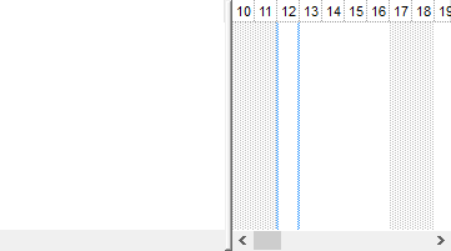
Resizes the component in the form, save the project and run the form to see it running. At this time, the control is not initialized, so it should look like follows:
- Access. In design mode, select the component, open the properties and changes the name from ActiveXCtl1 to G2antt1. Select again the component, right click, and select the "Build Events". Select the Form in the left drop down, so the Form_Load event is added. Copy and paste the following code:
Private Sub Form_Load()
    Dim g As EXG2ANTTLib.G2antt
    Set g = G2antt1.Object
    With g
        .Columns.Add ("Tasks")
        With .Items
            .AddItem "Task 1"
            .AddItem "Task 2"
        End With
    End With
End Sub
- Excel. In design mode, select the form and double-click it to add the UserForm_Initialize event (By default, it adds UserForm_Click. Instead, select UserForm from the left dropdown menu and Initialize from the right dropdown menu). Then, copy and paste the following code:
Private Sub UserForm_Initialize()
    With G2antt1
        .Columns.Add ("Tasks")
        With .Items
            .AddItem "Task 1"
            .AddItem "Task 2"
        End With
    End With
End Sub
- VB6. In design mode, double click the form, so the Form_Load event is added and add the following code:
Private Sub Form_Load()
    With G2antt1
        .Columns.Add ("Tasks")
        With .Items
            .AddItem "Task 1"
            .AddItem "Task 2"
        End With
    End With
End Sub
- twinBASIC. In design mode, double click the form, so the Form_Load event is added and add the following code:
Private Sub Form_Load()
    With G2antt1
        .Columns.Add ("Tasks")
        With .Items
            .AddItem "Task 1"
            .AddItem "Task 2"
        End With
    End With
End Sub
- VFP. In design mode, double click the form, and select the Init in the Procedure drop down, so the Form1_Init is added as follow:
with thisform.G2antt1
	.Columns.Add("Tasks")
	with .Items
		.AddItem("Task 1")
		.AddItem("Task 2")
	endwith
endwith
- VB.NET ( /COM ). In design mode, double click the form so the Form1_Load event is added, and copy the following code:
Private Sub Form1_Load(ByVal sender As System.Object, ByVal e As System.EventArgs) Handles MyBase.Load
    With AxG2antt1
        .Columns.Add("Tasks")
        With .Items
            .AddItem("Task 1")
            .AddItem("Task 2")
        End With
    End With
End Sub
- VB.NET ( /NET ). In design mode, double click the form so the Form1_Load event is added, and copy the following code:
Private Sub Form1_Load(ByVal sender As System.Object, ByVal e As System.EventArgs) Handles MyBase.Load
    With Exg2antt1
        .Columns.Add("Tasks")
        With .Items
            .AddItem("Task 1")
            .AddItem("Task 2")
        End With
    End With
End Sub
- VB.NET ( /WPF ). In design mode, select the window and double click it so the Window1_Loaded event is added, and copy the following code:
Private Sub Window1_Loaded(ByVal sender As System.Object, ByVal e As System.Windows.RoutedEventArgs) Handles MyBase.Loaded
    With Exg2antt1
        .Columns.Add("Tasks")
        With .Items
            .AddItem("Task 1")
            .AddItem("Task 2")
        End With
    End With
End Sub
- C# ( /COM ). In design mode, double click the form so the Form1_Load event is added, and copy the following code:
private void Form1_Load(object sender, EventArgs e)
{
    axG2antt1.Columns.Add("Tasks");
    axG2antt1.Items.AddItem("Task 1");
    axG2antt1.Items.AddItem("Task 2");
}
- C# ( /NET ). In design mode, double click the form so the Form1_Load event is added, and copy the following code:
private void Form1_Load(object sender, EventArgs e)
{
    exg2antt1.Columns.Add("Tasks");
    exg2antt1.Items.AddItem("Task 1");
    exg2antt1.Items.AddItem("Task 2");
}
- C# ( /WPF ). In design mode, select the main window, double click it, so the Window1_Loaded event is added, and copy the following code:
private void Window_Loaded(object sender, RoutedEventArgs e)
{
    exg2antt1.Columns.Add("Tasks");
    exg2antt1.Items.AddItem("Task 1");
    exg2antt1.Items.AddItem("Task 2");
}
- C++ (6.0). Search for the OnInitDialog function and add the code:
m_g2antt.GetColumns().Add("Tasks");
m_g2antt.GetItems().AddItem( COleVariant( "Task 1" ) );
m_g2antt.GetItems().AddItem( COleVariant( "Task 2" ) );
- C++ (VS 2005,2008,...). The #import <exg2antt.dll> must be called somewhere in your code, so the EXG2ANTTLib namespace is defined. By default, the class wizard add a class definition for the main object only, not for all objects that the component may expose. Using the #import you can import the entire type library. Now, search for the OnInitDialog method and add the following code:
EXG2ANTTLib::IColumnsPtr spColumns = m_g2antt.get_Columns();
spColumns->Add(_T("Tasks"));
EXG2ANTTLib::IItemsPtr spItems = m_g2antt.get_Items();
spItems->AddItem( _T("Task 1") );
spItems->AddItem( _T("Task 2") );
- C++ Builder (2009). Once you imported the component, the IDE
automatically added wrapper classes for all objects of the component. Handle the
FormCreate event and add the code:
IColumnsPtr spColumns = G2antt1->Columns;
spColumns->Add( L"Tasks", TNoParam() );
IItemsPtr spItems = G2antt1->Items;
spItems->AddItem( TVariant("Task 1") );
spItems->AddItem( TVariant("Task 2") );
- X++ (Dynamics Ax 2009). In the AOT window, select the Form that
hosts the control, expand the node, so you can see the Methods node. Right
Click the Methods node, and select the Override Method from submenu, and
init from the next submenu. Now, add the code:
public void init()
{
	COM com_Items;
	anytype var_Items;
	;

	super();

	exg2antt1.Columns().Add("Tasks");
	var_Items = exg2antt1.Items(); com_Items = var_Items;
		com_Items.AddItem("Task 1");
		com_Items.AddItem("Task 2");
}
- Delphi (2009). Handle the FormCreate event and add the code:
with G2antt1 do
begin
  Columns.Add('Tasks');
  with Items do
  begin
    AddItem('Task 1');
    AddItem('Task 2');
  end;
end;
- Clarion. Handle the embed code on Window init (after
open window) or under Button embed:
! Data
lc:Columns    ANY
lc:Items      ANY
mc:Chart      ANY
h1            ANY
h2            ANY

! Code
lc:Columns = ?Gantt{'Colums'}
lc:Items   = ?Gantt{'Items'}
?Gantt{lc:Columns&'.Add("Task")'}
?Gantt{lc:Items&'.AddItem("Task 1")'}
?Gantt{lc:Items&'.AddItem("Task 2")'}
- PowerBuilder (Classic). Select the open event of the Window that
hosts the control and add the code:
OleObject oG2antt,var_Items

oG2antt = ole_1.Object
oG2antt.Columns.Add("Tasks")
var_Items = oG2antt.Items
	var_Items.AddItem("Task 1")
	var_Items.AddItem("Task 2")
- dBASE Plus. Select the form in design mode. Open the form's
Inspector and go to Events page, where you should locate and add the onOpen
event, so you can insert the following code :
function form_onOpen

   local oG2antt,var_Items

   oG2antt = form.Activex1.nativeObject
   oG2antt.Columns.Add("Tasks")
   var_Items = oG2antt.Items
      var_Items.AddItem("Task 1")
      var_Items.AddItem("Task 2")

return
- Visual DataFlex. Switch to editor and locate the Procedure OnCreate in Object oComG2antt1 is a cComG2antt. Insert the following code:
Procedure OnCreate
    Forward Send OnCreate

    Variant vColumns
    Get ComColumns to vColumns
    Handle hoColumns
    Get Create (RefClass(cComColumns)) to hoColumns
    Set pvComObject of hoColumns to vColumns
    Get ComAdd of hoColumns "Tasks" to Nothing
	Send Destroy to hoColumns

    Variant vItems
    Get ComItems to vItems
    Handle hoItems
    Get Create (RefClass(cComItems)) to hoItems
    Set pvComObject of hoItems to vItems
    Get ComAddItem of hoItems "Task 1" to Nothing
    Get ComAddItem of hoItems "Task 2" to Nothing
    Send Destroy to hoItems

End_Procedure
- Xbase++. Open the Visual Xbase++ IDE, create a Win32 application
and replace the Main procedure with the following code:
#include "AppEvent.CH"
#PRAGMA LIBRARY( "ASCOM10.LIB" ) // Include the Automation Support Library

PROCEDURE Main

  LOCAL oForm, oControl
  LOCAL nEvent
  LOCAL mp1 := NIL, mp2 := NIL, oXbp := NIL

  oForm := XbpDialog():new( AppDesktop() )
  oForm:drawingArea:clipChildren := .T.
  oForm:create( ,,{100,100}, {640,480},, .F. )
  oForm:close  := {|| PostAppEvent( xbeP_Quit )}

    oControl := XbpActiveXControl():new( oForm:drawingArea )
    oControl:CLSID  := "Exontrol.G2antt"
    oControl:create(,, {10,60},{610,370} )

    oControl:Columns:Add("Tasks")
    oControl:Items:AddItem("Task 1")
    oControl:Items:AddItem("Task 2")

  oForm:Show()

  nEvent := 0
  DO WHILE nEvent != xbeP_Quit
    nEvent := AppEvent( @mp1, @mp2, @oXbp )
    oXbp:handleEvent( nEvent, mp1, mp2 )
  ENDDO

RETURN
Once these have been added, you can save and run the project again and you should get the following result
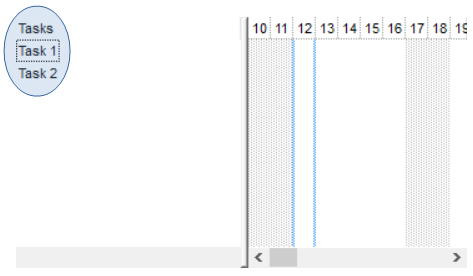 and previous
Now, once we have columns, and items being added, let's start working on the chart area so we can get displayed some bars. So, we need to go back to the form initialization so we can call properties and methods of the chart object. The red code just changes the first visible date in the chart, and layout the control's chart on 2 levels first displaying the month, and the second level displaying the days.
- Access. Open the form in design mode, go to "Build Event" and add the red section to the Form_Load event:
Private Sub Form_Load()
    Dim g As EXG2ANTTLib.G2antt
    Set g = G2antt1.Object
    With g
        With .Chart
            .FirstVisibleDate = #1/1/2008#
            .LevelCount = 2
            With .Level(0)
                .Label = "<b><%mmmm%></b> <%yyyy%>"
                .Unit = exMonth
            End With
            .Level(1).Label = "<%d%>"
        End With
        .Columns.Add ("Tasks")
        With .Items
            .AddItem "Task 1"
            .AddItem "Task 2"
        End With
    End With
End Sub
- Excel. Go to code and add the red section to the UserForm_Initialize event:
Private Sub UserForm_Initialize()
    With G2antt1
		With .Chart
			.FirstVisibleDate = #1/1/2008#
			.LevelCount = 2
			With .Level(0)
				.Label = "<b><%mmmm%></b> <%yyyy%>"
				.Unit = exMonth
			End With
			.Level(1).Label = "<%d%>"
		End With
		.Columns.Add ("Tasks")
		With .Items
			.AddItem "Task 1"
			.AddItem "Task 2"
		End With
    End With
End Sub
- VB6. Go to the Form_Load event and adds the red section
Private Sub Form_Load()
    With G2antt1
		With .Chart
			.FirstVisibleDate = #1/1/2008#
			.LevelCount = 2
			With .Level(0)
				.Label = "<b><%mmmm%></b> <%yyyy%>"
				.Unit = exMonth
			End With
			.Level(1).Label = "<%d%>"
		End With
		.Columns.Add ("Tasks")
		With .Items
			.AddItem "Task 1"
			.AddItem "Task 2"
		End With
    End With
End Sub
- twinBASIC. Go to the Form_Load event and adds the red section
Private Sub Form_Load()
    With G2antt1
		With .Chart
			.FirstVisibleDate = #1/1/2008#
			.LevelCount = 2
			With .Level(0)
				.Label = "<b><%mmmm%></b> <%yyyy%>"
				.Unit = exMonth
			End With
			.Level(1).Label = "<%d%>"
		End With
		.Columns.Add ("Tasks")
		With .Items
			.AddItem "Task 1"
			.AddItem "Task 2"
		End With
    End With
End Sub
- VFP. Go to the the Form1_Init method and adds the red code as follow:
with thisform.G2antt1
	With .Chart
		.FirstVisibleDate = {^2008-1-1}
		.LevelCount = 2
		With .Level(0)
			.Label = "<b><%mmmm%></b> <%yyyy%>"
			.Unit = 16
		EndWith
		.Level(1).Label = "<%d%>"
	EndWith
	.Columns.Add("Default")
	with .Items
		.AddItem("Task 1")
		.AddItem("Task 2")
	endwith
endwith
- VB.NET ( /COM ). Go back to the Form1_Load event and add the red code as shown bellow:
Private Sub Form1_Load(ByVal sender As System.Object, ByVal e As System.EventArgs) Handles MyBase.Load
    With AxG2antt1
        With .Chart
            .FirstVisibleDate = #1/1/2008#
            .LevelCount = 2
            With .Level(0)
                .Label = "<b><%mmmm%></b> <%yyyy%>"
                .Unit = EXG2ANTTLib.UnitEnum.exMonth
            End With
            .Level(1).Label = "<%d%>"
        End With
        .Columns.Add("Tasks")
        With .Items
            .AddItem("Task 1")
            .AddItem("Task 2")
        End With
    End With
End Sub
- VB.NET ( /NET ). Go back to the Form1_Load event and add the red code as shown here:
Private Sub Form1_Load(ByVal sender As System.Object, ByVal e As System.EventArgs) Handles MyBase.Load
    With Exg2antt1
        With .Chart
            .FirstVisibleDate = #1/1/2008#
            .LevelCount = 2
            With .get_Level(0)
                .Label = "<b><%mmmm%></b> <%yyyy%>"
                .Unit = exontrol.EXG2ANTTLib.UnitEnum.exMonth
            End With
            .get_Level(1).Label = "<%d%>"
        End With
        .Columns.Add("Tasks")
        With .Items
            .AddItem("Task 1")
            .AddItem("Task 2")
        End With
    End With
End Sub
- VB.NET ( /WPF ). Go back to the Window1_Loaded event and add the red code as shown here:
Private Sub Window1_Loaded(ByVal sender As System.Object, ByVal e As System.Windows.RoutedEventArgs) Handles MyBase.Loaded
    With Exg2antt1
        With .Chart
            .FirstVisibleDate = #1/1/2008#
            .LevelCount = 2
            With .get_Level(0)
                .Label = "<b><%mmmm%></b> <%yyyy%>"
                .Unit = wpf.exontrol.EXG2ANTTLib.UnitEnum.exMonth
            End With
            .get_Level(1).Label = "<%d%>"
        End With
        .Columns.Add("Tasks")
        With .Items
            .AddItem("Task 1")
            .AddItem("Task 2")
        End With
    End With
End Sub
- C# ( /COM ). Go back to the Form1_Load event and add the red code as follows:
private void Form1_Load(object sender, EventArgs e)
{
    axG2antt1.Chart.FirstVisibleDate = new DateTime(2008,1,1);
    axG2antt1.Chart.LevelCount = 2;
    EXG2ANTTLib.Level l = axG2antt1.Chart.get_Level(0);
        l.Label = "<b><%mmmm%></b> <%yyyy%>";
        l.Unit = EXG2ANTTLib.UnitEnum.exMonth;
    axG2antt1.Chart.get_Level(1).Label = "<%d%>";
    axG2antt1.Columns.Add("Tasks");
    axG2antt1.Items.AddItem("Task 1");
    axG2antt1.Items.AddItem("Task 2");
}
- C# ( /NET ). Go back to the Form1_Load event and add the red code as shown bellow:
private void Form1_Load(object sender, EventArgs e)
{
    exg2antt1.Chart.FirstVisibleDate = new DateTime(2008, 1, 1);
    exg2antt1.Chart.LevelCount = 2;
    exontrol.EXG2ANTTLib.Level l = exg2antt1.Chart.get_Level(0);
    l.Label = "<b><%mmmm%></b> <%yyyy%>";
    l.Unit = exontrol.EXG2ANTTLib.UnitEnum.exMonth;
    exg2antt1.Chart.get_Level(1).Label = "<%d%>";
    exg2antt1.Columns.Add("Tasks");
    exg2antt1.Items.AddItem("Task 1");
    exg2antt1.Items.AddItem("Task 2");
}
- C# ( /WPF ). Go back to the Window1_Loaded event and add the red code as shown bellow:
private void Window_Loaded(object sender, RoutedEventArgs e)
{
    exg2antt1.Chart.FirstVisibleDate = new DateTime(2008, 1, 1);
    exg2antt1.Chart.LevelCount = 2;
    wpf.exontrol.EXG2ANTTLib.Level l = exg2antt1.Chart.get_Level(0);
    l.Label = "<b><%mmmm%></b> <%yyyy%>";
    l.Unit = wpf.exontrol.EXG2ANTTLib.UnitEnum.exMonth;
    exg2antt1.Chart.get_Level(1).Label = "<%d%>";
    exg2antt1.Columns.Add("Tasks");
    exg2antt1.Items.AddItem("Task 1");
    exg2antt1.Items.AddItem("Task 2");
}
- C++ (6.0). Go back to the OnInitDialog method and appends the red code as shown bellow:
CChart chart = m_g2antt.GetChart();
	chart.SetFirstVisibleDate( COleVariant( COleDateTime(2008,1,1,0,0,0 ).operator DATE()));
	chart.SetLevelCount( 2 );
	CLevel level0 = chart.GetLevel(0);
	level0.SetLabel( COleVariant( "<b><%mmmm%></b> <%yyyy%>" ) );
	level0.SetUnit( 16 /*exMonth*/ );
	chart.GetLevel(1).SetLabel( COleVariant( "<%d%>" ) );
m_g2antt.GetColumns().Add("Tasks");
m_g2antt.GetItems().AddItem( COleVariant( "Task 1" ) );
m_g2antt.GetItems().AddItem( COleVariant( "Task 2" ) );
- C++ (VS 2005,2008,...). Go back to the OnInitDialog method and appends the red code as shown bellow:
EXG2ANTTLib::IChartPtr spChart = m_g2antt.get_Chart();
spChart->FirstVisibleDate = COleDateTime( 2008, 1, 1, 0, 0, 0 ).operator DATE();
spChart->LevelCount = 2;
EXG2ANTTLib::ILevelPtr spLevel0 = spChart->Level[0];
	spLevel0->Label = _T("<b><%mmmm%></b> <%yyyy%>");
	spLevel0->Unit = EXG2ANTTLib::exMonth;
spChart->Level[1]->Label = _T("<%d%>");
EXG2ANTTLib::IColumnsPtr spColumns = m_g2antt.get_Columns();
spColumns->Add(_T("Tasks"));
EXG2ANTTLib::IItemsPtr spItems = m_g2antt.get_Items();
spItems->AddItem( _T("Task 1") );
spItems->AddItem( _T("Task 2") );
- C++ Builder (2009). Go back to the FormCreate method and appends the
red code as shown bellow:
IChartPtr spChart = G2antt1->Chart;
spChart->set_FirstVisibleDate( TVariant(TDateTime(2008,1,1).operator double()) );
spChart->LevelCount = 2;
ILevelPtr spLevel0 = spChart->get_Level(0);
	spLevel0->set_Label( TVariant(_T("<b><%mmmm%></b> <%yyyy%>")) );
	spLevel0->set_Unit( UnitEnum::exMonth );
spChart->get_Level(1)->set_Label( TVariant(_T("<%d%>") ) );
IColumnsPtr spColumns = G2antt1->Columns;
spColumns->Add( L"Tasks", TNoParam() );
IItemsPtr spItems = G2antt1->Items;
spItems->AddItem( TVariant("Task 1") );
spItems->AddItem( TVariant("Task 2") );
- X++ (Dynamics Ax 2009). Go to form's init function and add the red
code as shown bellow:
public void init()
{
    COM com_Chart,com_Items,com_Level,com_Level1;
    anytype var_Chart,var_Items,var_Level,var_Level1;
    ;

    super();

    var_Chart = exg2antt1.Chart(); com_Chart = var_Chart;
        com_Chart.FirstVisibleDate(COMVariant::createFromDate(str2Date("1/1/2008",213)));
        com_Chart.LevelCount(2);
        var_Level = com_Chart.Level(0); com_Level = var_Level;
            com_Level.Label("<b><%mmmm%></b> <%yyyy%>");
            com_Level.Unit(16/*exMonth*/);
        var_Level1 = COM::createFromObject(com_Chart.Level(1)); com_Level1 = var_Level1;
        com_Level1.Label("<%d%>");
    exg2antt1.Columns().Add("Tasks");
    var_Items = exg2antt1.Items(); com_Items = var_Items;
        com_Items.AddItem("Task 1");
        com_Items.AddItem("Task 2");
}
- Delphi (2009). Go back to the FormCreate event and add the red section:
with G2antt1 do
begin
 with Chart do
 begin
  FirstVisibleDate := '1/1/2008';
  LevelCount := 2;
  with Level[0] do
  begin
    Label_ := '<b><%mmmm%></b> <%yyyy%>';
    Unit_ := exMonth;
  end;
  Level[1].Label_ := '<%d%>';
 end;
 Columns.Add('Tasks');
 with Items do
 begin
   AddItem('Task 1');
   AddItem('Task 2');
 end;
end;
- Clarion. Go back to your embed and add the red section:
?Gantt{mc:Chart&'.FirstVisibleDate'} = FORMAT(TODAY()-3, @D17)
?Gantt{mc:Chart&'.LevelCount'} = 2
?Gantt{mc:Chart&'.Level(0).Label'} = '<b><%mmmm%></b> <%yyyy%>'
?Gantt{mc:Chart&'.Level(0).Unit'} = 64
?Gantt{mc:Chart&'.Level(1).Label'} = '<%d%>'
lc:Columns = ?Gantt{'Colums'}
lc:Items   = ?Gantt{'Items'}
?Gantt{lc:Columns&'.Add("Task")'}
?Gantt{lc:Items&'.AddItem("Task 1")'}
?Gantt{lc:Items&'.AddItem("Task 2")'}
- PowerBuilder (Classic). Go back to open event of the DataWindow
that hosts the control and add the red section:
OleObject oG2antt,var_Chart,var_Items,var_Level

oG2antt = ole_1.Object
var_Chart = oG2antt.Chart
	var_Chart.FirstVisibleDate = 2008-01-01
	var_Chart.LevelCount = 2
	var_Level = var_Chart.Level(0)
		var_Level.Label = "<b><%mmmm%></b> <%yyyy%>"
		var_Level.Unit = 16
	var_Chart.Level(1).Label = "<%d%>"
oG2antt.Columns.Add("Tasks")
var_Items = oG2antt.Items
	var_Items.AddItem("Task 1")
	var_Items.AddItem("Task 2")
- dBASE Plus. Go back to open event of the form that hosts the control and add the red section:
function form_onOpen

   local oG2antt,var_Chart,var_Items,var_Level,var_Level1

   oG2antt = form.Activex1.nativeObject
   var_Chart = oG2antt.Chart
      var_Chart.FirstVisibleDate = "01/01/2008"
      var_Chart.LevelCount = 2
      var_Level = var_Chart.Level(0)
         var_Level.Label = "<b><%mmmm%></b> <%yyyy%>"
         var_Level.Unit = 16
      // var_Chart.Level(1).Label = "<%d%>"
      var_Level1 = var_Chart.Level(1)
      with (oG2antt)
         TemplateDef = [Dim var_Level1]
         TemplateDef = var_Level1
         Template = [var_Level1.Label = "<%d%>"]
      endwith
   oG2antt.Columns.Add("Tasks")
   var_Items = oG2antt.Items
      var_Items.AddItem("Task 1")
      var_Items.AddItem("Task 2")

return
Because dBASE does not support setting or assigning a value to properties with multiple parameters, our controls provide the TemplateDef and Template methods, which can be used to compile and run the x-script code.
- Visual DataFlex. Go back to OnCreate procedure of Object oComG2antt and add the red section::
Procedure OnCreate
    Forward Send OnCreate

    Variant vChart
    Get ComChart to vChart
    Handle hoChart
    Get Create (RefClass(cComChart)) to hoChart
    Set pvComObject of hoChart to vChart
    Set ComFirstVisibleDate of hoChart to "1/1/2008"
    Set ComLevelCount of hoChart to 2

        Variant vLevel0
        Get ComLevel of hoChart 0 to vLevel0
        Handle hoLevel0
        Get Create (RefClass(cComLevel)) to hoLevel0
        Set pvComObject of hoLevel0 to vLevel0
        Set ComLabel of hoLevel0 to "<b><%mmmm%></b> <%yyyy%>"
        Set ComUnit of hoLevel0 to OLEexMonth
        Send Destroy to hoLevel0

        Variant vLevel1
        Get ComLevel of hoChart 1 to vLevel1
        Handle hoLevel1
        Get Create (RefClass(cComLevel)) to hoLevel1
        Set pvComObject of hoLevel1 to vLevel1
        Set ComLabel of hoLevel1 to "<%d%>"
        Send Destroy to hoLevel1

    Send Destroy to hoChart

    Variant vColumns
    Get ComColumns to vColumns
    Handle hoColumns
    Get Create (RefClass(cComColumns)) to hoColumns
    Set pvComObject of hoColumns to vColumns
    Get ComAdd of hoColumns "Tasks" to Nothing
    Send Destroy to hoColumns

    Variant vItems
    Get ComItems to vItems
    Handle hoItems
    Get Create (RefClass(cComItems)) to hoItems
    Set pvComObject of hoItems to vItems
    Get ComAddItem of hoItems "Task 1" to Nothing
    Get ComAddItem of hoItems "Task 2" to Nothing
    Send Destroy to hoItems

End_Procedure

End_Object
- Xbase++. Go back to Main procedure and add the red section::
#include "AppEvent.CH"
#PRAGMA LIBRARY( "ASCOM10.LIB" ) // Include the Automation Support Library

PROCEDURE Main

  LOCAL oForm, oControl
  LOCAL nEvent
  LOCAL mp1 := NIL, mp2 := NIL, oXbp := NIL
  LOCAL oLevel

  oForm := XbpDialog():new( AppDesktop() )
  oForm:drawingArea:clipChildren := .T.
  oForm:create( ,,{100,100}, {640,480},, .F. )
  oForm:close  := {|| PostAppEvent( xbeP_Quit )}

    oControl := XbpActiveXControl():new( oForm:drawingArea )
    oControl:CLSID  := "Exontrol.G2antt"
    oControl:create(,, {10,60},{610,370} )

    oControl:Chart:FirstVisibleDate = "1/1/2008"
    oControl:Chart:LevelCount := 2
    oLevel = oControl:Chart:Level(0)
    oLevel:Label := "<b><%mmmm%></b> <%yyyy%>"
    oLevel:Unit := 16 /*exMonth*/
    oControl:Chart:Level(1):Label = "<%d%>"

    oControl:Columns:Add("Tasks")
    oControl:Items:AddItem("Task 1")
    oControl:Items:AddItem("Task 2")

  oForm:Show()

  nEvent := 0
  DO WHILE nEvent != xbeP_Quit
    nEvent := AppEvent( @mp1, @mp2, @oXbp )
    oXbp:handleEvent( nEvent, mp1, mp2 )
  ENDDO

RETURN
Once you save the project and run again the form, you will get a screen as follows:
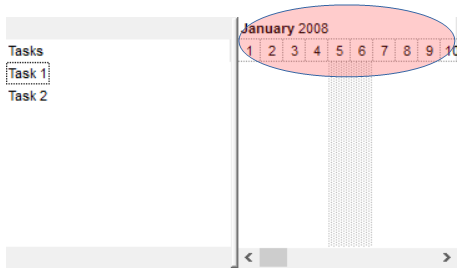 and previous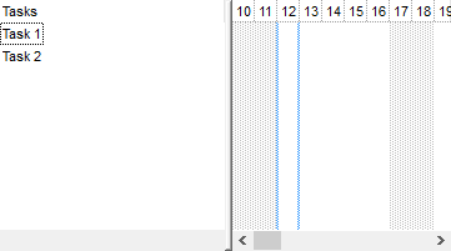
Finally, let's have some code to add some bars and a link inside. The green code shows the changes required to add bars to the chart area.
- Access. Go to the Form_Load event and replace the green section
Private Sub Form_Load()
    Dim g As EXG2ANTTLib.G2antt
    Set g = G2antt1.Object
    With g
        With .Chart
            .FirstVisibleDate = #1/1/2008#
            .LevelCount = 2
            With .Level(0)
                .Label = "<b><%mmmm%></b> <%yyyy%>"
                .Unit = exMonth
            End With
            .Level(1).Label = "<%d%>"
        End With
        .Columns.Add ("Tasks")
        Dim h1, h2 As Long
        With .Items
            h1 = .AddItem("Task 1")
            .AddBar h1, "Task", #1/2/2008#, #1/5/2008#
            h2 = .AddItem("Task 2")
            .AddBar h2, "Task", #1/4/2008#, #1/8/2008#
            .AddLink "LKey", h1, "", h2, ""
        End With
    End With
End Sub
- Excel. Go to the UserForm_Initialize event and replace the green section
Private Sub Form_Load()
  With G2antt1
      With .Chart
          .FirstVisibleDate = #1/1/2008#
          .LevelCount = 2
          With .Level(0)
              .Label = "<b><%mmmm%></b> <%yyyy%>"
              .Unit = exMonth
          End With
          .Level(1).Label = "<%d%>"
      End With
      .Columns.Add ("Tasks")
        Dim h1, h2 As Long
      With .Items
          h1 = .AddItem("Task 1")
          .AddBar h1, "Task", #1/2/2008#, #1/5/2008#
          h2 = .AddItem("Task 2")
          .AddBar h2, "Task", #1/4/2008#, #1/8/2008#
          .AddLink "LKey", h1, "", h2, ""
      End With
    End With
End Sub
- VB6. Go to the Form_Load event and replace the green section
Private Sub Form_Load()
    With G2antt1
        With .Chart
            .FirstVisibleDate = #1/1/2008#
            .LevelCount = 2
            With .Level(0)
                .Label = "<b><%mmmm%></b> <%yyyy%>"
                .Unit = exMonth
            End With
            .Level(1).Label = "<%d%>"
        End With
        .Columns.Add ("Tasks")
        Dim h1, h2 As Long
        With .Items
            h1 = .AddItem("Task 1")
            .AddBar h1, "Task", #1/2/2008#, #1/5/2008#
            h2 = .AddItem("Task 2")
            .AddBar h2, "Task", #1/4/2008#, #1/8/2008#
            .AddLink "LKey", h1, "", h2, ""
        End With
    End With
End Sub
- twinBASIC. Go to the Form_Load event and replace the green section
Private Sub Form_Load()
    With G2antt1
        With .Chart
            .FirstVisibleDate = #1/1/2008#
            .LevelCount = 2
            With .Level(0)
                .Label = "<b><%mmmm%></b> <%yyyy%>"
                .Unit = exMonth
            End With
            .Level(1).Label = "<%d%>"
        End With
        .Columns.Add ("Tasks")
        Dim h1, h2 As Long
        With .Items
            h1 = .AddItem("Task 1")
            .AddBar h1, "Task", #1/2/2008#, #1/5/2008#
            h2 = .AddItem("Task 2")
            .AddBar h2, "Task", #1/4/2008#, #1/8/2008#
            .AddLink "LKey", h1, "", h2, ""
        End With
    End With
End Sub
- VFP. Go to the the Form1_Init method and replace the green code as follow:
with thisform.G2antt1
	With .Chart
		.FirstVisibleDate = {^2008-1-1}
		.LevelCount = 2
		With .Level(0)
			.Label = "<b><%mmmm%></b> <%yyyy%>"
			.Unit = 16
		EndWith
		.Level(1).Label = "<%d%>"
	EndWith
	.Columns.Add("Default")
	local h1,h2
	with .Items
		h1 = .AddItem("Task 1")
		.AddBar(h1,"Task",{^2008-1-2},{^2008-1-5})
		h2 = .AddItem("Task 2")
		.AddBar(h2,"Task",{^2008-1-4},{^2008-1-8})
		.AddLink("LKey",h1,"",h2,"")
	endwith
endwith
- VB.NET ( /COM ). Go back to the Form1_Load event and replace the green code as shown bellow:
Private Sub Form1_Load(ByVal sender As System.Object, ByVal e As System.EventArgs) Handles MyBase.Load
    With AxG2antt1
        With .Chart
            .FirstVisibleDate = #1/1/2008#
            .LevelCount = 2
            With .Level(0)
                .Label = "<b><%mmmm%></b> <%yyyy%>"
                .Unit = EXG2ANTTLib.UnitEnum.exMonth
            End With
            .Level(1).Label = "<%d%>"
        End With
        .Columns.Add("Tasks")
        With .Items
            Dim h1 As Integer = .AddItem("Task 1")
            .AddBar(h1, "Task", #1/2/2008#, #1/5/2008#)
            Dim h2 As Integer = .AddItem("Task 2")
            .AddBar(h2, "Task", #1/4/2008#, #1/8/2008#)
            .AddLink("LKey", h1, "", h2, "")
        End With
    End With
End Sub
- VB.NET ( /NET ). Go back to the Form1_Load event and add the green code as shown here:
Private Sub Form1_Load(ByVal sender As System.Object, ByVal e As System.EventArgs) Handles MyBase.Load
    With Exg2antt1
        With .Chart
            .FirstVisibleDate = #1/1/2008#
            .LevelCount = 2
            With .get_Level(0)
                .Label = "<b><%mmmm%></b> <%yyyy%>"
                .Unit = exontrol.EXG2ANTTLib.UnitEnum.exMonth
            End With
            .get_Level(1).Label = "<%d%>"
        End With
        .Columns.Add("Tasks")
        With .Items
            Dim h1 As Integer = .AddItem("Task 1")
            .AddBar(h1, "Task", #1/2/2008#, #1/5/2008#)
            Dim h2 As Integer = .AddItem("Task 2")
            .AddBar(h2, "Task", #1/4/2008#, #1/8/2008#)
            .AddLink("LKey", h1, "", h2, "")
        End With
    End With
End Sub
- VB.NET ( /WPF ). Go back to the Window1_Loaded event and add the green code as shown here:
Private Sub Window1_Loaded(ByVal sender As System.Object, ByVal e As System.Windows.RoutedEventArgs) Handles MyBase.Loaded
    With Exg2antt1
        With .Chart
            .FirstVisibleDate = #1/1/2008#
            .LevelCount = 2
            With .get_Level(0)
                .Label = "<b><%mmmm%></b> <%yyyy%>"
                .Unit = wpf.exontrol.EXG2ANTTLib.UnitEnum.exMonth
            End With
            .get_Level(1).Label = "<%d%>"
        End With
        .Columns.Add("Tasks")
        With .Items
            Dim h1 As Integer = .AddItem("Task 1")
            .AddBar(h1, "Task", #1/2/2008#, #1/5/2008#)
            Dim h2 As Integer = .AddItem("Task 2")
            .AddBar(h2, "Task", #1/4/2008#, #1/8/2008#)
            .AddLink("LKey", h1, "", h2, "")
        End With
    End With
End Sub
- C# ( /COM ). Go back to the Form1_Load event and replace the green code as follows:
private void Form1_Load(object sender, EventArgs e)
{
    axG2antt1.Chart.FirstVisibleDate = new DateTime(2008,1,1);
    axG2antt1.Chart.LevelCount = 2;
    EXG2ANTTLib.Level l = axG2antt1.Chart.get_Level(0);
        l.Label = "<b><%mmmm%></b> <%yyyy%>";
        l.Unit = EXG2ANTTLib.UnitEnum.exMonth;
    axG2antt1.Chart.get_Level(1).Label = "<%d%>";
    axG2antt1.Columns.Add("Tasks");
    int h1 = axG2antt1.Items.AddItem("Task 1");
    axG2antt1.Items.AddBar(h1, "Task", new DateTime(2008,1,2), new DateTime(2008,1,5),null,null);
    int h2 = axG2antt1.Items.AddItem("Task 2");
    axG2antt1.Items.AddBar(h2, "Task", new DateTime(2008,1,4), new DateTime(2008,1,8),null,null);
    axG2antt1.Items.AddLink("LKey", h1, null, h2, null);
}
- C# ( /NET ). Go back to the Form1_Load event and replace the green code as shown bellow:
private void Form1_Load(object sender, EventArgs e)
{
    exg2antt1.Chart.FirstVisibleDate = new DateTime(2008, 1, 1);
    exg2antt1.Chart.LevelCount = 2;
    exontrol.EXG2ANTTLib.Level l = exg2antt1.Chart.get_Level(0);
    l.Label = "<b><%mmmm%></b> <%yyyy%>";
    l.Unit = exontrol.EXG2ANTTLib.UnitEnum.exMonth;
    exg2antt1.Chart.get_Level(1).Label = "<%d%>";
    exg2antt1.Columns.Add("Tasks");
    int h1 = exg2antt1.Items.AddItem("Task 1");
    exg2antt1.Items.AddBar(h1, "Task", new DateTime(2008, 1, 2), new DateTime(2008,1,5));
    int h2 = exg2antt1.Items.AddItem("Task 2");
    exg2antt1.Items.AddBar(h2, "Task", new DateTime(2008, 1, 4), new DateTime(2008,1,8));
    exg2antt1.Items.AddLink("LKey", h1, null, h2, null);
}
- C# ( /WPF ). Go back to the Window1_Loaded event and replace the green code as shown bellow:
private void Window_Loaded(object sender, RoutedEventArgs e)
{
    exg2antt1.Chart.FirstVisibleDate = new DateTime(2008, 1, 1);
    exg2antt1.Chart.LevelCount = 2;
    wpf.exontrol.EXG2ANTTLib.Level l = exg2antt1.Chart.get_Level(0);
    l.Label = "<b><%mmmm%></b> <%yyyy%>";
    l.Unit = wpf.exontrol.EXG2ANTTLib.UnitEnum.exMonth;
    exg2antt1.Chart.get_Level(1).Label = "<%d%>";
    exg2antt1.Columns.Add("Tasks");
    int h1 = exg2antt1.Items.AddItem("Task 1");
    exg2antt1.Items.AddBar(h1, "Task", new DateTime(2008, 1, 2), new DateTime(2008, 1, 5));
    int h2 = exg2antt1.Items.AddItem("Task 2");
    exg2antt1.Items.AddBar(h2, "Task", new DateTime(2008, 1, 4), new DateTime(2008, 1, 8));
    exg2antt1.Items.AddLink("LKey", h1, null, h2, null);
}
- C++ (6.0). Go back to the OnInitDialog method and replace the green code as follows:
CChart chart = m_g2antt.GetChart();
	chart.SetFirstVisibleDate( COleVariant( COleDateTime( 2008,1,1,0,0,0 ).operator DATE()));
	chart.SetLevelCount( 2 );
	CLevel level0 = chart.GetLevel(0);
	level0.SetLabel( COleVariant( "<b><%mmmm%></b> <%yyyy%>" ) );
	level0.SetUnit( 16 /*exMonth*/ );
	chart.GetLevel(1).SetLabel( COleVariant( "<%d%>" ) );
m_g2antt.GetColumns().Add("Tasks");
CItems items = m_g2antt.GetItems();
int h1 = items.AddItem( COleVariant( "Task 1" ) );
items.AddBar( h1, COleVariant( "Task" ),
		COleVariant( COleDateTime( 2008,1,2,0,0,0).operator DATE()),
		COleVariant( COleDateTime( 2008,1,5,0,0,0).operator DATE()),
		COleVariant(""), COleVariant() );
int h2 = items.AddItem( COleVariant( "Task 2" ) );
items.AddBar( h2, COleVariant( "Task" ),
		COleVariant( COleDateTime( 2008,1,4,0,0,0).operator DATE()),
		COleVariant( COleDateTime( 2008,1,8,0,0,0).operator DATE()),
		COleVariant(""), COleVariant() );
items.AddLink( COleVariant( "LKey" ), h1, COleVariant(""), h2, COleVariant("") );
- C++ (VS 2005,2008,...). Go back to the OnInitDialog method and replace the green code as follows:
EXG2ANTTLib::IChartPtr spChart = m_g2antt.get_Chart();
spChart->FirstVisibleDate = COleDateTime( 2008, 1, 1, 0, 0, 0 ).operator DATE();
spChart->LevelCount = 2;
EXG2ANTTLib::ILevelPtr spLevel0 = spChart->Level[0];
	spLevel0->Label = _T("<b><%mmmm%></b> <%yyyy%>");
	spLevel0->Unit = EXG2ANTTLib::exMonth;
spChart->Level[1]->Label = _T("<%d%>");
EXG2ANTTLib::IColumnsPtr spColumns = m_g2antt.get_Columns();
spColumns->Add(_T("Tasks"));
EXG2ANTTLib::IItemsPtr spItems = m_g2antt.get_Items();
int h1 = spItems->AddItem( _T("Task 1") );
spItems->AddBar( h1, _T("Task"),
		COleVariant( COleDateTime( 2008, 1, 2, 0, 0, 0 ).operator DATE() ),
		COleVariant( COleDateTime( 2008, 1, 5, 0, 0, 0 ).operator DATE() ),
		"" );
int h2 = spItems->AddItem( _T("Task 2") );
spItems->AddBar( h2, _T("Task"),
		COleVariant( COleDateTime( 2008, 1, 4, 0, 0, 0 ).operator DATE() ),
		COleVariant( COleDateTime( 2008, 1, 8, 0, 0, 0 ).operator DATE() ),
		"" );
spItems->AddLink( "LKey", h1, "", h2, "" );
- C++ Builder (2009). Go back to the FormCreate method and replace the green section as follow:
void __fastcall TForm1::FormCreate(TObject *Sender)
{
IChartPtr spChart = G2antt1->Chart;
spChart->set_FirstVisibleDate( TVariant(TDateTime(2008,1,1).operator double()) );
spChart->LevelCount = 2;
ILevelPtr spLevel0 = spChart->get_Level(0);
	spLevel0->set_Label( TVariant("<b><%mmmm%></b> <%yyyy%>") );
	spLevel0->set_Unit( UnitEnum::exMonth );
spChart->get_Level(1)->set_Label( TVariant("<%d%>") );
IColumnsPtr spColumns = G2antt1->Columns;
spColumns->Add( L"Tasks", TNoParam() );
IItemsPtr spItems = G2antt1->Items;
long h1 = spItems->AddItem( TVariant("Task 1") );
spItems->AddBar( h1, TVariant("Task"),
		TVariant(TDateTime(2008,1,2).operator double() ),
		TVariant(TDateTime(2008,1,5).operator double() ),
		TVariant("") );
long h2 = spItems->AddItem( TVariant("Task 2") );
spItems->AddBar( h2, TVariant("Task"),
		TVariant(TDateTime(2008,1,4).operator double() ),
		TVariant(TDateTime(2008,1,8).operator double() ),
		TVariant("") );
spItems->AddLink( TVariant("LKey"), h1, TVariant(""), h2, TVariant("") );
}
- X++ (Dynamics Ax 2009). Go to form's init function and replace the green section as follows:
public void init()
{
	COM com_Chart,com_Items,com_Level,com_Level1;
	anytype var_Chart,var_Items,var_Level,var_Level1;
	int h1,h2;
	;

	super();

	var_Chart = exg2antt1.Chart(); com_Chart = var_Chart;
		com_Chart.FirstVisibleDate(COMVariant::createFromDate(str2Date("1/1/2008",213)));
		com_Chart.LevelCount(2);
		var_Level = com_Chart.Level(0); com_Level = var_Level;
			com_Level.Label("<b><%mmmm%></b> <%yyyy%>");
			com_Level.Unit(16/*exMonth*/);
		var_Level1 = COM::createFromObject(com_Chart.Level(1)); com_Level1 = var_Level1;
		com_Level1.Label("<%d%>");
	exg2antt1.Columns().Add("Tasks");
	var_Items = exg2antt1.Items(); com_Items = var_Items;
		h1 = com_Items.AddItem("Task 1");
		com_Items.AddBar(h1,"Task",COMVariant::createFromDate(str2Date("1/2/2008",213)),COMVariant::createFromDate(str2Date("1/5/2008",213)));
		h2 = com_Items.AddItem("Task 2");
		com_Items.AddBar(h2,"Task",COMVariant::createFromDate(str2Date("1/4/2008",213)),COMVariant::createFromDate(str2Date("1/8/2008",213)));
		com_Items.AddLink("LKey",h1,"",h2,"");
}
- Delphi (2009). Go back to the FormCreate event and replace the green code as follows:
procedure TForm1.FormCreate(Sender: TObject);
var h1: Integer;
var h2: Integer;
begin
with G2antt1 do
begin
 with Chart do
 begin
  FirstVisibleDate := '1/1/2008';
  LevelCount := 2;
  with Level[0] do
  begin
    Label_ := '<b><%mmmm%></b> <%yyyy%>';
    Unit_ := exMonth;
  end;
  Level[1].Label_ := '<%d%>';
 end;
 Columns.Add('Tasks');
 with Items do
 begin
  h1 := AddItem('Task 1');
  .AddBar( h1, 'Task', '1/2/2008', '1/5/2008', '', '');
  h2 := AddItem('Task 2');
   AddBar( h2, 'Task', '1/4/2008', '1/8/2008', '', '');
   AddLink('LKey', h1, '', h2, '' );
 end;
end;
end;
- Clarion. Go back to your embed and replace the green section:
?Gantt{mc:Chart&'.FirstVisibleDate'} = FORMAT(TODAY()-3, @D17)
?Gantt{mc:Chart&'.LevelCount'} = 2
?Gantt{mc:Chart&'.Level(0).Label'} = '<b><%mmmm%></b> <%yyyy%>'
?Gantt{mc:Chart&'.Level(0).Unit'} = 64
?Gantt{mc:Chart&'.Level(1).Label'} = '<%d%>'
lc:Columns = ?Gantt{'Colums'}
lc:Items   = ?Gantt{'Items'}
?Gantt{lc:Columns&'.Add("Task")'}
h1 = ?Gantt{lc:Items&'.AddItem("Task 1")'}
?Gantt{mc:Items&'.AddBar('&h1&', "Task", '1/2/2008, '1/5/2008,"","")'}
h2 = ?Gantt{lc:Items&'.AddItem("Task 2")'}
?Gantt{mc:Items&'.AddBar('&h2&', "Task", '1/4/2008, '1/8/2008,"","")'}
?Gantt{mc:Items&'.AddLink(LKey, '&h1&', '&h2&',"")'}
- PowerBuilder (Classic). Go back to your open event and replace the green section:
OleObject oG2antt,var_Chart,var_Items,var_Level
any h1,h2

oG2antt = ole_1.Object
var_Chart = oG2antt.Chart
	var_Chart.FirstVisibleDate = 2008-01-01
	var_Chart.LevelCount = 2
	var_Level = var_Chart.Level(0)
		var_Level.Label = "<b><%mmmm%></b> <%yyyy%>"
		var_Level.Unit = 16
	var_Chart.Level(1).Label = "<%d%>"
oG2antt.Columns.Add("Tasks")
var_Items = oG2antt.Items
	h1 = var_Items.AddItem("Task 1")
	var_Items.AddBar(h1,"Task",2008-01-02,2008-01-05)
	h2 = var_Items.AddItem("Task 2")
	var_Items.AddBar(h2,"Task",2008-01-04,2008-01-08)
	var_Items.AddLink("LKey",h1,"",h2,"")
- dBASE Plus. Go back to your open event and replace the green section:
function form_onOpen

   local h1,h2,oG2antt,var_Chart,var_Items,var_Level,var_Level1

   oG2antt = form.Activex1.nativeObject
   var_Chart = oG2antt.Chart
      var_Chart.FirstVisibleDate = "01/01/2008"
      var_Chart.LevelCount = 2
      var_Level = var_Chart.Level(0)
         var_Level.Label = "<b><%mmmm%></b> <%yyyy%>"
         var_Level.Unit = 16
      // var_Chart.Level(1).Label = "<%d%>"
      var_Level1 = var_Chart.Level(1)
      with (oG2antt)
         TemplateDef = [Dim var_Level1]
         TemplateDef = var_Level1
         Template = [var_Level1.Label = "<%d%>"]
      endwith
   oG2antt.Columns.Add("Tasks")
   var_Items = oG2antt.Items
      h1 = var_Items.AddItem("Task 1")
      var_Items.AddBar(h1,"Task","01/02/2008","01/05/2008")
      h2 = var_Items.AddItem("Task 2")
      var_Items.AddBar(h2,"Task","01/04/2008","01/08/2008")
      var_Items.AddLink("LKey",h1,"",h2,"")

return
- Visual DataFlex. Go back to OnCreate procedure of Object oComG2antt and replace the green section:
Procedure OnCreate
    Forward Send OnCreate

    Variant vChart
    Get ComChart to vChart
    Handle hoChart
    Get Create (RefClass(cComChart)) to hoChart
    Set pvComObject of hoChart to vChart
    Set ComFirstVisibleDate of hoChart to "1/1/2008"
    Set ComLevelCount of hoChart to 2

        Variant vLevel0
        Get ComLevel of hoChart 0 to vLevel0
        Handle hoLevel0
        Get Create (RefClass(cComLevel)) to hoLevel0
        Set pvComObject of hoLevel0 to vLevel0
        Set ComLabel of hoLevel0 to "<b><%mmmm%></b> <%yyyy%>"
        Set ComUnit of hoLevel0 to OLEexMonth
        Send Destroy to hoLevel0

        Variant vLevel1
        Get ComLevel of hoChart 1 to vLevel1
        Handle hoLevel1
        Get Create (RefClass(cComLevel)) to hoLevel1
        Set pvComObject of hoLevel1 to vLevel1
        Set ComLabel of hoLevel1 to "<%d%>"
        Send Destroy to hoLevel1

    Send Destroy to hoChart

    Variant vColumns
    Get ComColumns to vColumns
    Handle hoColumns
    Get Create (RefClass(cComColumns)) to hoColumns
    Set pvComObject of hoColumns to vColumns
    Get ComAdd of hoColumns "Tasks" to Nothing
    Send Destroy to hoColumns

    Variant vItems
    Get ComItems to vItems
    Handle hoItems
    Get Create (RefClass(cComItems)) to hoItems
    Set pvComObject of hoItems to vItems
    HITEM h1
    Get ComAddItem of hoItems "Task 1" to h1
    Send ComAddBar of hoItems h1 "Task" "1/2/2008" "1/5/2008" Nothing Nothing
    HITEM h2
    Get ComAddItem of hoItems "Task 2" to h2
    Send ComAddBar of hoItems h2 "Task" "1/4/2008" "1/8/2008" Nothing Nothing
    Send ComAddLink of hoItems "LKey" h1 "" h2 ""
    Send Destroy to hoItems

End_Procedure
- Xbase++. Go back to Main procedure replace the green section:
#include "AppEvent.CH"
#PRAGMA LIBRARY( "ASCOM10.LIB" ) // Include the Automation Support Library

PROCEDURE Main

  LOCAL oForm, oControl
  LOCAL nEvent
  LOCAL mp1 := NIL, mp2 := NIL, oXbp := NIL
  LOCAL oLevel
  LOCAL oItems
  LOCAL h1, h2

  oForm := XbpDialog():new( AppDesktop() )
  oForm:drawingArea:clipChildren := .T.
  oForm:create( ,,{100,100}, {640,480},, .F. )
  oForm:close  := {|| PostAppEvent( xbeP_Quit )}

    oControl := XbpActiveXControl():new( oForm:drawingArea )
    oControl:CLSID  := "Exontrol.G2antt"
    oControl:create(,, {10,60},{610,370} )

    oControl:Chart:FirstVisibleDate = "1/1/2008"
    oControl:Chart:LevelCount := 2
    oLevel = oControl:Chart:Level(0)
    oLevel:Label := "<b><%mmmm%></b> <%yyyy%>"
    oLevel:Unit := 16 /*exMonth*/
    oControl:Chart:Level(1):Label = "<%d%>"

    oControl:Columns:Add("Tasks")
    oItems := oControl:Items
    h1 := oItems:AddItem("Task 1")
    oItems:AddBar(h1, "Task", "1/2/2008", "1/5/2008")
    h2 := oItems:AddItem("Task 1")
    oItems:AddBar(h2, "Task", "1/4/2008", "1/8/2008")
    oItems:AddLink("LKey", h1, "", h2, "")

  oForm:Show()

  nEvent := 0
  DO WHILE nEvent != xbeP_Quit
    nEvent := AppEvent( @mp1, @mp2, @oXbp )
    oXbp:handleEvent( nEvent, mp1, mp2 )
  ENDDO

RETURN
Save the project and run again the form, you will get a screen as follows:
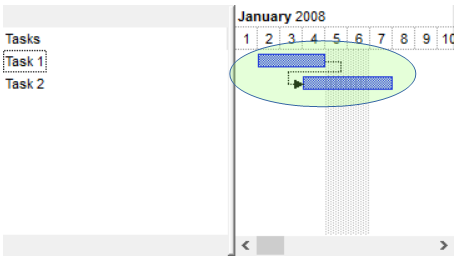 and
previous
and
previous 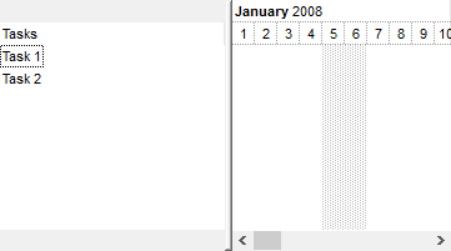
Now, let's add a checkbox for each item, and having the bars being displayed in the histogram, also the code displays the control's overview map ( the changes are reflected in maroon )
- Access. Go to the Form_Load event and replace the maroon section
Private Sub Form_Load()
    Dim g As EXG2ANTTLib.G2antt
    Set g = G2antt1.Object
    With g
        With .Chart
            .FirstVisibleDate = #1/1/2008#
            .LevelCount = 2
            With .Level(0)
                .Label = "<b><%mmmm%></b> <%yyyy%>"
                .Unit = exMonth
            End With
            .Level(1).Label = "<%d%>"
            .OverviewVisible = True
            .HistogramVisible = True
            .HistogramView = exHistogramCheckedItems
            .HistogramHeight = 32
            .Bars("Task").HistogramPattern = exPatternDot
        End With
        .Columns.Add("Tasks").Def(exCellHasCheckBox) = True
        Dim h1, h2 As Long
        With .Items
            h1 = .AddItem("Task 1")
            .AddBar h1, "Task", #1/2/2008#, #1/5/2008#
            h2 = .AddItem("Task 2")
            .AddBar h2, "Task", #1/4/2008#, #1/8/2008#
            .AddLink "LKey", h1, "", h2, ""
        End With
    End With
End Sub
- Excel. Go to the UserForm_Initialize event and replace the maroon section
Private Sub UserForm_Initialize()
    With G2antt1
        With .Chart
            .FirstVisibleDate = #1/1/2008#
            .LevelCount = 2
            With .Level(0)
                .Label = "<b><%mmmm%></b> <%yyyy%>"
                .Unit = exMonth
            End With
            .Level(1).Label = "<%d%>"
.OverviewVisible = True
            .HistogramVisible = True
            .HistogramView = exHistogramCheckedItems
            .HistogramHeight = 32
            .Bars("Task").HistogramPattern = exPatternDot
        End With
        .Columns.Add("Tasks").Def(exCellHasCheckBox) = True
        Dim h1, h2 As Long
        With .Items
            h1 = .AddItem("Task 1")
            .AddBar h1, "Task", #1/2/2008#, #1/5/2008#
            h2 = .AddItem("Task 2")
            .AddBar h2, "Task", #1/4/2008#, #1/8/2008#
            .AddLink "LKey", h1, "", h2, ""
        End With
    End With
End Sub
- VB6. Go to the Form_Load event and replace the maroon section
Private Sub Form_Load()
    With G2antt1
        With .Chart
            .FirstVisibleDate = #1/1/2008#
            .LevelCount = 2
            With .Level(0)
                .Label = "<b><%mmmm%></b> <%yyyy%>"
                .Unit = exMonth
            End With
            .Level(1).Label = "<%d%>"
            .OverviewVisible = True
            .HistogramVisible = True
            .HistogramView = exHistogramCheckedItems
            .HistogramHeight = 32
            .Bars("Task").HistogramPattern = exPatternDot
        End With
        .Columns.Add("Tasks").Def(exCellHasCheckBox) = True
        Dim h1, h2 As Long
        With .Items
            h1 = .AddItem("Task 1")
            .AddBar h1, "Task", #1/2/2008#, #1/5/2008#
            h2 = .AddItem("Task 2")
            .AddBar h2, "Task", #1/4/2008#, #1/8/2008#
            .AddLink "LKey", h1, "", h2, ""
        End With
    End With
End Sub
- twinBASIC. Go to the Form_Load event and replace the maroon section
Private Sub Form_Load()
    With G2antt1
        With .Chart
            .FirstVisibleDate = #1/1/2008#
            .LevelCount = 2
            With .Level(0)
                .Label = "<b><%mmmm%></b> <%yyyy%>"
                .Unit = exMonth
            End With
            .Level(1).Label = "<%d%>"
            .OverviewVisible = True
            .HistogramVisible = True
            .HistogramView = exHistogramCheckedItems
            .HistogramHeight = 32
            .Bars("Task").HistogramPattern = exPatternDot
        End With
        .Columns.Add("Tasks").Def(exCellHasCheckBox) = True
        Dim h1, h2 As Long
        With .Items
            h1 = .AddItem("Task 1")
            .AddBar h1, "Task", #1/2/2008#, #1/5/2008#
            h2 = .AddItem("Task 2")
            .AddBar h2, "Task", #1/4/2008#, #1/8/2008#
            .AddLink "LKey", h1, "", h2, ""
        End With
    End With
End Sub
- VFP. Go to the the Form1_Init method and replace the maroon code as follow:
with thisform.G2antt1
	With .Chart
		.FirstVisibleDate = {^2008-1-1}
		.LevelCount = 2
		With .Level(0)
			.Label = "<b><%mmmm%></b> <%yyyy%>"
			.Unit = 16
		EndWith
		.Level(1).Label = "<%d%>"
		.OverviewVisible = .T.
		.HistogramVisible = .T.
		.HistogramView = 4
		.HistogramHeight = 32
		.Bars("Task").HistogramPattern = 2
	EndWith
	.Columns.Add("Default").Def(0) = .T.
	local h1,h2
	with .Items
		h1 = .AddItem("Task 1")
		.AddBar(h1,"Task",{^2008-1-2},{^2008-1-5})
		h2 = .AddItem("Task 2")
		.AddBar(h2,"Task",{^2008-1-4},{^2008-1-8})
		.AddLink("LKey",h1,"",h2,"")
	endwith
endwith
- VB.NET ( /COM ). Go back to the Form1_Load event and replace the maroon code as shown bellow:
Private Sub Form1_Load(ByVal sender As System.Object, ByVal e As System.EventArgs) Handles MyBase.Load
    With AxG2antt1
        With .Chart
            .FirstVisibleDate = #1/1/2008#
            .LevelCount = 2
            With .Level(0)
                .Label = "<b><%mmmm%></b> <%yyyy%>"
                .Unit = EXG2ANTTLib.UnitEnum.exMonth
            End With
            .Level(1).Label = "<%d%>"
            .OverviewVisible = True
            .HistogramVisible = True
            .HistogramView = EXG2ANTTLib.HistogramViewEnum.exHistogramCheckedItems
            .HistogramHeight = 32
            .Bars("Task").HistogramPattern = EXG2ANTTLib.PatternEnum.exPatternDot
        End With
        .Columns.Add("Tasks").Def(EXG2ANTTLib.DefColumnEnum.exCellHasCheckBox) = True
        With .Items
            Dim h1 As Integer = .AddItem("Task 1")
            .AddBar(h1, "Task", #1/2/2008#, #1/5/2008#)
            Dim h2 As Integer = .AddItem("Task 2")
            .AddBar(h2, "Task", #1/4/2008#, #1/8/2008#)
            .AddLink("LKey", h1, "", h2, "")
        End With
    End With
End Sub
- VB.NET ( /NET ). Go back to the Form1_Load event and add the maroon code as shown here:
Private Sub Form1_Load(ByVal sender As System.Object, ByVal e As System.EventArgs) Handles MyBase.Load
    With Exg2antt1
        With .Chart
            .FirstVisibleDate = #1/1/2008#
            .LevelCount = 2
            With .get_Level(0)
                .Label = "<b><%mmmm%></b> <%yyyy%>"
                .Unit = exontrol.EXG2ANTTLib.UnitEnum.exMonth
            End With
            .get_Level(1).Label = "<%d%>"
            .OverviewVisible = True
            .HistogramVisible = True
            .HistogramView = exontrol.EXG2ANTTLib.HistogramViewEnum.exHistogramCheckedItems
            .HistogramHeight = 32
            .Bars("Task").HistogramPattern = exontrol.EXG2ANTTLib.PatternEnum.exPatternDot
        End With
        .Columns.Add("Tasks").set_Def(exontrol.EXG2ANTTLib.DefColumnEnum.exCellHasCheckBox, True)
        With .Items
            Dim h1 As Integer = .AddItem("Task 1")
            .AddBar(h1, "Task", #1/2/2008#, #1/5/2008#)
            Dim h2 As Integer = .AddItem("Task 2")
            .AddBar(h2, "Task", #1/4/2008#, #1/8/2008#)
            .AddLink("LKey", h1, "", h2, "")
        End With
    End With
End Sub
- VB.NET ( /WPF ). Go back to the Window1_Loaded event and add the maroon code as shown here:
Private Sub Window1_Loaded(ByVal sender As System.Object, ByVal e As System.Windows.RoutedEventArgs) Handles MyBase.Loaded
    With Exg2antt1
        With .Chart
            .FirstVisibleDate = #1/1/2008#
            .LevelCount = 2
            With .get_Level(0)
                .Label = "<b><%mmmm%></b> <%yyyy%>"
                .Unit = wpf.exontrol.EXG2ANTTLib.UnitEnum.exMonth
            End With
            .get_Level(1).Label = "<%d%>"
            .OverviewVisible = True
            .HistogramVisible = True
            .HistogramView = wpf.exontrol.EXG2ANTTLib.HistogramViewEnum.exHistogramCheckedItems
            .HistogramHeight = 32
            .Bars("Task").HistogramPattern = wpf.exontrol.EXG2ANTTLib.PatternEnum.exPatternDot
        End With
        .Columns.Add("Tasks").set_Def(wpf.exontrol.EXG2ANTTLib.DefColumnEnum.exCellHasCheckBox, True)
        With .Items
            Dim h1 As Integer = .AddItem("Task 1")
            .AddBar(h1, "Task", #1/2/2008#, #1/5/2008#)
            Dim h2 As Integer = .AddItem("Task 2")
            .AddBar(h2, "Task", #1/4/2008#, #1/8/2008#)
            .AddLink("LKey", h1, "", h2, "")
        End With
    End With
End Sub
- C# ( /COM ). Go back to the Form1_Load event and replace the maroon code as follows:
private void Form1_Load(object sender, EventArgs e)
{
    axG2antt1.Chart.FirstVisibleDate = new DateTime(2008, 1, 1);
    axG2antt1.Chart.LevelCount = 2;
    EXG2ANTTLib.Level l = axG2antt1.Chart.get_Level(0);
    l.Label = "<b><%mmmm%></b> <%yyyy%>";
    l.Unit = EXG2ANTTLib.UnitEnum.exMonth;
    axG2antt1.Chart.get_Level(1).Label = "<%d%>";
    axG2antt1.Chart.OverviewVisible = true;
    axG2antt1.Chart.HistogramVisible = true;
    axG2antt1.Chart.HistogramView = EXG2ANTTLib.HistogramViewEnum.exHistogramCheckedItems;
    axG2antt1.Chart.HistogramHeight = 32;
    axG2antt1.Chart.Bars["Task"].HistogramPattern = EXG2ANTTLib.PatternEnum.exPatternDot;
    (axG2antt1.Columns.Add("Tasks") as EXG2ANTTLib.Column)
        .set_Def(EXG2ANTTLib.DefColumnEnum.exCellHasCheckBox, true);
    int h1 = axG2antt1.Items.AddItem("Task 1");
    axG2antt1.Items.AddBar(h1, "Task", new DateTime(2008, 1, 2), new DateTime(2008, 1, 5), null, null);
    int h2 = axG2antt1.Items.AddItem("Task 2");
    axG2antt1.Items.AddBar(h2, "Task", new DateTime(2008, 1, 4), new DateTime(2008, 1, 8), null, null);
    axG2antt1.Items.AddLink("LKey", h1, null, h2, null);
}
- C# ( /NET ). Go back to the Form1_Load event and replace the maroon code as shown bellow:
private void Form1_Load(object sender, EventArgs e)
{
    exg2antt1.Chart.FirstVisibleDate = new DateTime(2008, 1, 1);
    exg2antt1.Chart.LevelCount = 2;
    exontrol.EXG2ANTTLib.Level l = exg2antt1.Chart.get_Level(0);
    l.Label = "<b><%mmmm%></b> <%yyyy%>";
    l.Unit = exontrol.EXG2ANTTLib.UnitEnum.exMonth;
    exg2antt1.Chart.get_Level(1).Label = "<%d%>";
    exg2antt1.Chart.OverviewVisible = true;
    exg2antt1.Chart.HistogramVisible = true;
    exg2antt1.Chart.HistogramView = exontrol.EXG2ANTTLib.HistogramViewEnum.exHistogramCheckedItems;
    exg2antt1.Chart.HistogramHeight = 32;
    exg2antt1.Chart.Bars["Task"].HistogramPattern = exontrol.EXG2ANTTLib.PatternEnum.exPatternDot;
    exg2antt1.Columns.Add("Tasks").set_Def(exontrol.EXG2ANTTLib.DefColumnEnum.exCellHasCheckBox, true );
    int h1 = exg2antt1.Items.AddItem("Task 1");
    exg2antt1.Items.AddBar(h1, "Task", new DateTime(2008, 1, 2), new DateTime(2008, 1, 5));
    int h2 = exg2antt1.Items.AddItem("Task 2");
    exg2antt1.Items.AddBar(h2, "Task", new DateTime(2008, 1, 4), new DateTime(2008, 1, 8));
    exg2antt1.Items.AddLink("LKey", h1, null, h2, null);
}
- C# ( /WPF ). Go back to the Window1_Loaded event and replace the maroon code as shown bellow:
private void Window_Loaded(object sender, RoutedEventArgs e)
{
    exg2antt1.Chart.FirstVisibleDate = new DateTime(2008, 1, 1);
    exg2antt1.Chart.LevelCount = 2;
    wpf.exontrol.EXG2ANTTLib.Level l = exg2antt1.Chart.get_Level(0);
    l.Label = "<b><%mmmm%></b> <%yyyy%>";
    l.Unit = wpf.exontrol.EXG2ANTTLib.UnitEnum.exMonth;
    exg2antt1.Chart.get_Level(1).Label = "<%d%>";
    exg2antt1.Chart.OverviewVisible = true;
    exg2antt1.Chart.HistogramVisible = true;
    exg2antt1.Chart.HistogramView = wpf.exontrol.EXG2ANTTLib.HistogramViewEnum.exHistogramCheckedItems;
    exg2antt1.Chart.HistogramHeight = 32;
    exg2antt1.Chart.Bars["Task"].HistogramPattern = wpf.exontrol.EXG2ANTTLib.PatternEnum.exPatternDot;
    exg2antt1.Columns.Add("Tasks").set_Def(wpf.exontrol.EXG2ANTTLib.DefColumnEnum.exCellHasCheckBox, true);
    int h1 = exg2antt1.Items.AddItem("Task 1");
    exg2antt1.Items.AddBar(h1, "Task", new DateTime(2008, 1, 2), new DateTime(2008, 1, 5));
    int h2 = exg2antt1.Items.AddItem("Task 2");
    exg2antt1.Items.AddBar(h2, "Task", new DateTime(2008, 1, 4), new DateTime(2008, 1, 8));
    exg2antt1.Items.AddLink("LKey", h1, null, h2, null);
}
- C++ (6.0). Go Back to the OnInitDialog function, and replace the maroon code as follows:
CChart chart = m_g2antt.GetChart();
	chart.SetFirstVisibleDate( COleVariant( COleDateTime(2008,1,1,0,0,0).operator DATE() ) );
	chart.SetLevelCount( 2 );
	CLevel level0 = chart.GetLevel(0);
	level0.SetLabel( COleVariant( "<b><%mmmm%></b> <%yyyy%>" ) );
	level0.SetUnit( 16 /*exMonth*/ );
	chart.GetLevel(1).SetLabel( COleVariant( "<%d%>" ) );
	chart.SetOverviewVisible( TRUE );
	chart.SetHistogramVisible( TRUE );
	chart.SetHistogramView( 4 /*exHistogramCheckedItems*/ );
	chart.SetHistogramHeight( 32 );
	chart.GetBars().GetItem(COleVariant(_T("Task"))).SetHistogramPattern(2/*exPatternDot*/);
CColumn column = V_DISPATCH( &m_g2antt.GetColumns().Add("Tasks") );
column.SetDef( 0, COleVariant( VARIANT_TRUE ) );
CItems items = m_g2antt.GetItems();
int h1 = items.AddItem( COleVariant( "Task 1" ) );
items.AddBar( h1, COleVariant( "Task" ),
		COleVariant( COleDateTime( 2008, 1, 2, 0, 0, 0 ).operator DATE() ),
		COleVariant( COleDateTime( 2008, 1, 5, 0, 0, 0 ).operator DATE() ),
		COleVariant(""), COleVariant() );
int h2 = items.AddItem( COleVariant( "Task 2" ) );
items.AddBar( h2, COleVariant( "Task" ),
		COleVariant( COleDateTime( 2008, 1, 4, 0, 0, 0 ).operator DATE() ),
		COleVariant( COleDateTime( 2008, 1, 8, 0, 0, 0 ).operator DATE() ),
		COleVariant(""), COleVariant() );
items.AddLink( COleVariant( "LKey" ), h1, COleVariant(""), h2, COleVariant("") );
- C++ (VS 2005,2008,...). Go Back to the OnInitDialog function, and replace the maroon code as follows:
EXG2ANTTLib::IChartPtr spChart = m_g2antt.get_Chart();
spChart->FirstVisibleDate = COleDateTime( 2008, 1, 1, 0, 0, 0 ).operator DATE();
spChart->LevelCount = 2;
EXG2ANTTLib::ILevelPtr spLevel0 = spChart->Level[0];
	spLevel0->Label = _T("<b><%mmmm%></b> <%yyyy%>");
	spLevel0->Unit = EXG2ANTTLib::exMonth;
spChart->Level[1]->Label = _T("<%d%>");
spChart->OverviewVisible = VARIANT_TRUE;
spChart->HistogramVisible = VARIANT_TRUE;
spChart->HistogramView = EXG2ANTTLib::exHistogramCheckedItems;
spChart->HistogramHeight = 32;
spChart->Bars->GetItem("Task")->HistogramPattern = EXG2ANTTLib::exPatternDot;
EXG2ANTTLib::IColumnsPtr spColumns = m_g2antt.get_Columns();
EXG2ANTTLib::IColumnPtr spColumn = V_DISPATCH( &spColumns->Add(_T("Tasks")) );
spColumn->put_Def( EXG2ANTTLib::exCellHasCheckBox, CComVariant( VARIANT_TRUE ) );
EXG2ANTTLib::IItemsPtr spItems = m_g2antt.get_Items();
int h1 = spItems->AddItem( _T("Task 1") );
spItems->AddBar( h1, _T("Task"),
		COleVariant( COleDateTime( 2008, 1, 2, 0, 0, 0 ).operator DATE() ),
		COleVariant( COleDateTime( 2008, 1, 5, 0, 0, 0 ).operator DATE() ),
		"" );
int h2 = spItems->AddItem( _T("Task 2") );
spItems->AddBar( h2, _T("Task"),
		COleVariant( COleDateTime( 2008, 1, 4, 0, 0, 0 ).operator DATE() ),
		COleVariant( COleDateTime( 2008, 1, 8, 0, 0, 0 ).operator DATE() ),
		"" );
spItems->AddLink( "LKey", h1, "", h2, "" );
- C++ Builder (2009). Go Back to the FormCreate function, and replace the maroon code as follows:
void __fastcall TForm1::FormCreate(TObject *Sender)
{
	IChartPtr spChart = G2antt1->Chart;
	spChart->set_FirstVisibleDate( TVariant(TDateTime(2008,1,1).operator double()) );
	spChart->LevelCount = 2;
	ILevelPtr spLevel0 = spChart->get_Level(0);
		spLevel0->set_Label( TVariant("<b><%mmmm%></b> <%yyyy%>") );
		spLevel0->set_Unit( UnitEnum::exMonth );
	spChart->get_Level(1)->set_Label( TVariant("<%d%>") );
	spChart->set_OverviewVisible( true );
	spChart->set_HistogramVisible( true );
	spChart->set_HistogramView( HistogramViewEnum::exHistogramCheckedItems );
	spChart->set_HistogramHeight(32);
	spChart->Bars->get_Item(TVariant("Task"))->set_HistogramPattern(PatternEnum::exPatternDot);
	IColumnsPtr spColumns = G2antt1->Columns;
	TVariant vtCol;
	spColumns->Add( L"Tasks", &vtCol );
	IColumnPtr spCol = vtCol;
	spCol->set_Def( DefColumnEnum::exCellHasCheckBox, TVariant(true) );
	IItemsPtr spItems = G2antt1->Items;
	long h1 = spItems->AddItem( TVariant("Task 1") );
	spItems->AddBar( h1, TVariant("Task"),
			TVariant(TDateTime(2008,1,2).operator double() ),
			TVariant(TDateTime(2008,1,5).operator double() ),
			TVariant("") );
	long h2 = spItems->AddItem( TVariant("Task 2") );
	spItems->AddBar( h2, TVariant("Task"),
			TVariant(TDateTime(2008,1,4).operator double() ),
			TVariant(TDateTime(2008,1,8).operator double() ),
			TVariant("") );
	spItems->AddLink( TVariant("LKey"), h1, TVariant(""), h2, TVariant("") );
}
- X++ (Dynamics Ax 2009). Go to form's init function and replace the maroon snippet as follows:
public void init()
{
	COM com_Bar,com_Chart,com_Items,com_Level,com_Level1;
	anytype var_Bar,var_Chart,var_Items,var_Level,var_Level1;
	int h1,h2;
	;

	super();

	var_Chart = exg2antt1.Chart(); com_Chart = var_Chart;
		com_Chart.FirstVisibleDate(COMVariant::createFromDate(str2Date("1/1/2008",213)));
		com_Chart.LevelCount(2);
		var_Level = com_Chart.Level(0); com_Level = var_Level;
			com_Level.Label("<b><%mmmm%></b> <%yyyy%>");
			com_Level.Unit(16/*exMonth*/);
		var_Level1 = COM::createFromObject(com_Chart.Level(1)); com_Level1 = var_Level1;
		com_Level1.Label("<%d%>");
		com_Chart.OverviewVisible(true);
		com_Chart.HistogramVisible(true);
		com_Chart.HistogramView(4/*exHistogramCheckedItems*/);
		com_Chart.HistogramHeight(32);
		var_Bar = COM::createFromObject(com_Chart.Bars()).Item("Task"); com_Bar = var_Bar;
		com_Bar.HistogramPattern(2/*exPatternDot*/);
	COM::createFromVariant(exg2antt1.Columns().Add("Tasks")).Def(0/*exCellHasCheckBox*/,COMVariant::createFromBoolean(true));
	var_Items = exg2antt1.Items(); com_Items = var_Items;
		h1 = com_Items.AddItem("Task 1");
		com_Items.AddBar(h1,"Task",COMVariant::createFromDate(str2Date("1/2/2008",213)),COMVariant::createFromDate(str2Date("1/5/2008",213)));
		h2 = com_Items.AddItem("Task 2");
		com_Items.AddBar(h2,"Task",COMVariant::createFromDate(str2Date("1/4/2008",213)),COMVariant::createFromDate(str2Date("1/8/2008",213)));
		com_Items.AddLink("LKey",h1,"",h2,"");
}
- Delphi (2009). Go Back to the FormCreate function, and replace the maroon code as follows:
procedure TForm1.FormCreate(Sender: TObject);
var h1: Integer;
var h2: Integer;
begin
with G2antt1 do
begin
 with Chart do
 begin
  FirstVisibleDate := '1/1/2008';
  LevelCount := 2;
  with Level[0] do
  begin
    Label_ := '<b><%mmmm%></b> <%yyyy%>';
    Unit_ := exMonth;
  end;
  Level[1].Label_ := '<%d%>';
  OverviewVisible := True;
  HistogramVisible := True;
  HistogramHeight := 32;
  HistogramView := exHistogramCheckedItems;
  Bars.Item['Task'].HistogramPattern := exPatternDot;
 end;
 Columns.Add('Tasks').Def[exCellHasCheckBox] := True;
 with Items do
 begin
  h1 := AddItem('Task 1');
  .AddBar( h1, 'Task', '1/2/2008', '1/5/2008', '', '');
  h2 := AddItem('Task 2');
   AddBar( h2, 'Task', '1/4/2008', '1/8/2008', '', '');
   AddLink('LKey', h1, '', h2, '' );
 end;
end;
end;
- Clarion. Go back to your embed and add this code:
?Gantt{mc:Chart&'.FirstVisibleDate'} = FORMAT(TODAY()-3, @D17)
?Gantt{mc:Chart&'.LevelCount'} = 2
?Gantt{mc:Chart&'.Level(0).Label'} = '<b><%mmmm%></b> <%yyyy%>'
?Gantt{mc:Chart&'.Level(0).Unit'} = 64
?Gantt{mc:Chart&'.Level(1).Label'} = '<%d%>'
?Gantt{mc.Chart&'.OverviewVisible'} = True
?Gantt{mc.Chart&'.HistogramVisible'} = True
?Gantt{mc.Chart&'.HistogramView'} = EXG2ANTTLib.HistogramViewEnum.exHistogramCheckedItems
?Gantt{mc.Chart&'.HistogramHeight'} = 32
?Gantt{mc.Chart&'.Bars("Task").HistogramPattern'} = EXG2ANTTLib.PatternEnum.exPatternDot
lc:Columns = ?Gantt{'Colums'}
lc:Items   = ?Gantt{'Items'}
?Gantt{lc:Columns&'.Add("Task").Def(exCellHasCheckBox)'} = True
h1 = ?Gantt{lc:Items&'.AddItem("Task 1")'}
?Gantt{mc:Items&'.AddBar('&h1&', "Task", '1/2/2008, '1/5/2008,"","")'}
h2 = ?Gantt{lc:Items&'.AddItem("Task 2")'}
?Gantt{mc:Items&'.AddBar('&h2&', "Task", '1/4/2008, '1/8/2008,"","")'}
?Gantt{mc:Items&'.AddLink(LKey, '&h1&', '&h2&',"")'}
- PowerBuilder (Classic). : Go to the Open event of the DataWindow and replace the maroon section
OleObject oG2antt,var_Chart,var_Items,var_Level
any h1,h2

oG2antt = ole_1.Object
var_Chart = oG2antt.Chart
	var_Chart.FirstVisibleDate = 2008-01-01
	var_Chart.LevelCount = 2
	var_Level = var_Chart.Level(0)
		var_Level.Label = "<b><%mmmm%></b> <%yyyy%>"
		var_Level.Unit = 16
	var_Chart.Level(1).Label = "<%d%>"
	var_Chart.OverviewVisible = true
	var_Chart.HistogramVisible = true
	var_Chart.HistogramView = 4
	var_Chart.HistogramHeight = 32
	var_Chart.Bars.Item("Task").HistogramPattern = 2
oG2antt.Columns.Add("Tasks").Def(0,true)
var_Items = oG2antt.Items
	h1 = var_Items.AddItem("Task 1")
	var_Items.AddBar(h1,"Task",2008-01-02,2008-01-05)
	h2 = var_Items.AddItem("Task 2")
	var_Items.AddBar(h2,"Task",2008-01-04,2008-01-08)
	var_Items.AddLink("LKey",h1,"",h2,"")
- dBASE Plus. : Go to the Open event of the your form and replace the maroon section
function form_onOpen

   local h1,h2,oG2antt,var_Chart,var_Column,var_Items,var_Level,var_Level1

   oG2antt = form.Activex1.nativeObject
   var_Chart = oG2antt.Chart
      var_Chart.FirstVisibleDate = "01/01/2008"
      var_Chart.LevelCount = 2
      var_Level = var_Chart.Level(0)
         var_Level.Label = "<b><%mmmm%></b> <%yyyy%>"
         var_Level.Unit = 16
      // var_Chart.Level(1).Label = "<%d%>"
      var_Level1 = var_Chart.Level(1)
      with (oG2antt)
         TemplateDef = [Dim var_Level1]
         TemplateDef = var_Level1
         Template = [var_Level1.Label = "<%d%>"]
      endwith
      var_Chart.OverviewVisible = true
      var_Chart.HistogramVisible = true
      var_Chart.HistogramView = 4
      var_Chart.HistogramHeight = 32
      var_Chart.Bars.Item("Task").HistogramPattern = 2
   // oG2antt.Columns.Add("Tasks").Def(0) = true
   var_Column = oG2antt.Columns.Add("Tasks")
   with (oG2antt)
      TemplateDef = [Dim var_Column]
      TemplateDef = var_Column
      Template = [var_Column.Def(0) = true]
   endwith
   var_Items = oG2antt.Items
      h1 = var_Items.AddItem("Task 1")
      var_Items.AddBar(h1,"Task","01/02/2008","01/05/2008")
      h2 = var_Items.AddItem("Task 2")
      var_Items.AddBar(h2,"Task","01/04/2008","01/08/2008")
      var_Items.AddLink("LKey",h1,"",h2,"")

return
- Visual DataFlex. : Go back to OnCreate procedure of Object oComG2antt and replace the maroon section:
Procedure OnCreate
    Forward Send OnCreate

    Variant vChart
    Get ComChart to vChart
    Handle hoChart
    Get Create (RefClass(cComChart)) to hoChart
    Set pvComObject of hoChart to vChart
    Set ComFirstVisibleDate of hoChart to "1/1/2008"
    Set ComLevelCount of hoChart to 2

        Variant vLevel0
        Get ComLevel of hoChart 0 to vLevel0
        Handle hoLevel0
        Get Create (RefClass(cComLevel)) to hoLevel0
        Set pvComObject of hoLevel0 to vLevel0
        Set ComLabel of hoLevel0 to "<b><%mmmm%></b> <%yyyy%>"
        Set ComUnit of hoLevel0 to OLEexMonth
        Send Destroy to hoLevel0

        Variant vLevel1
        Get ComLevel of hoChart 1 to vLevel1
        Handle hoLevel1
        Get Create (RefClass(cComLevel)) to hoLevel1
        Set pvComObject of hoLevel1 to vLevel1
        Set ComLabel of hoLevel1 to "<%d%>"
        Send Destroy to hoLevel1

    Set ComOverviewVisible of hoChart to True
    Set ComHistogramVisible of hoChart to True
    Set ComHistogramView of hoChart to OLEexHistogramCheckedItems
    Set ComHistogramHeight of hoChart to 32

    Variant vBars
    Get ComBars of hoChart to vBars
    Handle hoBars
    Get Create (RefClass(cComBars)) to hoBars
    Set pvComObject of hoBars to vBars
    Variant vBar
    Get ComItem of hoBars "Task" to vBar
    Handle hoBar
    Get Create (RefClass(cComBar)) to hoBar
    Set pvComObject of hoBar to vBar
    Set ComHistogramPattern of hoBar to OLEexPatternDot
    Send Destroy to hoBar
    Send Destroy to hoBars

    Send Destroy to hoChart

    Variant vColumns
    Get ComColumns to vColumns
    Handle hoColumns
    Get Create (RefClass(cComColumns)) to hoColumns
    Set pvComObject of hoColumns to vColumns
    Variant vColumn
    Get ComAdd of hoColumns "Tasks" to vColumn
    Handle hoColumn
    Get Create (RefClass(cComColumn)) to hoColumn
    Set pvComObject of hoColumn to vColumn
    Set ComDef of hoColumn OLEexCellHasCheckBox to True
    Send Destroy to hoColumn
    Send Destroy to hoColumns

    Variant vItems
    Get ComItems to vItems
    Handle hoItems
    Get Create (RefClass(cComItems)) to hoItems
    Set pvComObject of hoItems to vItems
    HITEM h1
    Get ComAddItem of hoItems "Task 1" to h1
    Send ComAddBar of hoItems h1 "Task" "1/2/2008" "1/5/2008" Nothing Nothing
    HITEM h2
    Get ComAddItem of hoItems "Task 2" to h2
    Send ComAddBar of hoItems h2 "Task" "1/4/2008" "1/8/2008" Nothing Nothing
    Send ComAddLink of hoItems "LKey" h1 "" h2 ""
    Send Destroy to hoItems

End_Procedure
- Xbase++. : Go back to Main procedure and replace the maroon section:
#include "AppEvent.CH"
#PRAGMA LIBRARY( "ASCOM10.LIB" ) // Include the Automation Support Library

PROCEDURE Main

  LOCAL oForm, oControl
  LOCAL nEvent
  LOCAL mp1 := NIL, mp2 := NIL, oXbp := NIL
  LOCAL oLevel
  LOCAL oItems
  LOCAL h1, h2

  oForm := XbpDialog():new( AppDesktop() )
  oForm:drawingArea:clipChildren := .T.
  oForm:create( ,,{100,100}, {640,480},, .F. )
  oForm:close  := {|| PostAppEvent( xbeP_Quit )}

    oControl := XbpActiveXControl():new( oForm:drawingArea )
    oControl:CLSID  := "Exontrol.G2antt"
    oControl:create(,, {10,60},{610,370} )

    oControl:Chart:FirstVisibleDate = "1/1/2008"
    oControl:Chart:LevelCount := 2
    oLevel = oControl:Chart:Level(0)
    oLevel:Label := "<b><%mmmm%></b> <%yyyy%>"
    oLevel:Unit := 16 /*exMonth*/
    oControl:Chart:Level(1):Label = "<%d%>"
    oControl:Chart:OverviewVisible = -1 /*exOverviewShowAll*/
    oControl:Chart:HistogramVisible = .T.
    oControl:Chart:HistogramView = 4 /*exHistogramCheckedItems*/
    oControl:Chart:HistogramHeight = 32
    oControl:Chart:Bars("Task"):HistogramPattern = 2 /*exPatternDot*/

    oControl:Columns:Add("Tasks"):SetProperty("Def", 0 /*exCellHasCheckBox*/, .T.)
    oItems := oControl:Items
    h1 := oItems:AddItem("Task 1")
    oItems:AddBar(h1, "Task", "1/2/2008", "1/5/2008")
    h2 := oItems:AddItem("Task 1")
    oItems:AddBar(h2, "Task", "1/4/2008", "1/8/2008")
    oItems:AddLink("LKey", h1, "", h2, "")

  oForm:Show()

  nEvent := 0
  DO WHILE nEvent != xbeP_Quit
    nEvent := AppEvent( @mp1, @mp2, @oXbp )
    oXbp:handleEvent( nEvent, mp1, mp2 )
  ENDDO

RETURN
Save the project and run the form again. Click the checkbox for each item and you should get the following screen shot:
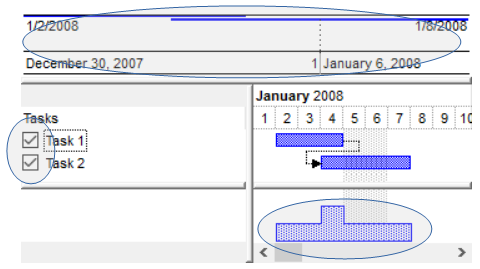 and
previous
and
previous 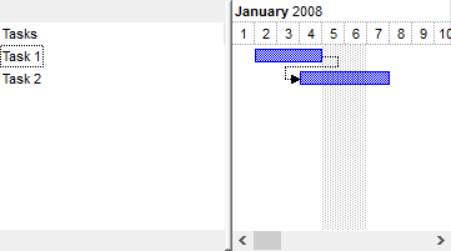
Finally let's optimize the calling the BeginUpdate/EndUpdate methods, for performance, and grouping calling the same property several times as seen in the C# for Items or Chart property.
- Access. Go back to the Form's Load event add the maroon code as shown bellow:
Private Sub Form_Load()
    Dim g As EXG2ANTTLib.G2antt
    Set g = G2antt1.Object
    With g
        .BeginUpdate
        With .Chart
            .FirstVisibleDate = #1/1/2008#
            .LevelCount = 2
            With .Level(0)
                .Label = "<b><%mmmm%></b> <%yyyy%>"
                .Unit = exMonth
            End With
            .Level(1).Label = "<%d%>"
            .OverviewVisible = True
            .HistogramVisible = True
            .HistogramView = exHistogramCheckedItems
            .HistogramHeight = 32
            .Bars("Task").HistogramPattern = exPatternDot
        End With
        .Columns.Add("Tasks").Def(exCellHasCheckBox) = True
        Dim h1, h2 As Long
        With .Items
            h1 = .AddItem("Task 1")
            .AddBar h1, "Task", #1/2/2008#, #1/5/2008#
            h2 = .AddItem("Task 2")
            .AddBar h2, "Task", #1/4/2008#, #1/8/2008#
            .AddLink "LKey", h1, "", h2, ""
        End With
        .EndUpdate
    End With
End Sub
- Excel. Go back to the UserForm_Initialize event add the maroon code as shown bellow:
Private Sub UserForm_Initialize()
    With G2antt1
        .BeginUpdate
        With .Chart
            .FirstVisibleDate = #1/1/2008#
            .LevelCount = 2
            With .Level(0)
                .Label = "<b><%mmmm%></b> <%yyyy%>"
                .Unit = exMonth
            End With
            .Level(1).Label = "<%d%>"
            .OverviewVisible = True
            .HistogramVisible = True
            .HistogramView = exHistogramCheckedItems
            .HistogramHeight = 32
            .Bars("Task").HistogramPattern = exPatternDot
        End With
        .Columns.Add("Tasks").Def(exCellHasCheckBox) = True
        Dim h1, h2 As Long
        With .Items
            h1 = .AddItem("Task 1")
            .AddBar h1, "Task", #1/2/2008#, #1/5/2008#
            h2 = .AddItem("Task 2")
            .AddBar h2, "Task", #1/4/2008#, #1/8/2008#
            .AddLink "LKey", h1, "", h2, ""
        End With
        .EndUpdate
    End With
End Sub
- VB6. Go back to the Form's Load event add the maroon code as shown bellow:
Private Sub Form_Load()
    With G2antt1
        .BeginUpdate
        With .Chart
            .FirstVisibleDate = #1/1/2008#
            .LevelCount = 2
            With .Level(0)
                .Label = "<b><%mmmm%></b> <%yyyy%>"
                .Unit = exMonth
            End With
            .Level(1).Label = "<%d%>"
            .OverviewVisible = True
            .HistogramVisible = True
            .HistogramView = exHistogramCheckedItems
            .HistogramHeight = 32
            .Bars("Task").HistogramPattern = exPatternDot
        End With
        .Columns.Add("Tasks").Def(exCellHasCheckBox) = True
        Dim h1, h2 As Long
        With .Items
            h1 = .AddItem("Task 1")
            .AddBar h1, "Task", #1/2/2008#, #1/5/2008#
            h2 = .AddItem("Task 2")
            .AddBar h2, "Task", #1/4/2008#, #1/8/2008#
            .AddLink "LKey", h1, "", h2, ""
        End With
        .EndUpdate
    End With
End Sub
- twinBASIC. Go back to the Form's Load event add the maroon code as shown bellow:
Private Sub Form_Load()
    With G2antt1
        .BeginUpdate
        With .Chart
            .FirstVisibleDate = #1/1/2008#
            .LevelCount = 2
            With .Level(0)
                .Label = "<b><%mmmm%></b> <%yyyy%>"
                .Unit = exMonth
            End With
            .Level(1).Label = "<%d%>"
            .OverviewVisible = True
            .HistogramVisible = True
            .HistogramView = exHistogramCheckedItems
            .HistogramHeight = 32
            .Bars("Task").HistogramPattern = exPatternDot
        End With
        .Columns.Add("Tasks").Def(exCellHasCheckBox) = True
        Dim h1, h2 As Long
        With .Items
            h1 = .AddItem("Task 1")
            .AddBar h1, "Task", #1/2/2008#, #1/5/2008#
            h2 = .AddItem("Task 2")
            .AddBar h2, "Task", #1/4/2008#, #1/8/2008#
            .AddLink "LKey", h1, "", h2, ""
        End With
        .EndUpdate
    End With
End Sub
- VFP. Go back to the Form's Load event add the maroon code as shown bellow:
with thisform.G2antt1
	.BeginUpdate
	With .Chart
		.FirstVisibleDate = {^2008-1-1}
		.LevelCount = 2
		With .Level(0)
			.Label = "<b><%mmmm%></b> <%yyyy%>"
			.Unit = 16
		EndWith
		.Level(1).Label = "<%d%>"
        .OverviewVisible = .T.
        .HistogramVisible = .T.
        .HistogramView = 4
        .HistogramHeight = 32
        .Bars("Task").HistogramPattern = 2
    EndWith
	.Columns.Add("Default").Def(0) = .T.
	local h1,h2
	with .Items
		h1 = .AddItem("Task 1")
		.AddBar(h1,"Task",{^2008-1-2},{^2008-1-5})
		h2 = .AddItem("Task 2")
		.AddBar(h2,"Task",{^2008-1-4},{^2008-1-8})
		.AddLink("LKey",h1,"",h2,"")
	endwith
	.EndUpdate
endwith
- VB.NET ( /COM ). Go back to the Form's Load event add the maroon code as shown bellow:
Private Sub Form1_Load(ByVal sender As System.Object, ByVal e As System.EventArgs) Handles MyBase.Load
    With AxG2antt1
        .BeginUpdate()
        With .Chart
            .FirstVisibleDate = #1/1/2008#
            .LevelCount = 2
            With .Level(0)
                .Label = "<b><%mmmm%></b> <%yyyy%>"
                .Unit = EXG2ANTTLib.UnitEnum.exMonth
            End With
            .Level(1).Label = "<%d%>"
            .OverviewVisible = True
            .HistogramVisible = True
            .HistogramView = EXG2ANTTLib.HistogramViewEnum.exHistogramCheckedItems
            .HistogramHeight = 32
            .Bars("Task").HistogramPattern = EXG2ANTTLib.PatternEnum.exPatternDot
        End With
        .Columns.Add("Tasks").Def(EXG2ANTTLib.DefColumnEnum.exCellHasCheckBox) = True
        With .Items
            Dim h1 As Integer = .AddItem("Task 1")
            .AddBar(h1, "Task", #1/2/2008#, #1/5/2008#)
            Dim h2 As Integer = .AddItem("Task 2")
            .AddBar(h2, "Task", #1/4/2008#, #1/8/2008#)
            .AddLink("LKey", h1, "", h2, "")
        End With
        .EndUpdate()
    End With
End Sub
- VB.NET ( /NET ). Go back to the Form's Load event add the maroon code as shown bellow:
Private Sub Form1_Load(ByVal sender As System.Object, ByVal e As System.EventArgs) Handles MyBase.Load
    With Exg2antt1
        .BeginUpdate()
        With .Chart
            .FirstVisibleDate = #1/1/2008#
            .LevelCount = 2
            With .get_Level(0)
                .Label = "<b><%mmmm%></b> <%yyyy%>"
                .Unit = exontrol.EXG2ANTTLib.UnitEnum.exMonth
            End With
            .get_Level(1).Label = "<%d%>"
            .OverviewVisible = True
            .HistogramVisible = True
            .HistogramView = exontrol.EXG2ANTTLib.HistogramViewEnum.exHistogramCheckedItems
            .HistogramHeight = 32
            .Bars("Task").HistogramPattern = exontrol.EXG2ANTTLib.PatternEnum.exPatternDot
        End With
        .Columns.Add("Tasks").set_Def(exontrol.EXG2ANTTLib.DefColumnEnum.exCellHasCheckBox, True)
        With .Items
            Dim h1 As Integer = .AddItem("Task 1")
            .AddBar(h1, "Task", #1/2/2008#, #1/5/2008#)
            Dim h2 As Integer = .AddItem("Task 2")
            .AddBar(h2, "Task", #1/4/2008#, #1/8/2008#)
            .AddLink("LKey", h1, "", h2, "")
        End With
        .EndUpdate()
    End With
End Sub
- VB.NET ( /WPF ). Go back to the Window1_Loaded event add the maroon code as shown bellow:
Private Sub Window1_Loaded(ByVal sender As System.Object, ByVal e As System.Windows.RoutedEventArgs) Handles MyBase.Loaded
    With Exg2antt1
        .BeginUpdate()
        With .Chart
            .FirstVisibleDate = #1/1/2008#
            .LevelCount = 2
            With .get_Level(0)
                .Label = "<b><%mmmm%></b> <%yyyy%>"
                .Unit = wpf.exontrol.EXG2ANTTLib.UnitEnum.exMonth
            End With
            .get_Level(1).Label = "<%d%>"
            .OverviewVisible = True
            .HistogramVisible = True
            .HistogramView = wpf.exontrol.EXG2ANTTLib.HistogramViewEnum.exHistogramCheckedItems
            .HistogramHeight = 32
            .Bars("Task").HistogramPattern = wpf.exontrol.EXG2ANTTLib.PatternEnum.exPatternDot
        End With
        .Columns.Add("Tasks").set_Def(wpf.exontrol.EXG2ANTTLib.DefColumnEnum.exCellHasCheckBox, True)
        With .Items
            Dim h1 As Integer = .AddItem("Task 1")
            .AddBar(h1, "Task", #1/2/2008#, #1/5/2008#)
            Dim h2 As Integer = .AddItem("Task 2")
            .AddBar(h2, "Task", #1/4/2008#, #1/8/2008#)
            .AddLink("LKey", h1, "", h2, "")
        End With
        .EndUpdate()
    End With
End Sub
- C# ( /COM ). Go back to the Form's Load event add the maroon code as shown bellow:
private void Form1_Load(object sender, EventArgs e)
{
    axG2antt1.BeginUpdate();
    EXG2ANTTLib.Chart chart = axG2antt1.Chart;
    chart.FirstVisibleDate = new DateTime(2008, 1, 1);
    chart.LevelCount = 2;
    EXG2ANTTLib.Level l = chart.get_Level(0);
    l.Label = "<b><%mmmm%></b> <%yyyy%>";
    l.Unit = EXG2ANTTLib.UnitEnum.exMonth;
    chart.get_Level(1).Label = "<%d%>";
    chart.OverviewVisible = true;
    chart.HistogramVisible = true;
    chart.HistogramView = EXG2ANTTLib.HistogramViewEnum.exHistogramCheckedItems;
    chart.HistogramHeight = 32;
    chart.Bars["Task"].HistogramPattern = EXG2ANTTLib.PatternEnum.exPatternDot;
    (axG2antt1.Columns.Add("Tasks") as EXG2ANTTLib.Column)
        .set_Def(EXG2ANTTLib.DefColumnEnum.exCellHasCheckBox, true);
    EXG2ANTTLib.Items items = axG2antt1.Items;
    int h1 = items.AddItem("Task 1");
    items.AddBar(h1, "Task", new DateTime(2008, 1, 2), new DateTime(2008, 1, 5), null, null);
    int h2 = items.AddItem("Task 2");
    items.AddBar(h2, "Task", new DateTime(2008, 1, 4), new DateTime(2008, 1, 8), null, null);
    items.AddLink("LKey", h1, null, h2, null);
    axG2antt1.EndUpdate();
}
- C# ( /NET ). Go back to the Form1_Load event and replace the maroon code as shown bellow:
private void Form1_Load(object sender, EventArgs e)
{
    exg2antt1.BeginUpdate();
    exontrol.EXG2ANTTLib.Chart chart = exg2antt1.Chart;
        chart.FirstVisibleDate = new DateTime(2008, 1, 1);
        chart.LevelCount = 2;
        exontrol.EXG2ANTTLib.Level l = chart.get_Level(0);
        l.Label = "<b><%mmmm%></b> <%yyyy%>";
        l.Unit = exontrol.EXG2ANTTLib.UnitEnum.exMonth;
        chart.get_Level(1).Label = "<%d%>";
        chart.OverviewVisible = true;
        chart.HistogramVisible = true;
        chart.HistogramView = exontrol.EXG2ANTTLib.HistogramViewEnum.exHistogramCheckedItems;
        chart.HistogramHeight = 32;
        chart.Bars["Task"].HistogramPattern = exontrol.EXG2ANTTLib.PatternEnum.exPatternDot;
    exg2antt1.Columns.Add("Tasks").set_Def(exontrol.EXG2ANTTLib.DefColumnEnum.exCellHasCheckBox, true );
    exontrol.EXG2ANTTLib.Items items = exg2antt1.Items;
    int h1 = items.AddItem("Task 1");
    items.AddBar(h1, "Task", new DateTime(2008, 1, 2), new DateTime(2008, 1, 5));
    int h2 = exg2antt1.Items.AddItem("Task 2");
    items.AddBar(h2, "Task", new DateTime(2008, 1, 4), new DateTime(2008, 1, 8));
    items.AddLink("LKey", h1, null, h2, null);
    exg2antt1.EndUpdate();
}
- C# ( /WPF ). Go back to the Window1_Loaded event and replace the maroon code as shown bellow:
private void Window_Loaded(object sender, RoutedEventArgs e)
{
    exg2antt1.BeginUpdate();
    wpf.exontrol.EXG2ANTTLib.Chart chart = exg2antt1.Chart;
    chart.FirstVisibleDate = new DateTime(2008, 1, 1);
    chart.LevelCount = 2;
    wpf.exontrol.EXG2ANTTLib.Level l = chart.get_Level(0);
    l.Label = "<b><%mmmm%></b> <%yyyy%>";
    l.Unit = wpf.exontrol.EXG2ANTTLib.UnitEnum.exMonth;
    chart.get_Level(1).Label = "<%d%>";
    chart.OverviewVisible = true;
    chart.HistogramVisible = true;
    chart.HistogramView = wpf.exontrol.EXG2ANTTLib.HistogramViewEnum.exHistogramCheckedItems;
    chart.HistogramHeight = 32;
    chart.Bars["Task"].HistogramPattern = wpf.exontrol.EXG2ANTTLib.PatternEnum.exPatternDot;
    exg2antt1.Columns.Add("Tasks").set_Def(wpf.exontrol.EXG2ANTTLib.DefColumnEnum.exCellHasCheckBox, true);
    wpf.exontrol.EXG2ANTTLib.Items items = exg2antt1.Items;
    int h1 = items.AddItem("Task 1");
    items.AddBar(h1, "Task", new DateTime(2008, 1, 2), new DateTime(2008, 1, 5));
    int h2 = exg2antt1.Items.AddItem("Task 2");
    items.AddBar(h2, "Task", new DateTime(2008, 1, 4), new DateTime(2008, 1, 8));
    items.AddLink("LKey", h1, null, h2, null);
    exg2antt1.EndUpdate();
}
- C++ (6.0). Go back to the OnInitDialog and add the maroon code as shown bellow:
m_g2antt.BeginUpdate();
CChart chart = m_g2antt.GetChart();
	chart.SetFirstVisibleDate( COleVariant( COleDateTime( 2008, 1, 1, 0, 0, 0 ).operator DATE() ) );
	chart.SetLevelCount( 2 );
	CLevel level0 = chart.GetLevel(0);
	level0.SetLabel( COleVariant( "<b><%mmmm%></b> <%yyyy%>" ) );
	level0.SetUnit( 16 /*exMonth*/ );
	chart.GetLevel(1).SetLabel( COleVariant( "<%d%>" ) );
	chart.SetOverviewVisible( TRUE );
	chart.SetHistogramVisible( TRUE );
	chart.SetHistogramView( 4 /*exHistogramCheckedItems*/ );
	chart.SetHistogramHeight( 32 );
	chart.GetBars().GetItem( COleVariant( _T("Task") ) ).SetHistogramPattern( 2/*exPatternDot*/ );
CColumn column = V_DISPATCH( &m_g2antt.GetColumns().Add("Tasks") );
column.SetDef( 0, COleVariant( VARIANT_TRUE ) );
CItems items = m_g2antt.GetItems();
int h1 = items.AddItem( COleVariant( "Task 1" ) );
items.AddBar( h1, COleVariant( "Task" ),
		COleVariant( COleDateTime( 2008, 1, 2, 0, 0, 0 ).operator DATE() ),
		COleVariant( COleDateTime( 2008, 1, 5, 0, 0, 0 ).operator DATE() ),
		COleVariant(""), COleVariant() );
int h2 = items.AddItem( COleVariant( "Task 2" ) );
items.AddBar( h2, COleVariant( "Task" ),
		COleVariant( COleDateTime( 2008, 1, 4, 0, 0, 0 ).operator DATE() ),
		COleVariant( COleDateTime( 2008, 1, 8, 0, 0, 0 ).operator DATE() ),
		COleVariant(""), COleVariant() );
items.AddLink( COleVariant( "LKey" ), h1, COleVariant(""), h2, COleVariant("") );
m_g2antt.EndUpdate();
- C++ (VS 2005,2008,...). Go back to the OnInitDialog and add the maroon code as shown bellow:
m_g2antt.BeginUpdate();
EXG2ANTTLib::IChartPtr spChart = m_g2antt.get_Chart();
spChart->FirstVisibleDate = COleDateTime( 2008, 1, 1, 0, 0, 0 ).operator DATE();
spChart->LevelCount = 2;
EXG2ANTTLib::ILevelPtr spLevel0 = spChart->Level[0];
	spLevel0->Label = _T("<b><%mmmm%></b> <%yyyy%>");
	spLevel0->Unit = EXG2ANTTLib::exMonth;
spChart->Level[1]->Label = _T("<%d%>");
spChart->OverviewVisible = VARIANT_TRUE;
spChart->HistogramVisible = VARIANT_TRUE;
spChart->HistogramView = EXG2ANTTLib::exHistogramCheckedItems;
spChart->HistogramHeight = 32;
spChart->Bars->GetItem("Task")->HistogramPattern = EXG2ANTTLib::exPatternDot;
EXG2ANTTLib::IColumnsPtr spColumns = m_g2antt.get_Columns();
EXG2ANTTLib::IColumnPtr spColumn = V_DISPATCH( &spColumns->Add(_T("Tasks")) );
spColumn->put_Def( EXG2ANTTLib::exCellHasCheckBox, CComVariant( VARIANT_TRUE ) );
EXG2ANTTLib::IItemsPtr spItems = m_g2antt.get_Items();
int h1 = spItems->AddItem( _T("Task 1") );
spItems->AddBar( h1, _T("Task"),
		COleVariant( COleDateTime( 2008, 1, 2, 0, 0, 0 ).operator DATE() ),
		COleVariant( COleDateTime( 2008, 1, 5, 0, 0, 0 ).operator DATE() ),
		"" );
int h2 = spItems->AddItem( _T("Task 2") );
spItems->AddBar( h2, _T("Task"),
		COleVariant( COleDateTime( 2008, 1, 4, 0, 0, 0 ).operator DATE() ),
		COleVariant( COleDateTime( 2008, 1, 8, 0, 0, 0 ).operator DATE() ),
		"" );
spItems->AddLink( "LKey", h1, "", h2, "" );
m_g2antt.EndUpdate();
- X++ (Dynamics Ax 2009). Go to form's init function and add the maroon snippet as follows:
public void init()
{
	COM com_Bar,com_Chart,com_Items,com_Level,com_Level1;
	anytype var_Bar,var_Chart,var_Items,var_Level,var_Level1;
	int h1,h2;
	;

	super();

	exg2antt1.BeginUpdate();
	var_Chart = exg2antt1.Chart(); com_Chart = var_Chart;
		com_Chart.FirstVisibleDate(COMVariant::createFromDate(str2Date("1/1/2008",213)));
		com_Chart.LevelCount(2);
		var_Level = com_Chart.Level(0); com_Level = var_Level;
			com_Level.Label("<b><%mmmm%></b> <%yyyy%>");
			com_Level.Unit(16/*exMonth*/);
		var_Level1 = COM::createFromObject(com_Chart.Level(1)); com_Level1 = var_Level1;
		com_Level1.Label("<%d%>");
		com_Chart.OverviewVisible(true);
		com_Chart.HistogramVisible(true);
		com_Chart.HistogramView(4/*exHistogramCheckedItems*/);
		com_Chart.HistogramHeight(32);
		var_Bar = COM::createFromObject(com_Chart.Bars()).Item("Task"); com_Bar = var_Bar;
		com_Bar.HistogramPattern(2/*exPatternDot*/);
	COM::createFromVariant(exg2antt1.Columns().Add("Tasks")).Def(0/*exCellHasCheckBox*/,COMVariant::createFromBoolean(true));
	var_Items = exg2antt1.Items(); com_Items = var_Items;
		h1 = com_Items.AddItem("Task 1");
		com_Items.AddBar(h1,"Task",COMVariant::createFromDate(str2Date("1/2/2008",213)),COMVariant::createFromDate(str2Date("1/5/2008",213)));
		h2 = com_Items.AddItem("Task 2");
		com_Items.AddBar(h2,"Task",COMVariant::createFromDate(str2Date("1/4/2008",213)),COMVariant::createFromDate(str2Date("1/8/2008",213)));
		com_Items.AddLink("LKey",h1,"",h2,"");
	exg2antt1.EndUpdate();
}
void __fastcall TForm1::FormCreate(TObject *Sender)
{
	G2antt1->BeginUpdate();
	IChartPtr spChart = G2antt1->Chart;
	spChart->set_FirstVisibleDate( TVariant(TDateTime(2008,1,1).operator double()) );
	spChart->LevelCount = 2;
	ILevelPtr spLevel0 = spChart->get_Level(0);
		spLevel0->set_Label( TVariant("<b><%mmmm%></b> <%yyyy%>") );
		spLevel0->set_Unit( UnitEnum::exMonth );
	spChart->get_Level(1)->set_Label( TVariant("<%d%>") );
	spChart->set_OverviewVisible( true );
	spChart->set_HistogramVisible( true );
	spChart->set_HistogramView( HistogramViewEnum::exHistogramCheckedItems );
	spChart->set_HistogramHeight(32);
	spChart->Bars->get_Item(TVariant("Task"))->set_HistogramPattern(PatternEnum::exPatternDot);
	IColumnsPtr spColumns = G2antt1->Columns;
	TVariant vtCol;
	spColumns->Add( L"Tasks", &vtCol );
	IColumnPtr spCol = vtCol;
	spCol->set_Def( DefColumnEnum::exCellHasCheckBox, TVariant(true) );
	IItemsPtr spItems = G2antt1->Items;
	long h1 = spItems->AddItem( TVariant("Task 1") );
	spItems->AddBar( h1, TVariant("Task"),
			TVariant(TDateTime(2008,1,2).operator double() ),
			TVariant(TDateTime(2008,1,5).operator double() ),
			TVariant("") );
	long h2 = spItems->AddItem( TVariant("Task 2") );
	spItems->AddBar( h2, TVariant("Task"),
			TVariant(TDateTime(2008,1,4).operator double() ),
			TVariant(TDateTime(2008,1,8).operator double() ),
			TVariant("") );
	spItems->AddLink( TVariant("LKey"), h1, TVariant(""), h2, TVariant("") );
	G2antt1->EndUpdate();
}
- Delphi (2009). Go back to the FormCreate and add maroon section as follow
procedure TForm1.FormCreate(Sender: TObject);
var h1: Integer;
var h2: Integer;
begin
with G2antt1 do
begin
 BeginUpdate;
 with Chart do
 begin
  FirstVisibleDate := '1/1/2008';
  LevelCount := 2;
  with Level[0] do
  begin
    Label_ := '<b><%mmmm%></b> <%yyyy%>';
    Unit_ := exMonth;
  end;
  Level[1].Label_ := '<%d%>';
  OverviewVisible := True;
  HistogramVisible := True;
  HistogramHeight := 32;
  HistogramView := exHistogramCheckedItems;
  Bars.Item['Task'].HistogramPattern := exPatternDot;
 end;
 Columns.Add('Tasks').Def[exCellHasCheckBox] := True;
 with Items do
 begin
  h1 := AddItem('Task 1');
  .AddBar( h1, 'Task', '1/2/2008', '1/5/2008', '', '');
  h2 := AddItem('Task 2');
   AddBar( h2, 'Task', '1/4/2008', '1/8/2008', '', '');
   AddLink('LKey', h1, '', h2, '' );
 end;
 EndUpdate;
end;
end;
- Clarion. Go back to your embed and add the maroon code:
?Gantt{'BeginUpdate'}
?Gantt{mc:Chart&'.FirstVisibleDate'} = FORMAT(TODAY()-3, @D17)
?Gantt{mc:Chart&'.LevelCount'} = 2
?Gantt{mc:Chart&'.Level(0).Label'} = '<b><%mmmm%></b> <%yyyy%>'
?Gantt{mc:Chart&'.Level(0).Unit'} = 64
?Gantt{mc:Chart&'.Level(1).Label'} = '<%d%>'
?Gantt{mc.Chart&'.OverviewVisible'} = True
?Gantt{mc.Chart&'.HistogramVisible'} = True
?Gantt{mc.Chart&'.HistogramView'} = EXG2ANTTLib.HistogramViewEnum.exHistogramCheckedItems
?Gantt{mc.Chart&'.HistogramHeight'} = 32
?Gantt{mc.Chart&'.Bars("Task").HistogramPattern'} = EXG2ANTTLib.PatternEnum.exPatternDot
lc:Columns = ?Gantt{'Colums'}
lc:Items   = ?Gantt{'Items'}
?Gantt{lc:Columns&'.Add("Task").Def(exCellHasCheckBox)'} = True
h1 = ?Gantt{lc:Items&'.AddItem("Task 1")'}
?Gantt{mc:Items&'.AddBar('&h1&', "Task", '1/2/2008, '1/5/2008,"","")'}
h2 = ?Gantt{lc:Items&'.AddItem("Task 2")'}
?Gantt{mc:Items&'.AddBar('&h2&', "Task", '1/4/2008, '1/8/2008,"","")'}
?Gantt{mc:Items&'.AddLink(LKey, '&h1&', '&h2&',"")'}
?Gantt{'EndUpdate'}
- PowerBuilder (Classic). Go back to your Open event and add the maroon code:
OleObject oG2antt,var_Chart,var_Items,var_Level
any h1,h2

oG2antt = ole_1.Object
oG2antt.BeginUpdate()
var_Chart = oG2antt.Chart
	var_Chart.FirstVisibleDate = 2008-01-01
	var_Chart.LevelCount = 2
	var_Level = var_Chart.Level(0)
		var_Level.Label = "<b><%mmmm%></b> <%yyyy%>"
		var_Level.Unit = 16
	var_Chart.Level(1).Label = "<%d%>"
	var_Chart.OverviewVisible = true
	var_Chart.HistogramVisible = true
	var_Chart.HistogramView = 4
	var_Chart.HistogramHeight = 32
	var_Chart.Bars.Item("Task").HistogramPattern = 2
oG2antt.Columns.Add("Tasks").Def(0,true)
var_Items = oG2antt.Items
	h1 = var_Items.AddItem("Task 1")
	var_Items.AddBar(h1,"Task",2008-01-02,2008-01-05)
	h2 = var_Items.AddItem("Task 2")
	var_Items.AddBar(h2,"Task",2008-01-04,2008-01-08)
	var_Items.AddLink("LKey",h1,"",h2,"")
oG2antt.EndUpdate()
- dBASE Plus. Go back to your Open event and add the maroon code:
function form_onOpen

   local h1,h2,oG2antt,var_Chart,var_Column,var_Items,var_Level,var_Level1

   oG2antt = form.Activex1.nativeObject
   oG2antt.BeginUpdate()
   var_Chart = oG2antt.Chart
      var_Chart.FirstVisibleDate = "01/01/2008"
      var_Chart.LevelCount = 2
      var_Level = var_Chart.Level(0)
         var_Level.Label = "<b><%mmmm%></b> <%yyyy%>"
         var_Level.Unit = 16
      // var_Chart.Level(1).Label = "<%d%>"
      var_Level1 = var_Chart.Level(1)
      with (oG2antt)
         TemplateDef = [Dim var_Level1]
         TemplateDef = var_Level1
         Template = [var_Level1.Label = "<%d%>"]
      endwith
      var_Chart.OverviewVisible = true
      var_Chart.HistogramVisible = true
      var_Chart.HistogramView = 4
      var_Chart.HistogramHeight = 32
      var_Chart.Bars.Item("Task").HistogramPattern = 2
   // oG2antt.Columns.Add("Tasks").Def(0) = true
   var_Column = oG2antt.Columns.Add("Tasks")
   with (oG2antt)
      TemplateDef = [Dim var_Column]
      TemplateDef = var_Column
      Template = [var_Column.Def(0) = true]
   endwith
   var_Items = oG2antt.Items
      h1 = var_Items.AddItem("Task 1")
      var_Items.AddBar(h1,"Task","01/02/2008","01/05/2008")
      h2 = var_Items.AddItem("Task 2")
      var_Items.AddBar(h2,"Task","01/04/2008","01/08/2008")
      var_Items.AddLink("LKey",h1,"",h2,"")
   oG2antt.EndUpdate()

return
- Visual DataFlex. Go back to OnCreate procedure of Object oComG2antt and add the maroon section:
Procedure OnCreate
    Forward Send OnCreate

    Send ComBeginUpdate

    Variant vChart
    Get ComChart to vChart
    Handle hoChart
    Get Create (RefClass(cComChart)) to hoChart
    Set pvComObject of hoChart to vChart
    Set ComFirstVisibleDate of hoChart to "1/1/2008"
    Set ComLevelCount of hoChart to 2

        Variant vLevel0
        Get ComLevel of hoChart 0 to vLevel0
        Handle hoLevel0
        Get Create (RefClass(cComLevel)) to hoLevel0
        Set pvComObject of hoLevel0 to vLevel0
        Set ComLabel of hoLevel0 to "<b><%mmmm%></b> <%yyyy%>"
        Set ComUnit of hoLevel0 to OLEexMonth
        Send Destroy to hoLevel0

        Variant vLevel1
        Get ComLevel of hoChart 1 to vLevel1
        Handle hoLevel1
        Get Create (RefClass(cComLevel)) to hoLevel1
        Set pvComObject of hoLevel1 to vLevel1
        Set ComLabel of hoLevel1 to "<%d%>"
        Send Destroy to hoLevel1

    Set ComOverviewVisible of hoChart to True
    Set ComHistogramVisible of hoChart to True
    Set ComHistogramView of hoChart to OLEexHistogramCheckedItems
    Set ComHistogramHeight of hoChart to 32

    Variant vBars
    Get ComBars of hoChart to vBars
    Handle hoBars
    Get Create (RefClass(cComBars)) to hoBars
    Set pvComObject of hoBars to vBars
    Variant vBar
    Get ComItem of hoBars "Task" to vBar
    Handle hoBar
    Get Create (RefClass(cComBar)) to hoBar
    Set pvComObject of hoBar to vBar
    Set ComHistogramPattern of hoBar to OLEexPatternDot
    Send Destroy to hoBar
    Send Destroy to hoBars

    Send Destroy to hoChart

    Variant vColumns
    Get ComColumns to vColumns
    Handle hoColumns
    Get Create (RefClass(cComColumns)) to hoColumns
    Set pvComObject of hoColumns to vColumns
    Variant vColumn
    Get ComAdd of hoColumns "Tasks" to vColumn
    Handle hoColumn
    Get Create (RefClass(cComColumn)) to hoColumn
    Set pvComObject of hoColumn to vColumn
    Set ComDef of hoColumn OLEexCellHasCheckBox to True
    Send Destroy to hoColumn
    Send Destroy to hoColumns

    Variant vItems
    Get ComItems to vItems
    Handle hoItems
    Get Create (RefClass(cComItems)) to hoItems
    Set pvComObject of hoItems to vItems
    HITEM h1
    Get ComAddItem of hoItems "Task 1" to h1
    Send ComAddBar of hoItems h1 "Task" "1/2/2008" "1/5/2008" Nothing Nothing
    HITEM h2
    Get ComAddItem of hoItems "Task 2" to h2
    Send ComAddBar of hoItems h2 "Task" "1/4/2008" "1/8/2008" Nothing Nothing
    Send ComAddLink of hoItems "LKey" h1 "" h2 ""
    Send Destroy to hoItems

    Send ComEndUpdate

End_Procedure
- Xbase++. Go back to Main procedure and add the maroon section:
#include "AppEvent.CH"
#PRAGMA LIBRARY( "ASCOM10.LIB" ) // Include the Automation Support Library

PROCEDURE Main

  LOCAL oForm, oControl
  LOCAL nEvent
  LOCAL mp1 := NIL, mp2 := NIL, oXbp := NIL
  LOCAL oLevel
  LOCAL oItems
  LOCAL h1, h2

  oForm := XbpDialog():new( AppDesktop() )
  oForm:drawingArea:clipChildren := .T.
  oForm:create( ,,{100,100}, {640,480},, .F. )
  oForm:close  := {|| PostAppEvent( xbeP_Quit )}

    oControl := XbpActiveXControl():new( oForm:drawingArea )
    oControl:CLSID  := "Exontrol.G2antt"
    oControl:create(,, {10,60},{610,370} )

    oControl:BeginUpdate()
    oControl:Chart:FirstVisibleDate = "1/1/2008"
    oControl:Chart:LevelCount := 2
    oLevel = oControl:Chart:Level(0)
    oLevel:Label := "<b><%mmmm%></b> <%yyyy%>"
    oLevel:Unit := 16 /*exMonth*/
    oControl:Chart:Level(1):Label = "<%d%>"
    oControl:Chart:OverviewVisible = -1 /*exOverviewShowAll*/
    oControl:Chart:HistogramVisible = .T.
    oControl:Chart:HistogramView = 4 /*exHistogramCheckedItems*/
    oControl:Chart:HistogramHeight = 32
    oControl:Chart:Bars("Task"):HistogramPattern = 2 /*exPatternDot*/

    oControl:Columns:Add("Tasks"):SetProperty("Def", 0 /*exCellHasCheckBox*/, .T.)
    oItems := oControl:Items
    h1 := oItems:AddItem("Task 1")
    oItems:AddBar(h1, "Task", "1/2/2008", "1/5/2008")
    h2 := oItems:AddItem("Task 1")
    oItems:AddBar(h2, "Task", "1/4/2008", "1/8/2008")
    oItems:AddLink("LKey", h1, "", h2, "")
    oControl:EndUpdate()

  oForm:Show()

  nEvent := 0
  DO WHILE nEvent != xbeP_Quit
    nEvent := AppEvent( @mp1, @mp2, @oXbp )
    oXbp:handleEvent( nEvent, mp1, mp2 )
  ENDDO

RETURN
- Access. The name of the library is EXG2ANTTLib while the name of the main component is G2antt. The native object may be accessed through the Object property so G2antt1.Object is of EXG2ANTTLib.G2antt type. While in CodeView mode, you can press the F2 key to open the "Object Browser" where all libraries are listed.
Private Sub init(ByVal g As EXG2ANTTLib.G2antt)
    With g
        .BeginUpdate
        .Columns.Add ("Tasks")
        With .Items
            .AddItem "Task 1"
            .AddItem "Task 2"
        End With
        .EndUpdate
    End With
End Sub

Private Sub Form_Load()
    Call init(G2antt1.Object)
End Sub
- Excel. The name of the library is EXG2ANTTLib while the name of the main component is G2antt. The native object may be accessed throw the object itself or through the Object property so G2antt1 is of EXG2ANTTLib.G2antt type. While in CodeView mode, you can press the F2 key to open the "Object Browser" where all libraries are listed.
Private Sub init(ByVal g As EXG2ANTTLib.G2antt)
      With g
          .BeginUpdate
          .Columns.Add ("Tasks")
          With .Items
              .AddItem "Task 1"
              .AddItem "Task 2"
          End With
          .EndUpdate
      End With
  End Sub

  Private Sub UserForm_Initialize()
      init G2antt1
  End Sub
- VB6. The name of the library is EXG2ANTTLibCtl while the name of the main component is G2antt. The native object may be accessed throw the object itself or through the Object property so G2antt1 is of EXG2ANTTLibCtl.G2antt type. While in CodeView mode, you can press the F2 key to open the "Object Browser" where all libraries are listed.
Private Sub init(ByVal g As EXG2ANTTLibCtl.G2antt)
    With g
        .BeginUpdate
        .Columns.Add ("Tasks")
        With .Items
            .AddItem "Task 1"
            .AddItem "Task 2"
        End With
        .EndUpdate
    End With
End Sub

Private Sub Form_Load()
    init G2antt1
End Sub
- twinBASIC. The name of the library is EXG2ANTTLib while the name of the main component is G2antt. The native object may be accessed throw the object itself or through the Object property so G2antt1 is of EXG2ANTTLib.G2antt type. While in CodeView mode, you can press the F2 key to open the "Object Browser" where all libraries are listed.
Private Sub init(ByVal g As EXG2ANTTLib.G2antt)
    With g
        .BeginUpdate
        .Columns.Add ("Tasks")
        With .Items
            .AddItem "Task 1"
            .AddItem "Task 2"
        End With
        .EndUpdate
    End With
End Sub

Private Sub Form_Load()
    init G2antt1
End Sub
- VFP. The name of the library is EXG2ANTTLib while the name of the main component is G2antt. The native object may be accessed through the Object property so G2antt1.Object is of EXG2ANTTLib.G2antt type. Select Tools, Class Browser, Click Open, select the *.dll, and locate the exg2antt.dll file. The Class browser will display the component's library.
LPARAMETER g With g .BeginUpdate .Columns.Add ("Tasks") With .Items .AddItem("Task 1") .AddItem("Task 2") EndWith .EndUpdate EndWiththisform.initC(thisform.G2antt1)
- VB.NET ( /COM ). The name of the library is EXG2ANTTLib while the name of the main component is G2antt. The native object may be accessed through the GetOcx() method so G2antt1.GetOcx() is of EXG2ANTTLib.G2antt type. Select the View\Class View and locate the Interop.EXG2ANTTLib assembly where you can find the component's library.
Private Sub init(ByVal g As EXG2ANTTLib.G2antt)
    With g
        .BeginUpdate()
        .Columns.Add("Tasks")
        With .Items
            .AddItem("Task 1")
            .AddItem("Task 2")
        End With
        .EndUpdate()
    End With
End Sub

Private Sub Form1_Load(ByVal sender As System.Object, ByVal e As System.EventArgs) Handles MyBase.Load
    Call init(AxG2antt1.GetOcx())
End Sub
- VB.NET ( /NET ). The name of the library is exontrol.EXG2ANTTLib while the name of the main component is exg2antt. The native object may be accessed through the object itself so it is of exontrol.EXG2ANTTLib.exg2antt type. Select the View\Class View and locate the exontrol.exg2antt assembly where you can find the component's library.
Private Sub init(ByVal g As exontrol.EXG2ANTTLib.exg2antt)
    With g
        .BeginUpdate()
        .Columns.Add("Tasks")
        With .Items
            .AddItem("Task 1")
            .AddItem("Task 2")
        End With
        .EndUpdate()
    End With
End Sub

Private Sub Form1_Load(ByVal sender As System.Object, ByVal e As System.EventArgs) Handles MyBase.Load
    Call init(Exg2antt1)
End Sub
- VB.NET ( /WPF ). The name of the library is wpf.exontrol.EXG2ANTTLib while the name of the main component is exg2antt. The native object may be accessed through the object itself so it is of wpf.exontrol.EXG2ANTTLib.exg2antt type. In the editor select the wpf.exontrol.EXG2ANTTLib.exg2antt and right click the selection, and from the submenu select the Go To Definition.
Private Sub init(ByVal g As wpf.exontrol.EXG2ANTTLib.exg2antt)
    With g
        .BeginUpdate()
        .Columns.Add("Tasks")
        With .Items
            .AddItem("Task 1")
            .AddItem("Task 2")
        End With
        .EndUpdate()
    End With
End Sub

Private Sub Window1_Loaded(ByVal sender As System.Object, ByVal e As System.Windows.RoutedEventArgs) Handles MyBase.Loaded
    Call init(Exg2antt1)
End Sub
- C# ( /COM ). The name of the library is EXG2ANTTLib while the name of the main component is G2antt. The native object may be accessed through the GetOcx() method so G2antt1.GetOcx() is of EXG2ANTTLib.G2antt type. Select the View\Class View and locate the Interop.EXG2ANTTLib assembly where you can find the component's library.
private void init(EXG2ANTTLib.G2antt g)
{
    g.BeginUpdate();
    g.Columns.Add("Tasks");
    g.Items.AddItem("Task 1");
    g.Items.AddItem("Task 2");
    g.EndUpdate();
}
private void Form1_Load(object sender, EventArgs e)
{
    init(axG2antt1.GetOcx() as EXG2ANTTLib.G2antt);
}
- C# ( /NET ). The name of the library is exontrol.EXG2ANTTLib while the name of the main component is exg2antt. The native object may be accessed through the object itself so it is of exontrol.EXG2ANTTLib.exg2antt type. Select the View\Class View and locate the exontrol.exg2antt assembly where you can find the component's library.
private void init(exontrol.EXG2ANTTLib.exg2antt g)
{
    g.BeginUpdate();
    g.Columns.Add("Tasks");
    g.Items.AddItem("Task 1");
    g.Items.AddItem("Task 2");
    g.EndUpdate();
}

private void Form1_Load(object sender, EventArgs e)
{
    init(exg2antt1);
}
- C# ( /WPF ). The name of the library is wpf.exontrol.EXG2ANTTLib while the name of the main component is exg2antt. The native object may be accessed through the object itself so it is of wpf.xontrol.EXG2ANTTLib.exg2antt type. In the editor select the exg2antt1 and right click the selection, and from the submenu select the Go To Definition, and so on
private void init(wpf.exontrol.EXG2ANTTLib.exg2antt g)
{
    g.BeginUpdate();
    g.Columns.Add("Tasks");
    g.Items.AddItem("Task 1");
    g.Items.AddItem("Task 2");
    g.EndUpdate();
}

private void Window_Loaded(object sender, RoutedEventArgs e)
{
    init(exg2antt1);
}
- C++ (6.0). The ClassWizard generates the class CG2antt, for the component, so you may refer the component using this class. The same you can generate the wrapper classes using the #import <exg2antt.dl> as explained in the C++ ( 2005 )/
#include "Columns.h"
#include "Items.h"
void init( CG2antt& g )
{
	g.BeginUpdate();
	g.GetColumns().Add( "Tasks" );
	g.GetItems().AddItem( COleVariant("Task 1") );
	g.GetItems().AddItem( COleVariant("Task 2") );
	g.EndUpdate();
}

init(m_g2antt);
- C++ (VS 2005,2008,...). The #import <exg2antt.dll> must be called somewhere in your code, so the EXG2ANTTLib namespace is defined.
#import <exg2antt.dll>
void init( EXG2ANTTLib::IG2antt* pG )
{
	pG->BeginUpdate();
	pG->Columns->Add( _T("Tasks") );
	pG->Items->AddItem( _T("Task 1") );
	pG->Items->AddItem( _T("Task 2") );
	pG->EndUpdate();
}

init( (EXG2ANTTLib::IG2anttPtr)GetDlgItem( IDC_G2ANTT1 )->GetControlUnknown() );
- C++ Builder (2009). The name of the namespace being generated is Exg2anttlib_tlb, and the init function can e defined as follows:
void TForm2::init( Exg2anttlib_tlb::TG2antt* pG )
{
	pG->BeginUpdate();
	pG->Columns->Add(L"Tasks", TNoParam() );
	pG->Items->AddItem(TVariant("Task 1"));
	pG->Items->AddItem(TVariant("Task 2"));
	pG->EndUpdate();
}
init(G2antt1);
- X++ (Dynamics Ax 2009). In x++. The type of any ActiveX component is COM. You can use the COM::createFromObject method to convert an object to a COM.
public void init()
{
	COM com_Items;
	anytype var_Items;
	;

	super();

	exg2antt1.BeginUpdate();
	exg2antt1.Columns().Add("Tasks");
	var_Items = exg2antt1.Items(); com_Items = var_Items;
		com_Items.AddItem("Task 1");
		com_Items.AddItem("Task 2");
	exg2antt1.EndUpdate();
}
- Delphi (2009). The name of the library is EXG2ANTTLib or EXG2ANTTLib_TLB, while the init procedure may be like follows:
procedure Init(G: TG2antt);
begin
 with G do
 begin
   BeginUpdate;
   Columns.Add('Tasks');
   with Items do
   begin
     AddItem('Task 1');
     AddItem('Task 2');
   end;
   EndUpdate;
 end;
end;
- Clarion. The program identifier of the library is Exontrol.G2antt.1, while the init procedure may be like follows
procedure Gantt.Init PROCEDURE(Window TheWindow,LONG ControlLabel,BYTE DebugMode = FALSE)
! Data
Loc:lX       LONG
Loc:lY       LONG
Loc:lWidth   LONG
Loc:lHeight  LONG
Loc:lParent  LONG
! Code
Loc:lParent = ControlLabel{PROP:Parent}
Loc:lX      = ControlLabel{PROP:XPos}
Loc:lY      = ControlLabel{PROP:YPos}
Loc:lWidth  = ControlLabel{PROP:Width}
Loc:lHeight = ControlLabel{PROP:Height}
Destroy(ControlLabel)
SELF.OleObject = Create(ControlLabel,CREATE:Ole,Loc:lParent)
IF ~SELF.OleObject then Return End
SELF.OleObject{PROP:Create} = 'Exontrol.G2antt.1'
If DebugMode = TRUE
  SELF.OleObject{PROP:ReportException} = TRUE
End
SELF.OleObject{PROP:Compatibility} = 1
SELF.OleObject{PROP:XPos}   = Loc:lX
SELF.OleObject{PROP:YPos}   = Loc:lY
SELF.OleObject{PROP:Width}  = Loc:lWidth
SELF.OleObject{PROP:Height} = Loc:lHeight
OcxRegisterEventProc(SELF.OleObject,ControlEventHandler)
SELF.OleObject{PROP:Hide} = FALSE
SELF.Initialized = TRUE
RETURN
- PowerBuilder (Classic). The type for any OLE Object is olecustomcontrol, while the init procedure may be like follows
// init( olecustomcontrol g ) returns (none)
OleObject oG2antt,var_Items

oG2antt = g.Object
oG2antt.BeginUpdate()
oG2antt.Columns.Add("Tasks")
var_Items = oG2antt.Items
	var_Items.AddItem("Task 1")
	var_Items.AddItem("Task 2")
oG2antt.EndUpdate()
Add the new function init and defines one parameter of the olecustomcontrol, while in your code you should call such as init(ole_1).
- dBASE Plus. dBASE does not require specifying the type for an OLE Object as it is found at running time. The native object for an ActiveX can be accessed through the nativeObject property. The init function may looks as follow:
function init(o)
   o.Columns.Add("Tasks")
   var_Items = o.Items
      var_Items.AddItem("Task 1")
      var_Items.AddItem("Task 2")
return
The init method can be called as follows:
function form_onOpen

    CLASS::init(form.Activex1.nativeObject)

return
- Visual DataFlex. VFD does not require specifying the type for an OLE Object as it is found at running time. The Self keyword inside the object class, determines the handle to work with as in the init function that follows:
Procedure init Handle g

    Variant vColumns
    Get ComColumns of g to vColumns
    Handle hoColumns
    Get Create (RefClass(cComColumns)) to hoColumns
    Set pvComObject of hoColumns to vColumns
    Get ComAdd of hoColumns "Tasks" to Nothing
    Send Destroy to hoColumns

    Variant vItems
    Get ComItems of g to vItems
    Handle hoItems
    Get Create (RefClass(cComItems)) to hoItems
    Set pvComObject of hoItems to vItems
    Get ComAddItem of hoItems "Task 1" to Nothing
    Get ComAddItem of hoItems "Task 2" to Nothing
    Send Destroy to hoItems

End_Procedure
The init method can be called as follows:
Procedure OnCreate
        Forward Send OnCreate

        Send init Self

End_Procedure
- Xbase++ It does not require specifying the type for an OLE Object as it is found at running time:
PROCEDURE _init( oControl )
    oControl:BeginUpdate()
    oControl:Columns:Add("Tasks")
    oControl:Items:AddItem("Task 1")
    oControl:Items:AddItem("Task 2")
    oControl:EndUpdate()
RETURN
The _init method can be called as follows:
#include "AppEvent.CH"
#PRAGMA LIBRARY( "ASCOM10.LIB" ) // Include the Automation Support Library

PROCEDURE Main

  LOCAL oForm, oControl
  LOCAL nEvent
  LOCAL mp1 := NIL, mp2 := NIL, oXbp := NIL

  oForm := XbpDialog():new( AppDesktop() )
  oForm:drawingArea:clipChildren := .T.
  oForm:create( ,,{100,100}, {640,480},, .F. )
  oForm:close  := {|| PostAppEvent( xbeP_Quit )}

    oControl := XbpActiveXControl():new( oForm:drawingArea )
    oControl:CLSID  := "Exontrol.G2antt"
    oControl:create(,, {10,60},{610,370} )

    _init( oControl )

  oForm:Show()

  nEvent := 0
  DO WHILE nEvent != xbeP_Quit
    nEvent := AppEvent( @mp1, @mp2, @oXbp )
    oXbp:handleEvent( nEvent, mp1, mp2 )
  ENDDO

RETURN
If you are using the /COM version you can ALWAYS invokes the control's Print and Print Preview using the following code, no matter of your programming language, of your development environment such as Unipaas, SmallTalk, and so on
Template = "dim p;p=CreateObject(`Exontrol.Print`);p.AutoRelease=False;p.PrintExt=Me;p.Preview()"
In other words, just call the Template property of the control with specified string ( red string ) , as you would change the control's Background color.
The eXPrint component provides the PrintExt and PrintExts ( starting from 6.1 ) properties, that allows you to specify a single object/component to be printed, or a collection of objects to be printed in a single document.
- Access. Click the More Controls icon in the Toolbox, locate and select the ExPrint ActiveX Control in the shortcut menu being opened. Click the form and drag the cursor to a new position, so the control is being inserted to your form.
- Excel. Click the Additional Controls... icon in the Toolbox, locate and select the ExPrint ActiveX Control in the shortcut menu being opened. Drag and drop the newly inserted icon into the Toolbox, then place it onto the form at your desired location.
- VB6. Select the Project\Components (CTRL+T) and locate the ExPrint Control Library, check it, and click the OK button. The Print icon is shown in the Toolbox, double click it or select and put it to your form.
- TwinBasic. Select the Project\Components (CTRL+T) and locate the ExPrint Control Library, check it, and click the OK button. The Print icon is shown in the Toolbox, double click it or select and put it to your form.
- VFP. Select Tools\Options\Controls and locate the ExPrint ActiveX Control in Selected list box. Check it, and click the Set As Default, then click OK. The ExPrint icon is shown in the Form Controls toolbox, click it, so the cursor is changed, go to the for and put it ( click and drag the cursor to a new position ).
- VB.NET ( /COM ). Right click the Toolbox, select the Choose Items, and then select the COM Components page, locate the ExPrint ActiveX Control, check it, and click ok. The toolbox includes the ExPrint ActiveX Control icon, double click it.
- VB.NET ( /NET ). Right click the Toolbox, select the Choose Items, and then select the .NET Framework Components page, click the Browse button, so the Open file dialog is shown. Locate the exontrol.exprint.dll ( usually it goes to the C:\Program Files\Exontrol\ExPrint.NET folder ), select it, and click OK, so the .NET Framework Components list displays a new checked items called exprint. Click ok. The toolbox includes the exprint icon, double click it.
- VB.NET ( /WPF ). You need to add a reference to the exontrol.exprint.dll. Select the Application on the Solution page, Right Click, and from submenu select the Add Reference ... Click the Browse page, and locate the exontrol.exprint.dll ( usually it goes to the C:\Program Files\Exontrol\ExPrint.NET folder ), select it, and click OK
- C# ( /COM ). Right click the Toolbox, select the Choose Items, and then select the COM Components page, locate the ExPrint ActiveX Control, check it, and click ok. The toolbox includes the ExPrint ActiveX Control icon, double click it.
- C# ( /NET ). Right click the Toolbox, select the Choose Items, and then select the .NET Framework Components page, click the Browse button, so the Open file dialog is shown. Locate the exontrol.exprint.dll ( usually it goes to the C:\Program Files\Exontrol\ExPrint.NET folder ), select it, and click OK, so the .NET Framework Components list displays a new checked items called exprint. Click ok. The toolbox includes the exprint icon, double click it.
- C# ( /WPF ). You need to add a reference to the exontrol.exprint.dll. Select the Application on the Solution page, Right Click, and from submenu select the Add Reference ... Click the Browse page, and locate the exontrol.exprint.dll ( usually it goes to the C:\Program Files\Exontrol\ExPrint.NET folder ), select it, and click OK. The References node should include the exontrol.exprint namespace.
- C++ (6.0). Select the dialog where you need to insert the control. Right click, and select the Insert ActiveX control, locate and select the ExPrint ActiveX Control and then click ok. Invoke the MFC ClassWizard ( CTRL + W ), click the Member Variables page, select the IDC_PRINT1 identifier in the Control IDs list, and click the Add Variable ... button, so a member variable is added. Confirm the classes going to be added to your project and select OK. Specify the name of the member variable being inserted as m_print for instance. Click OK, and the Close the MFC ClassWizard, by clicking again the OK button.
- C++ (VS 2005,2008,...). Select the dialog in design mode, where you need to insert the control, in the Resource \ Dialog section. Right click, and select the Insert ActiveX control, locate and select the ExPrint ActiveX Control and then click ok. The control is automatically added to your dialog. Select the control in design mode, and then right click, and select the Add Variable shortcut menu, specify the name of the variable to be created ( Variable name field ), m_print for instance, and then click Finish button.
- C++ Builder (2009). Select the "Component \Import Component..." and then "Import ActiveX Control" or "Import .NET Assembly", depending on what version you are about to import. If ActiveX, select the ExPrint Control Library from the list of "Registered ActiveX Controls", and then click Next. You will be informed of the "Generated import file", Check the "Generate Component Wrappers", Click Next, and select "Install To Existing Package" , Click Next, and select the package where the eXPrint should be added, and then Click Finish, The package is generated and installed. Select the Form where you want to insert the component, and then locate the TPrint in the ActiveX section of the IDE's Tool Palette. Double click it or drag it to your form, so the component will be inserted to the form.
- Delphi (2009). Select the "Component \Import Component..." and then "Import ActiveX Control" or "Import .NET Assembly", depending on what version you are about to import. If ActiveX, select the ExPrint Control Library from the list of "Registered ActiveX Controls", and then click Next. You will be informed of the "Generated import file", Check the "Generate Component Wrappers", Click Next, and select "Install To Existing Package" , Click Next, and select the package where the eXPrint should be added, and then Click Finish, The package is generated and installed. Select the Form where you want to insert the component, and then locate the TPrint in the ActiveX section of the IDE's Tool Palette. Double click it or drag it to your form, so the component will be inserted to the form.
- X++ (Dynamics Ax 2009) Click the Application Object Tree (AOT), so the AOT window is opened. Open the Forms folder, and then create a new form, or select an existing one. Expands the form being selected, so you can see the Designs item, and locate the Design node. Right-click the Design node for the form, and then select New Control. Select ActiveX from the submenu. Choose the control that you want to insert, in our case, ExPrint ActiveX Control. Click the Properties of the newly ActiveX member inserted, and go to the Name and type exprint1, so you assign a name for your component. Specify the Visible property of the exprint1 on False, so it won't be visible at runtime ( it is a windowless control ).
- Clarion: Choose Ole control from Control template toolbar. In Object type enter: Exontrol.Print.1. Be shure that OCX is ticked, and EVENT Handler, too. Name it ?Print.
- PowerBuilder (Classic): There are 2 options to do print and print-preview for the component. The first one is adding the ExPrint component to the same Window where the gantt control is, or using the CREATE OLEObject like explained in the code section. If you choose adding eXPrint to the same Window, select the Insert\Control\Ole... and then select Insert Control from the Insert Object dialog, and double click the ExPrint ActiveX Control from Control Type list. Rename the name of the newly inserted object with OPrint.
- dBASE Plus: There are 2 options to do print and print-preview for the component. The first one is adding the ExPrint component to the same form where the gantt control is as you did for ExG2antt control, or using the new OleAutoClient like explained in the code section.
- Visual DataFlex: There are 2 options to do print and print-preview for the component. The first one using the Template property, the second is by importing the ExPrint component to your workspace.
- Xbase++: There are 2 options to do print and print-preview for the component. The first one using the Template property, the second is by crating and using the the ExPrint component to your project.
Next step required in order to print or print preview our data, is to set the PrintExt method and then call the Preview or DoPrint method as follows.
- Access. The Object method of the G2antt1 object gets the native or the original component.
Private Sub callPreview()
    With Print1
        Set .PrintExt = G2antt1.Object
        .preview
    End With
End Sub
- Excel. The following code displays a print preview of the control's content.
Private Sub callPreview()
      With Print1
          Set .PrintExt = G2antt1
          .Preview
      End With
  End Sub
- VB6. The Object method of the G2antt1 object gets the native or the original component.
Private Sub callPreview()
    With Print1
        Set .PrintExt = G2antt1.Object
        .Preview
    End With
End Sub
- twinBASIC. The Object method of the G2antt1 object gets the native or the original component.
Private Sub callPreview()
    With Print1
        Set .PrintExt = G2antt1.Object
        .Preview
    End With
End Sub
- VFP. The Object method of the G2antt1 object gets the native or the original component.
with thisform.Print1
	.PrintExt = thisform.G2antt1.Object
	.Preview
endwith
- VB.NET ( /COM ). The GetOcx method of the G2antt1 object gets the native or the original component.
Private Sub callPreview()
    With AxPrint1
        .PrintExt = AxG2antt1.GetOcx()
        .Preview()
    End With
End Sub
- VB.NET ( /NET ).
Private Sub callPreview()
    With Exprint1
        .PrintExt = Exg2antt1
        .Preview()
    End With
End Sub
- VB.NET ( /WPF ). Declares and initializes a member exprint of exontrol.EXPRINTLib.exprint type, as in the following code
Private exprint As exontrol.EXPRINTLib.exprint = New exontrol.EXPRINTLib.exprint()

Private Sub callPreview()
    With exprint
        .PrintExt = Exg2antt1
        .Preview()
    End With
End Sub
- C# ( /COM ). The GetOcx method of the G2antt1 object gets the native or the original component.
private void callPreview()
{
    axPrint1.PrintExt = axG2antt1.GetOcx();
    axPrint1.Preview();

}
- C# ( /NET ).
private void callPreview()
{
    exprint1.PrintExt = exg2antt1;
    exprint1.Preview();
}
- C# ( /WPF ). Declares and initializes a member exprint of exontrol.EXPRINTLib.exprint type, as in the following code:
exontrol.EXPRINTLib.exprint exprint = new exontrol.EXPRINTLib.exprint();

private void callPreview()
{
    exprint.PrintExt = exg2antt1;
    exprint.Preview();
}
- C++ (6.0). The m_print member of the CWindowMFCDlg class, is of CExPrint type ( which has been defined by the class wizard ). The m_g2antt member is of CG2antt type that has been defined by the class wizard. The GetControlUnknown method retrieves a pointer to IUnknown interface being implemented by the original component, which is the pointer required by the PrintExt method before calling the Preview or DoPrint method of the eXPrint component.
void CWindowMFCDlg::callPreview()
{
	m_print.SetPrintExt( m_g2antt.GetControlUnknown() );
	m_print.Preview();
}
- C++ (VS 2005,2008,...). The m_print member of the CWindowMFCDlg class, is of CExPrint type ( which has been defined by the class wizard ). The m_g2antt member is of CG2antt type that has been defined by the class wizard. The GetControlUnknown method retrieves a pointer to IUnknown interface being implemented by the original component, which is the pointer required by the PrintExt method before calling the Preview or DoPrint method of the eXPrint component.
void CWindowMFCDlg::callPreview()
{
	m_print.put_PrintExt( m_g2antt.GetControlUnknown() );
	m_print.Preview();
}
- C++ Builder (2009). The DefaultDispatch function of the TOleControl retrieves the original object, so it can be passed to PrintExt function of the eXPrint in order to print or print preview the component, as seen in the callpreview function:
void TForm1::callPreview()
{
	Print1->PrintExt = G2antt1->DefaultDispatch;
	Print1->Preview();
}
- X++ (Dynamics Ax 2009). The PrintExt function of the eXPrint component must point to the object to be printed. The following sample shows the print-preview for the exg2antt1 component.
void callPreview()
{
    anytype var_object;
    ;

    var_object = exg2antt1;
    exprint1.PrintExt(var_object);
    exprint1.Preview();
}
- Delphi (2009). The DefaultDispatch function of the TOleControl retrieves the original object, so it can be passed to PrintExt function of the eXPrint in order to print or print preview the component, as seen in the callpreview function:
procedure callPreview(P : TPrint; G : TG2antt);
begin
with P do
begin
 PrintExt := G.DefaultDispatch;
 Preview();
end;
end;
callPreview( Print1, G2antt1 );
- Clarion. Code under ?PrintThis button, with some properties:
 ?Print{'Settings(10)'} = 1
 ?Print{'PrintExt'} = ?Gantt{PROP:Object}            ! If we going to print ExG2antt
 ?Print{'AsScreen'} = False                          ! Sometimes makes problems under Terminal services
 ?Print{'PageOrientation'} = 2
 ?Print{'Caption'} = 'Some text'
 ?Print{'Settings(6)'} = 1500
 ?Print{'Settings(7)'} = 1500
 ?Print{'Settings(8)'} = 1500
 ?Print{'Settings(9)'} = 1500
 ?Print{'Font.Name'}   = 'Arial'
 ?Print{'Font.Size'}   = 9
 ?Print{'Preview'}
- PowerBuilder (Classic). The Object property of the control (OLECustomControl) returns the OLE object to be passed to PrintExt property of the eXPrint like in the following code:
Defines the callPreview new function with one argument g of OLECustomControl type. The print object indicates the name of the eXPrint in the Window. The following code, can be used when the ExPrint is added in design mode, to the Layout page:
// callPreview( olecustomcontrol g ) returns (none)
OLEObject oPrint

oPrint = print.Object
oPrint.PrintExt = g.Object
oPrint.Preview()
The following callPreview function uses the eXPrint being created at runtime. Declare the OLEObject oPrint in the Instance Variables page, so the oPrint is known at the time the callPreview is called, so the callPreview looks as follows:
// callPreview( olecustomcontrol g ) returns (none)

oPrint = CREATE OLEObject
oPrint.ConnectToNewObject("Exontrol.Print")

oPrint.PrintExt = g.Object
oPrint.Preview()
The callPreview(ole_1) should be called to invoke the print-preview of ole_1 object. In this case the ole_1 is the ExG2antt component hosted in the Window.
- dBASE Plus. The nativeObject property of the control (ActiveX) returns the OLE object to be passed to PrintExt property of the eXPrint like in the following code:
Defines the preview new method with one argument g. The OEXPRINT object indicates the name of the eXPrint in the form. The following code, can be used when the ExPrint is added in design mode, to the form:
function callPreview(o)
   local oPrint
   oPrint = form.OEXPRINT.nativeObject
      oPrint.PrintExt = o
      oPrint.Preview()
return
while, the following call can be used to print and print-preview the control :
CLASS::callPreview(form.Activex1.nativeObject)where the ActiveX1 is the name of the control to be printed, in this case is the ExG2antt Chart ActiveX Control.
The following preview function uses the eXPrint being created at runtime. Declare the public oPrint in as a global variable, so the oPrint is known at the time the preview is called, so the method shows as follows:
function callPreview(o)
   oPrint = new OleAutoClient("Exontrol.Print")
      oPrint.PrintExt = o
      oPrint.Preview()
return
while, the following call can be used to print and print-preview the control :
CLASS::callPreview(form.Activex1.nativeObject)where the ActiveX1 is the name of the control to be printed, in this case is the ExG2antt Chart ActiveX Control.
- Visual DataFlex. The simplest way to call the Print and Print/Preview for the component, is using the Template property of the control as in the following sample
Defines the preview procedure as follows:
Procedure preview Handle g

    Set ComTemplate of g to "dim p;p=CreateObject(`Exontrol.Print`);p.AutoRelease=False;p.PrintExt=Me;p.Preview()"

End_Procedure
while, the following call can be used to print and print-preview the control :
Send preview Selfwhere the Self indicates the handle of the control to be printed, in this case is the ExG2antt Chart ActiveX Control ( oComG2antt ). This method does not require importing the "ExPrint 1.0 Control Library ( version 1.0 )" to your workspace.
The following method requires, importing the "ExPrint 1.0 Control Library ( version 1.0 )" to your workspace. Check how you imported the "ExG2antt 1.0 Control Library (version 1.0)" and do the same.
Procedure preview Variant g

    Handle hoPrint
    Get Create (RefClass(cComPrint)) to hoPrint
    Set ComAutoRelease of hoPrint to True
    Set ComPrintExts of hoPrint to g
    Send ComPreview of hoPrint
    //Send Destroy to hoPrint   // Prevents closing the Print object, so the Preview will not be shown. AutoRelease will release the object once the Close button is pressed

End_Procedure
while, the following call can be used to print and print-preview the control :
Send preview (pvComObject(Self))where the Self indicates the handle of the control to be printed, in this case is the ExG2antt Chart ActiveX Control ( oComG2antt ).
- Xbase++ The simplest way to call the Print and Print/Preview for the component, is using the Template property of the control as in the following sample
Defines the preview procedure as follows:
PROCEDURE _preview( oControl )
   oControl:Template := "dim p;p=CreateObject(`Exontrol.Print`);p.AutoRelease=False;p.PrintExt=Me;p.Preview()"
RETURN
while, the following call can be used to print and print-preview the control :
_preview( oControl )where the oControl indicates the control to be printed, in this case is the ExG2antt Chart ActiveX Control ( oControl ). This method does not require creating the "ExPrint 1.0 Control Library ( version 1.0 )" to your project.
The following method requires, creating and using the Preview method of the the "ExPrint 1.0 Control Library ( version 1.0 )" object.
PROCEDURE _preview( oPrint, oControl )
   oPrint:AutoRelease := .F.
   oPrint:PrintExt := oControl
   oPrint:Preview()
RETURN
while, the following call can be used to print and print-preview the control :
_preview( oPrint, oControl )where the oControl indicates the the control to be printed, in this case is the ExG2antt Chart ActiveX Control ( oControl ), and the oPrint is the "ExPrint 1.0 Control Library ( version 1.0 )" object created using the following code:
oPrint := XbpActiveXControl():new( oForm:drawingArea )
oPrint:CLSID  := "Exontrol.Print"
oPrint:create()
Call the _preview method when you need ie clicking a button, save and run the project. Once the +preview method is called, the 'Untitled Document' Print Preview window is opened where you can see the preview of the control's data. In our case, we should get a picture like follows:
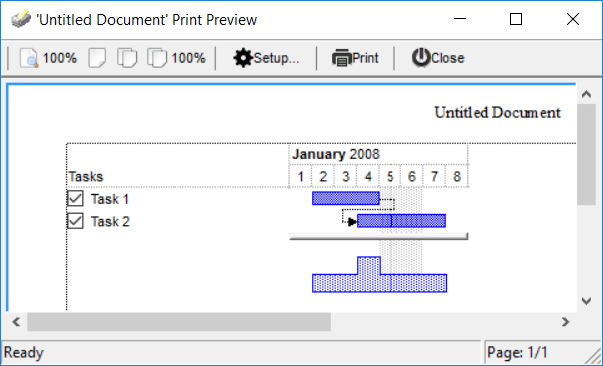
An instruction can be one of the following:
- Dim list of variables Declares the variables. Multiple variables are separated by commas. ( Sample: Dim h, h1, h2 )
- variable = property( list of arguments ) Assigns the result of the property to a variable. The "variable" is the name of a declared variable. The "property" is the property name of the object in the context. The "list or arguments" may include variables or values separated by commas. ( Sample: h = InsertItem(0,"New Child") )
- property( list of arguments ) = value Changes the property. The value can be a variable, a string, a number, a boolean value or a RGB value.
- method( list of arguments ) Invokes the method. The "list or arguments" may include variables or values separated by commas.
- { Beginning the object's context. The properties or methods called between { and } are related to the last object returned by the property prior to { declaration.
- } Ending the object's context
- object. property( list of arguments ).property( list of arguments ).... The .(dot) character splits the object from its property. For instance, the Columns.Add("Column1").HeaderBackColor = RGB(255,0,0), adds a new column and changes the column's header back color.
Here's the Template required to generate the same imagine as the above code will be:
BeginUpdate()
Chart
{
	FirstVisibleDate = #1/1/2008#
	LevelCount = 2
	Level(0)
	{
		Label = `<b><%mmmm%></b> <%yyyy%>`
		Unit = 16
	}
	OverviewVisible = True
	HistogramVisible = True
	HistogramView = 4
	HistogramHeight = 32
	Bars(`Task`).HistogramPattern = 2
}
Columns.Add(`Tasks`).Def(0) = True
Items
{
	Dim h1, h2
	h1 = AddItem(`Task 1`)
	AddBar(h1, `Task`, #1/2/2008#, #1/5/2008#)
	h2 = AddItem(`Task 1`)
	AddBar(h2, `Task`, #1/4/2008#, #1/8/2008#)
	AddLink(`LKey`,h1,``,h2,``)
}
EndUpdate()
A string may be declared between " or ` as well. The ' defines comments in the x-script, so it should not be confused with " or ` characters.
The Template supports the following general functions:
- RGB(R,G,B) property retrieves a RGB value, where the R, G, B are byte values that indicates the R G B values for the color being specified. For instance, the following code changes the control's background color to red: BackColor = RGB(255,0,0)
- CreateObject(progID) property creates and retrieves a single uninitialized object of the class associated with a specified program identifier.
- Me retrieves the original object
- LoadPicture(filename) loads a picture from the filename and retrieves a picture object
Calling the Template property will not remove or erase the control's data before executing, so you can call Template property several times. For instance, you can declare a template as follow: "Items.AddItem(``)". Calling it 5 times will add actually 5 new items. The Exontrol's eXHelper tool helps you to find easy and quickly the answers and the source code for your questions regarding the usage of our UI components. The eXHelper toiol is able to translate the template script to VBA, VB6, VB.NET, VFP6, VFP9, C# and C++ .
Now, let's add an event handler for the component. For instance let's display a message box when the user clicks the cell's check box ( so when a checkbox is being checked ), in other words, when the cell's checkbox state is changed, so we need to handle the CellStateChanged event. Go Back.- Access. Select the component in design mode, Right Click, and then Select the Build Event. Select the G2antt1 component in the first drop down list, and in the second drop down list, select the CellStateChanged. The right syntax for the selected event is being generated and added to the code.
Private Sub G2antt1_CellStateChanged(ByVal Item As Long, ByVal ColIndex As Long)
    If Not (G2antt1.Items.CellState(Item, ColIndex) = 0) Then
        MsgBox "Check"
    End If
End Sub
- Excel. Navigate to the code editor and add a handler for the CellStateChanged event. To do this, select G2antt1 from the left dropdown menu and choose CellStateChanged from the right dropdown menu. The appropriate syntax for the selected event will be automatically generated and inserted into your code.
Private Sub G2antt1_CellStateChanged(ByVal Item As EXG2ANTTLib.HITEM, ByVal ColIndex As Long)
    If Not (G2antt1.Items.CellState(Item, ColIndex) = 0) Then
        MsgBox "Check"
    End If
End Sub
- VB6. In design mode, select the component, double click it. Select the G2antt1 component in the first drop down list, and in the second drop down list, select the CellStateChanged. The right syntax for the selected event is being generated and added to the code.
Private Sub G2antt1_CellStateChanged(ByVal Item As EXG2ANTTLibCtl.HITEM, ByVal ColIndex As Long)
    If Not (G2antt1.Items.CellState(Item, ColIndex) = 0) Then
        MsgBox "Check"
    End If
End Sub
- twinBASIC. In design mode, select the component, open the Properties panel, switch to the Events tab, find the CellStateChanged event, and click the ... (ellipsis) button. The right syntax for the selected event is being generated and added to the code.
Private Sub G2antt1_CellStateChanged(ByVal Item As EXG2ANTTLib.HITEM, ByVal ColIndex As Long)
    If Not (G2antt1.Items.CellState(Item, ColIndex) = 0) Then
        MsgBox "Check"
    End If
End Sub
- VFP. In design mode, select the component, double click it. Select the G2antt1 component in the first drop down list ( Object ), and in the second drop down list ( Procedure ), select the CellStateChanged. The right syntax for the selected event is being generated and added to the code.
*** ActiveX Control Event ***
LPARAMETERS item, colindex

if ( thisform.G2antt1.Items.CellState(item,colindex) # 0 )
	wait "Check" window nowait
endif
- VB.NET ( /COM ). Select the component in design mode, Click the Events page, in the Properties toolbox. Locate the CellStateChanged item in the list, and double click it.
Private Sub AxG2antt1_CellStateChanged(ByVal sender As System.Object, _
                                       ByVal e As AxEXG2ANTTLib._IG2anttEvents_CellStateChangedEvent) _
                                       Handles AxG2antt1.CellStateChanged
	If Not (AxG2antt1.Items.CellState(e.item, e.colIndex) = 0) Then
		MessageBox.Show("Check ")
	End If
End Sub
- VB.NET ( /NET ). Select the component in design mode, Click the Events page, in the Properties toolbox. Locate the CellStateChanged item in the list, and double click it.
Private Sub Exg2antt1_CellStateChanged(ByVal sender As System.Object, _
                                       ByVal Item As System.Int32, ByVal ColIndex As System.Int32) _
                                       Handles Exg2antt1.CellStateChanged
	If Not (Exg2antt1.Items.get_CellState(Item, ColIndex) = 0) Then
		MessageBox.Show("Check")
	End If
End Sub
- VB.NET ( /WPF ). You can add a handler for a specified event in 2 ways. The first, go to Window1.xaml, select the my:exg2antt tag, and got to the end before /> and type space or start typing CellState... The editor opens the list or events that you can handle, once you locate the proper one, press the TAB key twice, so the code CellStateChanged="Exg2antt1_CellStateChanged" will be added to the xaml code. In this moment, the Window1.xaml.vb code includes the definition for CellStateChanged event. The second option to add a new handler for a specified event, is: Go to Window1.xaml.vb code, in the left top side you should drop down the objects being hosted by the Window1, so click the left drop down, and select the Exg2antt1 node. The top-right field should display (Declarations), there click the drop down button, and click the desired event. An empty handler for selected event is being added to the vb code.
Private Sub Exg2antt1_CellStateChanged(ByVal sender As System.Object, ByVal Item As System.Int32, ByVal ColIndex As System.Int32)
    If Not (Exg2antt1.Items.get_CellState(Item, ColIndex) = 0) Then
        MessageBox.Show("Check")
    End If
End Sub
- C# ( /COM ). Select the component in design mode, Click the Events page, in the Properties toolbox. Locate the CellStateChanged item in the list, and double click it.
private void axG2antt1_CellStateChanged(object sender, AxEXG2ANTTLib._IG2anttEvents_CellStateChangedEvent e)
{
    if (axG2antt1.Items.get_CellState(e.item, e.colIndex) != 0)
        MessageBox.Show("Check");
}
- C# ( /NET ). Select the component in design mode, Click the Events page, in the Properties toolbox. Locate the CellStateChanged item in the list, and double click it.
private void exg2antt1_CellStateChanged(object sender, int Item, int ColIndex)
{
    if (exg2antt1.Items.get_CellState(Item, ColIndex) != 0)
        MessageBox.Show("Check");
}
- C# ( /WPF ). Go to Window1.xaml, select the my:exg2antt tag, and got to the end before /> and type space or start typing CellState... The editor opens the list or events that you can handle, once you locate the proper one, press the TAB key twice, so the code CellStateChanged="exg2antt1_CellStateChanged" will be added to the xaml code. In this moment, the Window1.xaml.cs code includes the definition for CellStateChanged event.
private void exg2antt1_CellStateChanged(object sender, int Item, int ColIndex)
{
    if (exg2antt1.Items.get_CellState(Item, ColIndex) != 0)
        MessageBox.Show("Check");
}
- C++ (6.0). Select the component in design mode, Right click, and select Events in the shortcut menu. The Windows Message and Event Handlers for class dialog is opened. Locate the CellStateChanged item in the Window messages/events and click the Add and Edit button. Confirm the name of the member function, and click OK button.
void CWindowMFCDlg::OnCellStateChangedG2antt1(long Item, long ColIndex)
{
	if ( m_g2antt.GetItems().GetCellState( COleVariant( Item ), COleVariant( ColIndex ) ) != 0 )
		AfxMessageBox( "Check" );

}
- C++ (VS 2005,2008,...). Select the component in design mode, Right click, and select Add Event Handler in the shortcut menu. The Event Handler Wizard dialog is opened. Locate and select the CellStateChanged item in the Message Type listbox, click the Add and Edit button. In the following sample we have used, the #import <exg2antt.dll> so the control's type library is included in the project, so the EXG2ANTTLib namespace is defined. The EXG2ANTTLib namespace defines all objects, properties and method of the control. The class wizard has inserted only a class definition for the main object, not for all the objects being exposed by the component.
#import <exg2antt.dll>
void CWindowMFCDlg::CellStateChangedG2antt1(long Item, long ColIndex)
{
	EXG2ANTTLib::IItemsPtr spItems = m_g2antt.get_Items();
	if ( spItems != NULL )
		if ( 0 != spItems->CellState[ CComVariant( Item ), CComVariant( ColIndex ) ] )
			AfxMessageBox( _T("Check") );
}
- X++ (Dynamics Ax 2009). In the AOT window, select the Form that hosts our component. Expand it, so you can locate the Designs\Design\ActiveX:exg2antt1. Right click the exg2antt node ( under the Design node ), and select the ActiveX Explorer from the submenu, so the list of events and methods for the ExG2antt component is displayed. In the Event tab locate the event you need to handle, in our case search for void onEvent_CellStateChanged(int _Item, int _ColIndex) and click the Add and after that Edit buttons so the new event handler is being added:
// Fired after cell's state has been changed.
void onEvent_CellStateChanged(int _Item, int _ColIndex)
{
    ;
    if ( exg2antt1.Items().CellState(_Item,_ColIndex) != 0 )
        Global::info("Check");
}
- Clarion. Assumes that Event handler is checked. Go to OLE Event Handler and enter this code:
 LOOP OLE:Count = 1 TO OCXGETPARAMCOUNT(ref)
   OLE:Parametar = OCXGETPARAM(ref,OLE:Count)
 END
         CASE OLEControlFEQ{PROP:LastEventName}
         OF 'CellStateChanged'
         CASE OLE:Count
         OF 1
           OLE:Item = OLE:Parametar
         OF 2
           OLE:ColIndex = OLE:Parametar
         END
         IF NOT OLEControlFEQ{mc:Items&'.CellState('&OLE:Item&', '&OLE:ColIndex&')'} = 0
           MESSAGE('Check')
         End
- PowerBuilder (Classic). Select the component (ole_1 ) in the Layout page ( Window ), and go to the Event List page, look for cellstatechanged( long item, long colindex ) returns (none), and double click it, so the script window is opened. Paste there the following code:
//cellstatechanged( long item, long colindex )

OLEObject oG2antt

oG2antt = ole_1.Object
if ( oG2antt.Items.CellState(item,colindex) <> 0 ) then
	MessageBox("info","check")
end if
- dBASE Plus. Select the component (ActiveX1 ) in the design mode ( Form Designer ), and go to the "Inspector" tool, click the Events page, and select the form.activex1.nativeobject in the object field to be browsed, so the internal events are displayed, and look for CellStateChanged and add a handler for it, so the function nativeObject_CellStateChanged(Item, ColIndex) is added to your code. Next, paste there the following code:
function nativeObject_CellStateChanged(Item, ColIndex)
   local oG2antt
   oG2antt = form.Activex1.nativeObject
   if ( oG2antt.Items.CellState(Item,ColIndex) <> 0 )
      msgbox("check")
   endif
return
When you add the handler using the Inspector, the dBASE add also the following code:
with (this.ACTIVEX1.nativeObject)
  CellStateChanged = class::NATIVEOBJECT_CELLSTATECHANGED
endwith
- Visual DataFlex. Switch to Designer, select the component, and locate the Events page on the Properties browser. The events provided by the component starts with OnCom, so select the OnComCellStateChanged event and double click it so an empty handler is added to your code. Next, paste the following code:
Procedure OnComCellStateChanged HITEM llItem Integer llColIndex
    Forward Send OnComCellStateChanged llItem llColIndex
    Variant vItems
    Get ComItems to vItems
    Handle hoItems
    Get Create (RefClass(cComItems)) to hoItems
    Set pvComObject of hoItems to vItems
    Integer c
    Get ComCellState of hoItems llItem llColIndex to c
    Send Destroy to hoItems
    If (not ( c = 0 )) Begin
        Send Info_Box "click"
    End
End_Procedure
Thanks to Bernhard Ponemayr, from Comtech IT Systeme, Austria, who provided help for syntax of Visual DataFlex.
- Xbase++. Go to Main procedure, and add the handler for control's CellStateChanged event as defined event CellStateChanged (Item as HITEM, ColIndex as Long), in the control's help file, like follows:
...
oControl:cellStateChanged := { | Item, ColIndex | OnCellStateChanged(oControl,Item,ColIndex) }
...
and define the OnCellStateChanged procedure like follows:
PROCEDURE OnCellStateChanged( oControl,Item,ColIndex )
   IF oControl:Items:CellState(Item,ColIndex) <> 0
      MsgBox( "Check" )
   ENDIF
RETURN
If you need to add any other event for the component, you should check the definition of the event in the control's help file ( exg2antt.chm, for instance ), and provide the parameters of the events as between ||, and the rest in the events body between {} paranthesis.