

By default, the CellSingleLine property is exCaptionSingleLine / True, which indicates that the cell's caption is displayed on a single line. Use the Def(exCellSingleLine) property to specify that all cells in the column display their content using multiple lines. The control can displays the cell's caption using more lines, if the CellSingleLine property is exCaptionWordWrap or exCaptionBreakWrap. The CellSingleLine property wraps the cell's caption so it fits in the cell's client area. If the text doesn't fit the cell's client area, the height of the item is increased or decreased. When the CellSingleLine is exCaptionWordWrap / exCaptionBreakWrap / False, the height of the item is computed based on each cell caption. If the CellSingleLine property is exCaptionWordWrap / exCaptionBreakWrap / False, changing the ItemHeight property has no effect. Use the ItemMaxHeight property to specify the maximum height of the item when its height is variable. Use the CellVAlignment property to align vertically a cell.
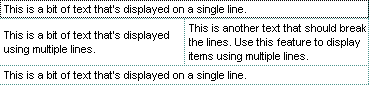
If using the CellSingleLine / Def(exCellSingleLine) property, we recommend to set the ScrollBySingleLine property on True so all items can be scrolled.
The following VB sample displays the caption of the focused cell using multiple lines:
With Tree1.Items
    .CellSingleLine(.FocusItem, 0) = True
End With
The following C++ sample displays the caption of the focused cell using multiple lines:
#include "Items.h"
CItems items = m_tree.GetItems();
items.SetCellSingleLine( COleVariant( items.GetFocusItem() ), COleVariant( long(0) ), FALSE );
The following VB.NET sample displays the caption of the focused cell using multiple lines:
With AxTree1.Items
    .CellSingleLine(.FocusItem, 0) = False
End With
The following C# sample displays the caption of the focused cell using multiple lines:
axTree1.Items.set_CellSingleLine(axTree1.Items.FocusItem, 0, false);
The following VFP sample displays the caption of the focused cell using multiple lines:
with thisform.Tree1.Items
	.DefaultItem = .FocusItem
	.CellSingleLine( 0, 0 ) = .f.
endwith
Note: A cell is identified by the intersection of an item and a column. Properties that have Item and ColIndex parameters let you specify a cell in different ways. The Item parameter identifies the item, while the ColIndex parameter identifies the column.
The Item parameter can be the handle of an item. The ColIndex parameter can specify the column by its index (a numerical value, see the Column.Index property), by its caption (a string value, see the Column.Caption property), or by a cell handle returned by the ItemCell property.
For example, the following statement sets the Bold property of the cell at the intersection of the first item and the first column. The Item parameter is omitted because the ColIndex parameter receives the cell handle returned by ItemCell.
Tree1.Items.CellBold(, Tree1.Items.ItemCell(Tree1.Items(0), 0)) = True
The same cell can be specified by passing the item handle and the column index separately:
Tree1.Items.CellBold(Tree1.Items(0), 0) = True
You can also specify the column by its caption instead of its numerical index:
Tree1.Items.CellBold(Tree1.Items(0), "ColumnName") = True