

The CellCaption property specifies the cell's caption. To associate an user data for a cell you can use CellData property. Use the CellCaptionFormat property to use HTML tags in the cell's caption. Use the ItemData property to associate an extra data to an item. To hide a column you have to use Visible property of the Column object. The AddItem method specifies also the caption for the first cell in the item. Use the SplitCell property to split a cell. Use the <img> HTML tag to insert icons inside the cell's caption, if the CellCaptionFormat property is exHTML. For instance, the "some image <img>1</img> other image <img>2</img> rest of text", displays combined text and icons in the cell's caption. Use the Images method to load icons at runtime. Use the ConditionalFormats method to apply formats to a cell or range of cells, and have that formatting change depending on the value of the cell or the value of a formula. Use the FormatColumn property to format the column.
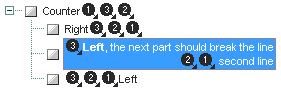
The following template initializes a tree with a few items, and the cell's caption includes <img> tags:
BeginUpdate
LinesAtRoot = -1
FullRowSelect = False
Images("gBJJgBAIDAALAAEAAQhYAf8Pf4hh0QihCJo2AEZjQAjEZFEaIEaGEaAIAEEbjMjlErlktl0vmExmUzmk1m03nE5nU7nk9n0/oFBoVDolFo1HpFJpVLplNp1PqFRqVTqlVq1XrFZrVbrldr1fsFhsVjslls1ntFptVrtltt1vuFxuVzul1u13vF5vV7vl9v1/wGBwWDwmFw2HxGJxWLxmNx2PjcQl2SyVRyssykPqWXleZf+bzUtz2gz+R0OY09LzkT0uo1uq1OsyexpOr1em19K220jW3pG73O4p3A2fB3+x30Z5NG4mi3lH5uu4fI5+ypvRzvVovYlHL7fU43K7VE7nC6/g4u6zXl3vjn+j83S2vr9HO8NC+Ht+/e8nV/KnuW/7pv2+j7vnAjPv4yEFwZBsHQfCEIwlCcKQrC0LwxDMNQ3DkOprBTSNlASqxGrEQRI90QrDAMUvPA0TRaqkTq5GbYReq8aqtHLLRiqcdqZH8cR7FUaSHA7rSLBEdP9IyoSC5kmwBAqvRLH0pyrD0sy1LcuS6mKLB8lkwo8kCRJIACSo2QE0pzJ8Fn+cE4TlOJ4H/Os7n+fE8z2fB4DpP1ADoYAHUHQoHEAB9EUVRNGUWAAD0fSNIUnSVK0pS9LUlRdN0bRhgA/T9Qg+eA/1JUw/znVM8TxPVWzzQNA0NQ1OVpRlM0xXFb11Sda1rUVRVPU6Ag==")
SelBackColor = RGB(40,150,255)
BackColor = RGB(255,255,255)
Columns
{
"Column 1"
{
Def(0) = True
}
}
Items
{
Dim h, h1
h = AddItem("Counter![]() 1
1![]() 3
3![]() 2")
CellCaptionFormat(h,0) = 1
h1 = InsertItem(h,,"Right
2")
CellCaptionFormat(h,0) = 1
h1 = InsertItem(h,,"Right![]() 3
3![]() 2
2![]() 1")
CellCaptionFormat(h1,0) = 1
h1 = InsertItem(h,,"
1")
CellCaptionFormat(h1,0) = 1
h1 = InsertItem(h,,"![]() 3Left, the next part should break the line
3Left, the next part should break the line
![]() 2
2![]() 1 second line")
CellSingleLine(h1,0) = False
CellCaptionFormat(h1,0) = 1
h1 = InsertItem(h,,"
1 second line")
CellSingleLine(h1,0) = False
CellCaptionFormat(h1,0) = 1
h1 = InsertItem(h,,"![]() 3
3![]() 2
2![]() 1Left")
CellCaptionFormat(h1,0) = 1
ExpandItem(h) = True
}
EndUpdate
1Left")
CellCaptionFormat(h1,0) = 1
ExpandItem(h) = True
}
EndUpdate
The following samples uses the ItemFromPoint method to determine the hit test code from the point. The exHTCellCaptionIcon indicates that the cursor hovers an icon inside the cell's caption.
The following VB sample displays the index of the icon being clicked when the cell's caption includes <img> tags:
Private Sub Tree1_MouseDown(Button As Integer, Shift As Integer, X As Single, Y As Single)
    Dim i As HITEM, h As HitTestInfoEnum, c As Long
    With Tree1
        i = .ItemFromPoint(X / Screen.TwipsPerPixelX, Y / Screen.TwipsPerPixelY, c, h)
    End With
    If (i <> 0) Then
        If exHTCellCaptionIcon = (h And exHTCellCaptionIcon) Then
            Debug.Print "The index of icon being clicked is: " & (h And &HFFFF0000) / 65536 & " Hex: " & Hex(h)
        End If
    End If
End Sub
The following VB sample changes the icon being clicked, by replacing the <img> tag in the CellCaption property ( if your application have access to some regular expression or an easiest way to replace strings, the idea is to replace the n-th <img>..</img> tag element with a new value, and so the icon is changed ):
Private Sub Tree1_MouseDown(Button As Integer, Shift As Integer, X As Single, Y As Single)
    Dim i As HITEM, h As HitTestInfoEnum, c As Long
    With Tree1
        i = .ItemFromPoint(X / Screen.TwipsPerPixelX, Y / Screen.TwipsPerPixelY, c, h)
        If (i <> 0) Then
            If exHTCellCaptionIcon = (h And exHTCellCaptionIcon) Then
                Dim iImg As Long
                iImg = (h And &HFFFF0000) / 65536
                With .Items
                    Dim cellStr As String
                    cellStr = .CellCaption(i, c)

                    ' Replaces the iImg-th <img> tag in the CellCaption with a new value
                    Dim n() As String
                    n = Split(cellStr, "<img>")
                    cellStr = ""
                    For j = LBound(n) To UBound(n)
                        Dim sNext As String
                        sNext = n(j)
                        If (j > LBound(n)) Then
                            cellStr = cellStr + "<img>"
                            If (j = iImg + 1) Then
                                Dim lIndex As Long, p As Long
                                p = InStr(1, sNext, "</img>")
                                lIndex = Left(sNext, p - 1)
                                lIndex = lIndex Mod 3 + 1
                                sNext = RTrim(LTrim(Str(lIndex))) + Mid(sNext, p)
                            End If
                        End If
                        cellStr = cellStr + sNext
                    Next

                    .CellCaption(i, c) = cellStr
                End With
            End If
        End If
    End With
End Sub
The following C++ sample displays the index of the icon being clicked when the cell's caption includes <img> tags:
void OnMouseDownTree1(short Button, short Shift, long X, long Y)
{
	long c = 0, hit = 0, hItem = m_tree.GetItemFromPoint( X, Y, &c, &hit );
	if ( hItem != 0 )
		if ( /*exHTCellCaptionIcon*/0x414 == ( hit & /*exHTCellCaptionIcon*/0x414 ) )
		{
			CString strOutput;
			strOutput.Format( "The index of icon being clicked is: %i, Hit = %08X\n", hit >> 16, hit );
			OutputDebugString( strOutput );
		}
}
Note: A cell is identified by the intersection of an item and a column. Properties that have Item and ColIndex parameters let you specify a cell in different ways. The Item parameter identifies the item, while the ColIndex parameter identifies the column.
The Item parameter can be the handle of an item. The ColIndex parameter can specify the column by its index (a numerical value, see the Column.Index property), by its caption (a string value, see the Column.Caption property), or by a cell handle returned by the ItemCell property.
For example, the following statement sets the Bold property of the cell at the intersection of the first item and the first column. The Item parameter is omitted because the ColIndex parameter receives the cell handle returned by ItemCell.
Tree1.Items.CellBold(, Tree1.Items.ItemCell(Tree1.Items(0), 0)) = True
The same cell can be specified by passing the item handle and the column index separately:
Tree1.Items.CellBold(Tree1.Items(0), 0) = True
You can also specify the column by its caption instead of its numerical index:
Tree1.Items.CellBold(Tree1.Items(0), "ColumnName") = True