

- exEditRight, Right-aligns text in a single-line or multiline edit control.
- exEditPassword, Specifies a value that indicates whether an edit control displays all characters as an asterisk (*) as they are typed ( passwords ).
- exEditPasswordChar, Specifies a value that indicates the password character.
The Numeric property specifies whether the editor enables numeric values only.
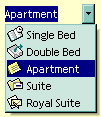 It
provides an intuitive interface for your users to select values from pre-defined
lists presented in a drop-down window, but it accepts new values at runtime too.
The DropDownType editor has associated a standard text edit field too. Use AddItem
method to add predefined values to the drop down list. Use the InsertItem
method to insert child items to the editor's predefined list. The DropDownRows
property specifies the maximum number of visible rows into the drop-down list.
The editor displays the Value value.
It
provides an intuitive interface for your users to select values from pre-defined
lists presented in a drop-down window, but it accepts new values at runtime too.
The DropDownType editor has associated a standard text edit field too. Use AddItem
method to add predefined values to the drop down list. Use the InsertItem
method to insert child items to the editor's predefined list. The DropDownRows
property specifies the maximum number of visible rows into the drop-down list.
The editor displays the Value value.
The following sample adds a DropDownType editor:
 With Record1
    .BeginUpdate
     With .Add("DropDownType", EXRECORDLibCtl.DropDownType)
        .AddItem 0, "Single Bed", 1
        .AddItem 1, "Double Bed", 2
        .AddItem 2, "Apartment", 3
        .AddItem 3, "Suite", 4
        .AddItem 4, "Royal Suite", 5
        .Value = "Apartment"
    End With
    .EndUpdate
End With
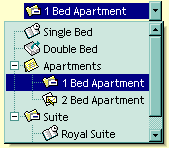 It
provides an intuitive interface for your users to select values from pre-defined
lists presented in a drop-down window. The DropDownListType editor has no
standard edit field associated. Use AddItem
method to add predefined values to the drop down list. Use InsertItem
method to insert child predefined values to the drop down list. The DropDownRows
property specifies the maximum number of visible rows into the drop-down list.
The editor displays the caption of the item that matches the Value
value. The item's icon is also displayed if it exists.
It
provides an intuitive interface for your users to select values from pre-defined
lists presented in a drop-down window. The DropDownListType editor has no
standard edit field associated. Use AddItem
method to add predefined values to the drop down list. Use InsertItem
method to insert child predefined values to the drop down list. The DropDownRows
property specifies the maximum number of visible rows into the drop-down list.
The editor displays the caption of the item that matches the Value
value. The item's icon is also displayed if it exists.
The following sample adds a DropDownListType editor:
With Record1
    .BeginUpdate
     With .Add("DropDownType", EXRECORDLibCtl.DropDownListType)
        .DropDownAutoWidth = False
        .AddItem 0, "Single Bed", 1
        .AddItem 1, "Double Bed", 2
        .AddItem 2, "Apartments", 3
        .InsertItem 3, "1 Bed Apartment", 4, 2
        .InsertItem 4, "2 Bed Apartment", 5, 2
        .AddItem 5, "Suite", 4
        .InsertItem 6, "Royal Suite", 1, 5
        .InsertItem 7, "Deluxe Suite", 2, 5
        .ExpandAll
        .Value = 3
    End With
    .EndUpdate
End With
 The SpinType
allows your users to view and change numeric values using a familiar up/down
button (spin control) combination. The AddItem
or InsertItem method has no effect, if the
EditType is SpinType. Use the exSpinStep option
to specify the proposed change when user clicks the spin button. The Numeric property specifies whether the editor enables numeric values only.
Use the SliderType to specify minimum and maximum values for the spin.
The SpinType
allows your users to view and change numeric values using a familiar up/down
button (spin control) combination. The AddItem
or InsertItem method has no effect, if the
EditType is SpinType. Use the exSpinStep option
to specify the proposed change when user clicks the spin button. The Numeric property specifies whether the editor enables numeric values only.
Use the SliderType to specify minimum and maximum values for the spin.
The following sample adds a SpinType editor:
With Record1
    .BeginUpdate
     With .Add("Spin", EXRECORDLibCtl.SpinType)
        .Numeric = exFloat
        .Option(exSpinStep) = 0.1
        .Value = 3.14
    End With
    .EndUpdate
End With
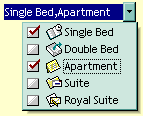 It
provides an intuitive interface for your users to check values from pre-defined
lists presented in a drop-down window. Each item has a check box associated. The
editor displays the list of item captions, separated by comma, that is OR
combination of the Value expression. The AddItem
method adds new predefined values to the drop down portion of the editor. The DropDownRows
property specifies the maximum number of visible rows into the drop-down list.
Use the CheckImage property to assign a
different icons for check box states.
It
provides an intuitive interface for your users to check values from pre-defined
lists presented in a drop-down window. Each item has a check box associated. The
editor displays the list of item captions, separated by comma, that is OR
combination of the Value expression. The AddItem
method adds new predefined values to the drop down portion of the editor. The DropDownRows
property specifies the maximum number of visible rows into the drop-down list.
Use the CheckImage property to assign a
different icons for check box states.
The following sample adds a CheckListType editor:
With Record1
    .BeginUpdate
     With .Add("CheckListType", EXRECORDLibCtl.CheckListType)
        .AddItem 1, "Single Bed", 1
        .AddItem 2, "Double Bed", 2
        .AddItem 4, "Apartment", 3
        .AddItem 8, "Suite", 4
        .AddItem 16, "Royal Suite", 5
        .Value = 5
    End With
    .EndUpdate
End With
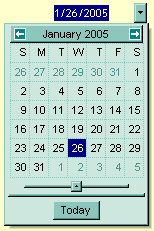 The
DateType editor is a date/calendar control ( not the Microsoft Calendar Control
). The dropdown calendar provides an efficient and appealing way to edit dates
at runtime. The DateType editor has a standard edit control associated. The user
can easy select a date by selecting a date from the drop down calendar, or by
typing directly the date. The editor displays the Value
value as date. The AddItem or InsertItem
method has no effect, if the EditType is DateType.
The
DateType editor is a date/calendar control ( not the Microsoft Calendar Control
). The dropdown calendar provides an efficient and appealing way to edit dates
at runtime. The DateType editor has a standard edit control associated. The user
can easy select a date by selecting a date from the drop down calendar, or by
typing directly the date. The editor displays the Value
value as date. The AddItem or InsertItem
method has no effect, if the EditType is DateType.
The following sample adds a DateType editor:
With Record1
    .BeginUpdate
     With .Add("DateType", EXRECORDLibCtl.DateType)
        .Value = Date
    End With
    .EndUpdate
End With
 You can use
the MaskType to enter any data that includes literals and requires a mask to
filter the characters during data input. You can use this control to control the
entry of many types of formatted information such as telephone numbers, social
security numbers, IP addresses, license keys etc. The Mask
property specifies the editor's mask. The MaskChar
property specifies the masking character. The AddItem or InsertItem
method has no effect, if the EditType is MaskType. The Mask property can use one
or more literals: #,x,X,A,?<,>,*,\,{nMin,nMax},[...]. The following sample
shows how to mask the "MaskType" column for input telephone numbers.
You can use
the MaskType to enter any data that includes literals and requires a mask to
filter the characters during data input. You can use this control to control the
entry of many types of formatted information such as telephone numbers, social
security numbers, IP addresses, license keys etc. The Mask
property specifies the editor's mask. The MaskChar
property specifies the masking character. The AddItem or InsertItem
method has no effect, if the EditType is MaskType. The Mask property can use one
or more literals: #,x,X,A,?<,>,*,\,{nMin,nMax},[...]. The following sample
shows how to mask the "MaskType" column for input telephone numbers.
The following sample adds a MaskType editor:
With Record1
   .BeginUpdate
    With .Add("MaskType", EXRECORDLibCtl.MaskType)
       .Mask = "(###) ### - ####"
       .Value = "(074) 728 - 2121"
   End With
   .EndUpdate
End With
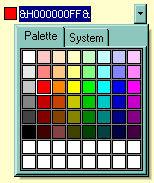 You
can include a color selection control in your applications via the ColorType
editor. Check the ColorListType also. The editor has a standard edit control and
a color drop-down window. The color drop-down window contains two tabs that can
be used to select colors, the "Pallette" tab shows a grid of colors,
while the "System" tab shows the current windows color constants. The AddItem or InsertItem
method has no effect, if the EditType is ColorType.
You
can include a color selection control in your applications via the ColorType
editor. Check the ColorListType also. The editor has a standard edit control and
a color drop-down window. The color drop-down window contains two tabs that can
be used to select colors, the "Pallette" tab shows a grid of colors,
while the "System" tab shows the current windows color constants. The AddItem or InsertItem
method has no effect, if the EditType is ColorType.
The following sample adds a ColorType editor:
With Record1
   .BeginUpdate
    With .Add("ColorType", EXRECORDLibCtl.ColorType)
        .Value = RGB(255, 0, 0)
   End With
   .EndUpdate
End With
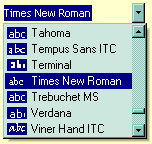 Provides
an intuitive way for selecting fonts. The FontType editor contains a standard
edit control and a font drop-down window. The font drop-down window contains a
list with all system fonts. The AddItem or InsertItem
method has no effect, if the EditType is FontType. The Value
property indicates the name of the font. The DropDownRows
property specifies the maximum number of visible rows into the drop-down list.
Provides
an intuitive way for selecting fonts. The FontType editor contains a standard
edit control and a font drop-down window. The font drop-down window contains a
list with all system fonts. The AddItem or InsertItem
method has no effect, if the EditType is FontType. The Value
property indicates the name of the font. The DropDownRows
property specifies the maximum number of visible rows into the drop-down list.
The following sample adds a FontType editor:
With Record1
   .BeginUpdate
    With .Add("FontType", EXRECORDLibCtl.FontType)
        .Value = "Tahoma"
   End With
   .EndUpdate
End With
 The
PictureType provides an elegant way for displaying the fields of OLE Object type
and cells that have a reference to an IPicture interface. An OLE Object field
can contain a picture, a Microsoft Clip Gallery, a package, a chart, PowerPoint
slide, a word document, a WordPad documen, a wave file, an so on. In MS Access
you can specify the field type to OLE Object. The DropDownMinWidth
property specifies the minimum width for the drop=down window. The drop-down
window is scaled based on the picture size. The AddItem or InsertItem
method has no effect, if the EditType is PictureType. If your control is bounded
to a recordset, it automatically detects the OLE Object fields, so setting the
editor's type to PictureType is not necessary.
The
PictureType provides an elegant way for displaying the fields of OLE Object type
and cells that have a reference to an IPicture interface. An OLE Object field
can contain a picture, a Microsoft Clip Gallery, a package, a chart, PowerPoint
slide, a word document, a WordPad documen, a wave file, an so on. In MS Access
you can specify the field type to OLE Object. The DropDownMinWidth
property specifies the minimum width for the drop=down window. The drop-down
window is scaled based on the picture size. The AddItem or InsertItem
method has no effect, if the EditType is PictureType. If your control is bounded
to a recordset, it automatically detects the OLE Object fields, so setting the
editor's type to PictureType is not necessary.
The Value property specifies the source of the picture being displayed, and it can be
- a Picture object ( A Picture object implements IPicture interface )
- a string expression that indicates the path to the picture file
- a string expression that indicates the base64 encoded string that holds a picture object. Use the eximages tool to save your picture as base64 encoded format
- an array of bytes that holds an OLE object field
The following sample adds a PictureType editor:
With Record1
   .BeginUpdate
    With .Add("PictureType", EXRECORDLibCtl.PictureType)
        .Value = App.Path & "\xfmail.gif"
   End With
   .EndUpdate
End With
 The
ButtonType editor consists into a standard edit field and a "..."
button. The ButtonClick event is
fired if the user has clicked the button. The AddItem or InsertItem
method has no effect, if the EditType is ButtonType. The ButtonWidth
property specifies the width of the button. The Value
property specifies the editor's caption.
The
ButtonType editor consists into a standard edit field and a "..."
button. The ButtonClick event is
fired if the user has clicked the button. The AddItem or InsertItem
method has no effect, if the EditType is ButtonType. The ButtonWidth
property specifies the width of the button. The Value
property specifies the editor's caption.
The following sample adds a ButtonType editor:
With Record1
   .BeginUpdate
    With .Add("ButtonType", EXRECORDLibCtl.ButtonType)
        .Value = "<path>"
        .AddButton "A", 1
        .AddButton "B", 2, RightAlignment
        .ButtonWidth = 20
   End With
   .EndUpdate
End With
 The
ProgressBarType editor displays a progress bar. The Value
property indicates the percent value being displayed. The options like exProgressBarBackColor,
exProgressBarAlignment or exProgressBarMarkTicker may be used for
a ProgressBarType editor.
The
ProgressBarType editor displays a progress bar. The Value
property indicates the percent value being displayed. The options like exProgressBarBackColor,
exProgressBarAlignment or exProgressBarMarkTicker may be used for
a ProgressBarType editor.
The following sample adds a ProgressBarType editor:
With Record1
   .BeginUpdate
    With .Add("ProgressBarType", EXRECORDLibCtl.ProgressBarType)
        .Value = 34
   End With
   .EndUpdate
End With
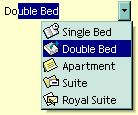 It
provides an intuitive interface for your users to select values from pre-defined
lists presented in a drop-down window. The PickEditType editor has a standard
edit field associated, that useful for searching items. The DropDownRows
property specifies the maximum number of visible rows into the drop=down list.
Use AddItem, InsertItem
method to add predefined values to the drop down list. The editor displays
the caption of the item that matches Value value.
The item's icon is also displayed if it exists.
It
provides an intuitive interface for your users to select values from pre-defined
lists presented in a drop-down window. The PickEditType editor has a standard
edit field associated, that useful for searching items. The DropDownRows
property specifies the maximum number of visible rows into the drop=down list.
Use AddItem, InsertItem
method to add predefined values to the drop down list. The editor displays
the caption of the item that matches Value value.
The item's icon is also displayed if it exists.
The following sample adds a PickEditType editor:
With Record1
    .BeginUpdate
     With .Add("DropDownType", EXRECORDLibCtl.PickEditType)
        .AddItem 0, "Single Bed", 1
        .AddItem 1, "Double Bed", 2
        .AddItem 2, "Apartment", 3
        .AddItem 3, "Suite", 4
        .AddItem 4, "Royal Suite", 5
        .Value = "Apartment"
    End With
    .EndUpdate
End With
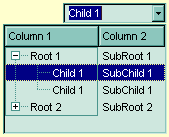 The
control support ActiveX hosting. An UserEditorType editor can host an ActiveX
control. Use the UserEditor method to create
the inner ActiveX control. The UserEditorOleEvent
event is fired each time when an inner ActiveX control fires an event. Use the UserEditorObject
property to access the inner ActiveX control.
The
control support ActiveX hosting. An UserEditorType editor can host an ActiveX
control. Use the UserEditor method to create
the inner ActiveX control. The UserEditorOleEvent
event is fired each time when an inner ActiveX control fires an event. Use the UserEditorObject
property to access the inner ActiveX control.
The following sample adds an UserEditorType editor ( the sample adds an inner Exontrol.ComboBox control ):
With Record1
    .BeginUpdate
     With .Add("UserEditorType", EXRECORDLibCtl.UserEditorType)
        .UserEditor "Exontrol.ComboBox", ""
        With .UserEditorObject()
            Dim h As Long
            .BeginUpdate
            .IntegralHeight = True
            .LinesAtRoot = -1
            .ColumnAutoResize = True
            .MinWidthList = 164
            .MinHeightList = 164
            .Columns.Add "Column 1"
            .Columns.Add "Column 2"
            h = .Items.AddItem(Array("Root 1", "SubRoot 1"))
            .Items.InsertItem h, , Array("Child 1", "SubChild 1")
            .Items.InsertItem h, , Array("Child 1", "SubChild 1")
            .Items.ExpandItem(h) = True
            h = .Items.AddItem(Array("Root 2", "SubRoot 2"))
            .Items.InsertItem h, , Array("Child 1", "SubChild 1")
            .EndUpdate
        End With
    End With
    .EndUpdate
End With
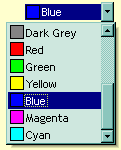 You
can include a color selection control in your applications via the ColorListType
editor, also. The editor hosts a predefined list of colors. By default. the
following colors are added: Black, White, Dark Red, Dark Green, Dark Yellow,
Dark Blue, Dark Magenta, Dark Cyan, Light Grey, Dark Grey, Red, Green, Yellow,
Blue, Magenta, Cyan. The AddItem method adds a
new color to your color list editor. You can the exColorListShowName to
allow the editor displays the color's name.
You
can include a color selection control in your applications via the ColorListType
editor, also. The editor hosts a predefined list of colors. By default. the
following colors are added: Black, White, Dark Red, Dark Green, Dark Yellow,
Dark Blue, Dark Magenta, Dark Cyan, Light Grey, Dark Grey, Red, Green, Yellow,
Blue, Magenta, Cyan. The AddItem method adds a
new color to your color list editor. You can the exColorListShowName to
allow the editor displays the color's name.
The following sample adds a ColorListType editor:
With Record1
    .BeginUpdate
     With .Add("ColorListType", EXRECORDLibCtl.ColorListType)
        .Option(exColorListShowName) = True
        .Value = RGB(0, 0, 255)
    End With
    .EndUpdate
End With
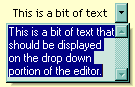 It
provides a multiple lines edit control that's displayed into a drop down window. The
AddItem, InsertItem
method has no effect, if the EditType is MemoDropDownType.
It
provides a multiple lines edit control that's displayed into a drop down window. The
AddItem, InsertItem
method has no effect, if the EditType is MemoDropDownType.
- The Editor.Option( exMemoDropDownWidth ) specifies the width ( in pixels ) of the MemoDropDownType editor when it is dropped.
- The Editor.Option( exMemoDropDownHeight ) specifies the height ( in pixels ) of the MemoDropDownType editor when it is dropped.
- The Editor.Option( exMemoDropDownAcceptReturn ) specifies whether the user closes the MemoDropDownType editor by pressing the ENTER key. If the Editor.Option( exMemoDropDownAcceptReturn ) is True, the user inserts new lines by pressing the ENTER key. The user can close the editor by pressing the CTRL + ENTER key. If the Editor.Option( exMemoDropDownAcceptReturn ) is False, the user inserts new lines by pressing the CTRL + ENTER key. The user can close the editor by pressing the ENTER key.
- The Editor.Option( exMemoHScrollBar ) adds the horizontal scroll bar to a MemoType or MemoDropDownType editor.
- The Editor.Option( exMemoVScrollBar ) adds the vertical scroll bar to a MemoType or MemoDropDownType editor
The following sample adds a MemoDropDownType editor:
With Record1
    .BeginUpdate
     With .Add("MemoDropDownType", EXRECORDLibCtl.MemoDropDownType)
        .Option(exMemoVScrollBar) = True
        .Value = "This is a bit of text that should be displayed on the drop down portion of the editor."
    End With
    .EndUpdate
End With
 The
CheckValueType editor displays a check box based on the Value
property.
Use the CheckImage property to assign a
different icons for check box states. You can use the following options:
The
CheckValueType editor displays a check box based on the Value
property.
Use the CheckImage property to assign a
different icons for check box states. You can use the following options:
- exCheckValue0, Specifies the check box state being displayed for unchecked state. (long expression, valid values are 0, 1 or 2)
- exCheckValue1, Specifies the check box state being displayed for checked state. (long expression, valid values are 0, 1 or 2)
- exCheckValue2, Specifies the check box state being displayed for partial checked state. (long expression, valid values are 0, 1 or 2)
The following sample adds a CheckValueType editor:
With Record1
    .BeginUpdate
     With .Add("Boolean", EXRECORDLibCtl.CheckValueType)
        .Option(exCheckValue2) = 1
        .Value = True
    End With
    .EndUpdate
End With
 Adds a
slider control to an editor. Use the exSliderWidth,
exSliderStep, exSliderMin, exSliderMax options to control the slider
properties. Use the exSpinStep option to
hide the spin control.
Adds a
slider control to an editor. Use the exSliderWidth,
exSliderStep, exSliderMin, exSliderMax options to control the slider
properties. Use the exSpinStep option to
hide the spin control.
The following sample adds a SliderType editor:
With Record1
    .BeginUpdate
     With .Add("Slider", EXRECORDLibCtl.SliderType)
        .Option(exSpinStep) = 0.1
        .Option(exSliderMax) = 50
        .Value = 34
    End With
    .EndUpdate
End With
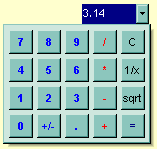 Adds a
drop down calculator to an editor. Use the exCalcExecuteKeys,
exCalcCannotDivideByZero, exCalcButtonWidth, exCalcButtonHeight, exCalcButtons,
exCalcPictureUp, exCalcPictureDown to specify different options for
calculator editor.
Adds a
drop down calculator to an editor. Use the exCalcExecuteKeys,
exCalcCannotDivideByZero, exCalcButtonWidth, exCalcButtonHeight, exCalcButtons,
exCalcPictureUp, exCalcPictureDown to specify different options for
calculator editor.
With Record1
    .BeginUpdate
     With .Add("Calculator", EXRECORDLibCtl.CalculatorType)
        .Value = 3.14
    End With
    .EndUpdate
End With