

By default, the CellSingleLine property is exCaptionSingleLine / True, which indicates that the cell's caption is displayed on a single line. Use the Def(exCellSingleLine) property to specify that all cells in the column display their content using multiple lines. The control can displays the cell's caption using more lines, if the CellSingleLine property is exCaptionWordWrap or exCaptionBreakWrap. The CellSingleLine property wraps the cell's caption so it fits in the cell's client area. If the text doesn't fit the cell's client area, the height of the item is increased or decreased. When the CellSingleLine is exCaptionWordWrap / exCaptionBreakWrap / False, the height of the item is computed based on each cell caption. If the CellSingleLine property is exCaptionWordWrap / exCaptionBreakWrap / False, changing the ItemHeight property has no effect. Use the ItemMaxHeight property to specify the maximum height of the item when its height is variable. Use the CellVAlignment property to align vertically a cell.
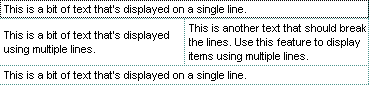
If using the CellSingleLine / Def(exCellSingleLine) property, we recommend to set the ScrollBySingleLine property on True so all items can be scrolled.
The following VB sample displays the caption of the focused cell using multiple lines:
With Grid1.Items
    .CellSingleLine(.FocusItem, Grid1.FocusColumnIndex) = True
End With
The following C++ sample displays the caption of the focused cell using multiple lines:
#include "Items.h"
CItems items = m_grid.GetItems();
items.SetCellSingleLine( COleVariant( items.GetFocusItem() ), COleVariant( long(m_grid.GetFocusColumnIndex()) ), FALSE );
The following VB.NET sample displays the caption of the focused cell using multiple lines:
With AxGrid1.Items
    .CellSingleLine(.FocusItem, AxGrid1.FocusColumnIndex) = False
End With
The following C# sample displays the caption of the focused cell using multiple lines:
axGrid1.Items.set_CellSingleLine(axGrid1.Items.FocusItem, axGrid1.FocusColumnIndex, false);
The following VFP sample displays the caption of the focused cell using multiple lines:
with thisform.Grid1.Items
	.DefaultItem = .FocusItem
	.CellSingleLine( 0, thisform.Grid1.FocusColumnIndex ) = .f.
endwith
Note: The intersection of an item with a column defines a cell. Each cell is uniquely represented by its handle. The cell's handle is of HCELL type, that's equivalent with a long type. All properties of Items object that have two parameters Item and ColIndex, refer a cell.
The following lines are equivalents and each of them changes the bold font attribute of the first cell on the first item.
With Grid1
    .Items.CellBold(, .Items.ItemCell(.Items(0), 0)) = True
    .Items.CellBold(.Items(0), 0) = True
    .Items.CellBold(.Items(0)) = True
    .Items.CellBold(.Items.ItemByIndex(0)) = True
    .Items.CellBold(.Items.ItemByIndex(0), 0) = True
    .Items.CellBold(.Items(0), Grid1.Columns(0).Caption) = True
End With