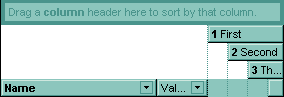
The SortBarCaption property may include built-in HTML tags like follows:
- <b> ... </b> displays the text in bold
- <i> ... </i> displays the text in italics
- <u> ... </u> underlines the text
-
<s> ... </s>
Strike-through text -
<a id;options> ... </a> displays an anchor element that can be clicked. An anchor is a piece of text or some other object (for example an image) which
marks the beginning and/or the end of a hypertext link.The <a> element is used to mark that piece of text (or inline image), and to give its hypertextual relationship to other documents.
The control fires the AnchorClick(AnchorID, Options) event when the user clicks the anchor element. The FormatAnchor property customizes the visual effect for anchor elements.
The control supports expandable HTML captions feature which allows you to expand(show)/collapse(hide) different information using <a ;exp=> or <a ;e64=> anchor tags. The exp/e64 field of the anchor stores the HTML line/lines to show once the user clicks/collapses/expands the caption.
- exp, stores the plain text to be shown once the user clicks the anchor, such as <a ;exp=show lines>
- e64, encodes in BASE64 the HTML text to be shown once the user clicks the anchor, such as <a ;e64=gA8ABmABnABjABvABshIAOQAEAAHAAGESikWio+ABzABohp3iELABpABuABljYAgRhAEaFsqAAvAEsjUCmUEg0IhUMhUPjQAAEBA>+</a> that displays show lines- in gray when the user clicks the + anchor. The gA8ABmABnABjABvABshIAOQAEAAHAAGESikWio+ABzABohp3iELABpABuABljYAgRhAEaFsqAAvAEsjUCmUEg0IhUMhUPjQAAEBA string encodes the <fgcolor 808080>show lines<a>-</a></fgcolor> The Decode64Text/Encode64Text methods of the eXPrint can be used to decode/encode e64 fields.
Any ex-HTML caption can be transformed to an expandable-caption, by inserting the anchor ex-HTML tag. For instance, <solidline><b>Header</b></solidline><br>Line1<r><a ;exp=show lines>+</a><br>Line2<br>Line3 shows the Header in underlined and bold on the first line and Line1, Line2, Line3 on the rest. The show lines is shown instead of Line1, Line2, Line3 once the user clicks the + sign.
- <font face;size> ... </font> displays portions of text with a different font and/or different size. For instance, the <font Tahoma;12>bit</font> draws the bit text using the Tahoma font, on size 12 pt. If the name of the font is missing, and instead size is present, the current font is used with a different size. For instance, <font ;12>bit</font> displays the bit text using the current font, but with a different size.
- <fgcolor rrggbb> ... </fgcolor> or <fgcolor=rrggbb> ... </fgcolor> displays text with a specified foreground color. The rr/gg/bb represents the red/green/blue values of the color in hexa values.
- <bgcolor rrggbb> ... </bgcolor> or <bgcolor=rrggbb> ... </bgcolor> displays text with a specified background color. The rr/gg/bb represents the red/green/blue values of the color in hexa values.
- <solidline rrggbb> ... </solidline> or <solidline=rrggbb> ... </solidline> draws a solid-line on the bottom side of the current text-line, of specified RGB color. The <solidline> ... </solidline> draws a black solid-line on the bottom side of the current text-line. The rr/gg/bb represents the red/green/blue values of the color in hexa values.
- <dotline rrggbb> ... </dotline> or <dotline=rrggbb> ... </dotline> draws a dot-line on the bottom side of the current text-line, of specified RGB color. The <dotline> ... </dotline> draws a black dot-line on the bottom side of the current text-line. The rr/gg/bb represents the red/green/blue values of the color in hexa values.
- <upline> ... </upline> draws the line on the top side of the current text-line (requires <solidline> or <dotline>).
- <r> right aligns the text
- <c> centers the text
- <br> forces a line-break
- <img>number[:width]</img> inserts an icon inside the text. The number indicates the index of the icon being inserted. Use the Images method to assign a list of icons to your chart. The last 7 bits in the high significant byte of the number expression indicates the identifier of the skin being used to paint the object. Use the Add method to add new skins to the control. If you need to remove the skin appearance from a part of the control you need to reset the last 7 bits in the high significant byte of the color being applied to the part. The width is optional and indicates the width of the icon being inserted. Using the width option you can overwrite multiple icons getting a nice effect. By default, if the width field is missing, the width is 18 pixels.
- <img>key[:width]</img> inserts a custom size picture into the text being previously loaded using the HTMLPicture property. The Key parameter indicates the key of the picture being displayed. The Width parameter indicates a custom size, if you require to stretch the picture, else the original size of the picture is used.
- & glyph characters as & ( & ), < ( < ), > ( > ), &qout; ( " ) and &#number; ( the character with specified code ), For instance, the € displays the EUR character. The & ampersand is only recognized as markup when it is followed by a known letter or a #character and a digit. For instance if you want to display <b>bold</b> in HTML caption you can use <b>bold</b>
- <off offset> ... </off> defines the vertical offset to display the text/element. The offset parameter defines the offset to display the element. This tag is inheritable, so the offset is keep while the associated </off> tag is found. You can use the <off offset> HTML tag in combination with the <font face;size> to define a smaller or a larger font to be displayed. For instance: Text with <font ;7><off 6>subscript displays the text such as: Text with subscript The Text with <font ;7><off -6>superscript displays the text such as: Text with subscript
- <gra rrggbb;mode;blend> ... </gra> defines a gradient text.
The text color or <fgcolor> defines the starting gradient color, while
the rr/gg/bb represents the red/green/blue values of the ending color, 808080 if missing as
gray. The mode is a value between 0 and 4, 1 if missing, and blend could be 0 or 1, 0 if missing.
The <font> HTML tag can be used to define the height of the font. Any
of the rrggbb, mode or blend field may not be specified. The <gra>
with no fields, shows a vertical gradient color from the current text color
to gray (808080). For
instance the <font ;18><gra FFFFFF;1;1>gradient-center</gra></font>
generates the following picture:

- <out rrggbb;width> ... </out> shows the text with outlined characters,
where rr/gg/bb represents the red/green/blue values of the outline color, 808080 if missing as gray, width indicates the size of
the outline, 1 if missing. The text color or <fgcolor> defines the
color to show the inside text. The <font> HTML tag can be used to
define the height of the font. For
instance the <font ;31><out 000000><fgcolor=FFFFFF>outlined</fgcolor></out></font>
generates the following picture:

- <sha rrggbb;width;offset> ... </sha> define a text with a shadow,
where rr/gg/bb represents the red/green/blue values of the shadow color, 808080 if missing as gray, width indicates the size of shadow, 4 if missing, and offset indicates the offset from the origin to display the text's shadow, 2 if missing.
The text color or <fgcolor> defines the color to show the inside text.
The <font> HTML tag can be used to define the height of the font.
For
instance the <font ;31><sha>shadow</sha></font>
generates the following picture:

or <font ;31><sha 404040;5;0><fgcolor=FFFFFF>outline anti-aliasing</fgcolor></sha></font> gets: